Excel Formulas Fundamentals
Excel Basics
Getting Started with Excel
Microsoft Excel is a spreadsheet application. That’s a simple description for a powerful tool that helps organize, calculate, and analyze data. At its heart, Excel is a grid of rows and columns. You can put numbers, text, and formulas into the cells of this grid to track everything from a monthly budget to company-wide sales data.
Excel is a spreadsheet application.
Before you can dive into complex analysis, you need to get comfortable with the basics. Let's start with the layout of the program and how to handle its files.
The Excel Interface
When you open Excel, you'll see a few key components. The large grid area is the worksheet, where you'll do most of your work. It's made up of columns, identified by letters (A, B, C), and rows, identified by numbers (1, 2, 3).
The intersection of a column and a row is a cell. Each cell has a unique address, like A1, B3, or C18. This is how you reference specific data points.
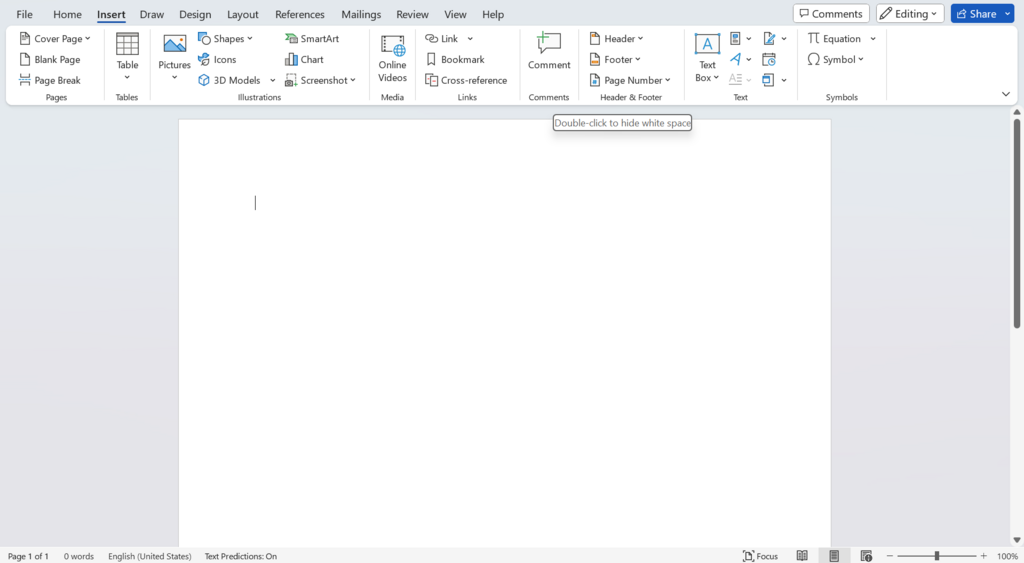
Above the worksheet is the Ribbon. This is the main toolbar, organized into tabs like Home, Insert, and Page Layout. Each tab contains groups of related commands. The Formula Bar, located just below the Ribbon, shows the contents of the currently selected cell. This is useful for seeing long text entries or the underlying formula in a cell.
Workbooks and Worksheets
An entire Excel file is called a workbook. When you save your work, you are saving the workbook file, which typically has an .xlsx extension.
A workbook can contain one or more worksheets, which you can see as tabs at the bottom-left of the window. You can switch between worksheets by clicking on their tabs.
Think of a workbook as a notebook, and each worksheet as a page inside it.
Managing worksheets is straightforward. You can add a new worksheet by clicking the plus (+) icon next to the existing tabs. To rename a worksheet, just double-click its tab, type a new name, and press Enter. If you need to remove a worksheet, right-click its tab and select Delete.
Entering and Formatting Data
Adding data is as simple as clicking a cell and typing. When you're done, press Enter to move to the cell below, or Tab to move to the cell to the right. This makes it easy to enter rows or columns of data quickly.
Once your data is in, you can format it to make it more readable. The Home tab on the Ribbon has all the tools you need for basic formatting. You can change the font style, size, and color, just like in a word processor. You can also make text bold, italic, or underlined.

For numerical data, you can apply specific formats. In the Number group on the Home tab, you can format numbers as currency (like $12.99), percentages (50%), or dates (10/15/2023). You can also control the number of decimal places shown.
Changing a cell's background color (fill color) or adding borders can help organize your data visually, making your spreadsheet easier to navigate and understand.
Now, let's test your understanding of these fundamental concepts.
What is an entire Excel file called?
What is the intersection of a column and a row called?
With these basics, you have a solid foundation for working with Excel. You can create organized spreadsheets, enter data efficiently, and apply formatting to make your information clear and professional.