Excel for Private Equity Mastery
Excel Fundamentals
Getting Around the Spreadsheet
Think of an Excel spreadsheet, also known as a worksheet, as a giant grid. Each box in the grid is called a cell. Every cell has a unique address, which is a combination of its column letter and row number, like A1, B2, or C20.
Columns are vertical (A, B, C...) and rows are horizontal (1, 2, 3...).
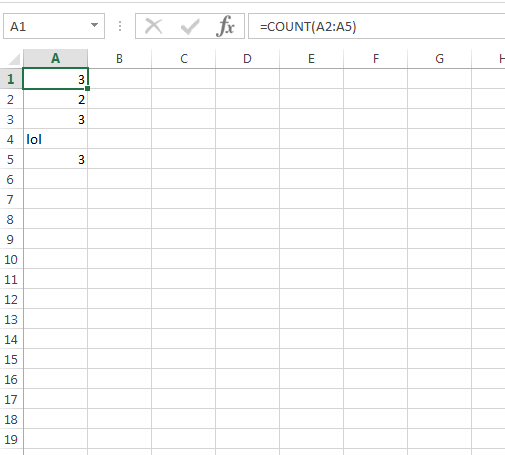
You can type numbers, text, or formulas directly into any cell. The Formula Bar, located right above the column letters, shows the actual content of the selected cell. This is handy because a cell might display a calculated number (like 42), but the formula bar will show you the calculation that produced it (like ).
The Ribbon at the top of the screen contains all the tools and commands, organized into tabs like 'Home,' 'Insert,' and 'Data.' For now, we'll mostly use the 'Home' tab for basic formatting.
Entering and Formatting Data
Entering data is as simple as clicking a cell and typing. Once you've entered data, you can make it easier to read. Select a cell or a range of cells, then use the tools in the 'Home' tab to:
- Make text bold or italicized.
- Change the background color of a cell to highlight it.
- Format numbers as currency (e.g., $100.50), percentages (50%), or dates (01/15/2024).
Good formatting makes your spreadsheet professional and easy to understand at a glance. It’s not just about looks; it’s about clarity.
Your First Formulas
The real power of Excel comes from its ability to perform calculations automatically using formulas. Every formula in Excel starts with an equals sign ().
Excel's formulas and functions are the backbone of its powerful data analysis abilities.
Let's look at three essential functions you'll use constantly. A function is just a pre-built formula that simplifies a common calculation.
SUM: Adding Things Up
The SUM function adds together all the numbers in a range of cells. Instead of typing , you can simply use:
=SUM(A1:A4)
AVERAGE: Finding the Middle Ground
Similarly, the AVERAGE function calculates the average of the numbers in a range.
=AVERAGE(B1:B10)
IF: Making Decisions
The IF function is a bit different. It checks whether a condition is true, and then returns one value if it's true and another value if it's false. It follows this structure: IF(logical_test, value_if_true, value_if_false).
For example, imagine cell C2 contains a sales figure. We want to know if the salesperson earned a bonus by exceeding $5,000 in sales.
=IF(C2>5000, "Bonus", "No Bonus")
This formula checks if the value in C2 is greater than 5000. If it is, the cell will display "Bonus". If not, it will display "No Bonus".
Keeping Your Data Clean
Mistakes in data entry can ruin your analysis. Excel has tools to help prevent them.
Data Validation lets you control what can be entered into a cell. For example, you can create a dropdown list of choices (like 'North', 'South', 'East', 'West' for a region column) or restrict a cell to only accept whole numbers between 1 and 100. This is a powerful way to reduce typos and ensure consistency.
Error Checking is also crucial. Sometimes your formulas will 'break' and show an error message. Don't panic! These are clues to help you fix the problem. Common errors include:
#DIV/0!: You tried to divide a number by zero. Check your formula to make sure the divisor isn't blank or zero.#NAME?: Excel doesn't recognize the text in your formula. You probably have a typo in a function name (e.g.,AVREAGEinstead ofAVERAGE).#VALUE!: The formula has the wrong type of data. For instance, you tried to add a number to a cell that contains text.
Recognizing these errors is the first step to troubleshooting your worksheet and ensuring your calculations are accurate.
Time to check what you've learned.
What is the primary purpose of the Formula Bar in Excel?
Which of the following is the correct way to add all the numbers in the range of cells from A1 to A5?
With these fundamentals, you have a solid base for using Excel to organize and analyze financial data. Mastering these basics will make learning more advanced techniques much easier.