Excel for Physical Education
Excel Basics
The Excel Workspace
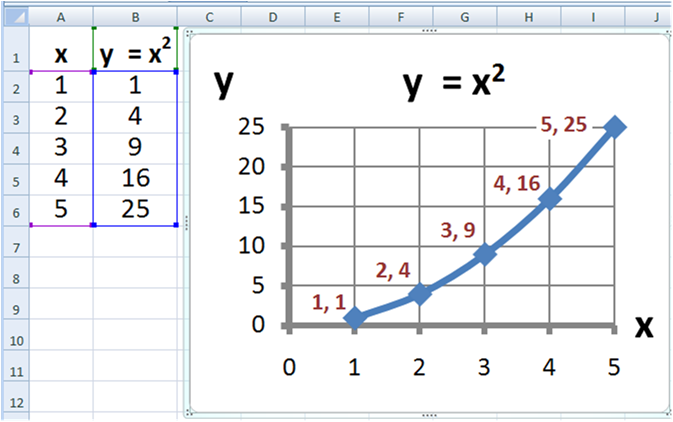
Think of an Excel workbook as a digital binder. Each tab at the bottom is a new page, called a worksheet. The worksheet itself is a grid made of columns (labeled A, B, C...) and rows (labeled 1, 2, 3...). The box where a column and row intersect is called a cell. Each cell has a unique address, like A1 or C5.
At the top of the screen is the Ribbon, which contains all the tools and features organized into tabs like 'Home', 'Insert', and 'Formulas'. Just below the Ribbon is the Formula Bar. This bar shows you the contents of the currently selected cell and is where you'll edit data and write formulas.
Creating and Saving Workbooks
To start a new workbook, simply open the Excel application. It usually opens a blank workbook by default. If not, go to 'File' in the top-left corner and select 'New'.
Saving your work is critical. Go to 'File' and choose 'Save As'. Give your file a descriptive name, like "Fall Semester Fitness Scores," and choose where to save it on your computer. Excel files are saved with an .xlsx extension. It's a good habit to save your work frequently.
Entering and Formatting Data
Putting information into Excel is as simple as clicking on a cell and typing. You can enter text, numbers, or dates. Press 'Enter' to move to the cell below, or 'Tab' to move to the cell to the right.
Once you have data, you can make it easier to read. The 'Home' tab on the Ribbon has all the basic formatting tools you need. You can make text bold, italicized, or change its font and size. You can also change the background color of cells to highlight important information, like a student's personal best.
For example, list student names in column A and their mile run times in column B. Make the header row bold so it stands out.
Introduction to Formulas
Formulas are what make spreadsheets so powerful. They allow Excel to perform calculations for you. All formulas start with an equals sign (=). You can perform simple arithmetic by referencing the cells containing the numbers.
For instance, to add the numbers in cells B2 and B3, you would type this into another cell:
=B2+B3
Excel also has built-in functions that simplify common calculations. Let's say you've recorded the number of push-ups for three students in cells B2, B3, and B4. To find the total, you could use the SUM function.
=SUM(B2:B4)
The colon (:) tells Excel to include all the cells from B2 to B4. To find the average number of push-ups, you'd use the AVERAGE function.
=AVERAGE(B2:B4)
When you change a number in one of the referenced cells, the formula's result will update automatically. This is a huge time-saver for tracking student progress.
Ready to test your knowledge? Let's try a few questions on these basics.
What is the intersection of a column and a row in an Excel worksheet called?
Which of the following is the correct file extension for a standard Excel workbook?
With these fundamentals, you're ready to start organizing your class data. Practice by creating a simple roster or tracking sheet for an activity.