Excel for Ecological Data Analysis
Excel Basics
The Excel Workspace
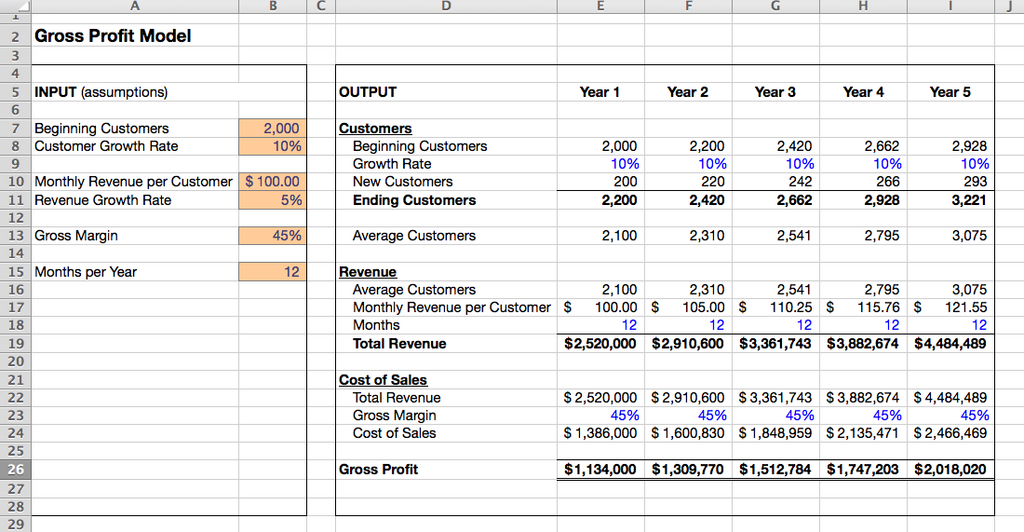
Microsoft Excel is a tool for organizing and analyzing information. It looks like a grid, which is made up of columns (labeled with letters A, B, C...) and rows (labeled with numbers 1, 2, 3...). The box where a column and row intersect is called a cell. Each cell has a unique address, like A1, B2, or C15. This address is how you refer to a specific piece of data.
At the top of the screen is the Ribbon, which holds all of Excel's tools. It’s organized into tabs like Home, Insert, Formulas, and Data. For now, we'll spend most of our time on the Home tab. It contains the most common tools for formatting text and cells, like changing fonts, applying bold or italics, and adjusting alignment.
Entering and Formatting Data
To enter data, just click on a cell and start typing. You can input text, numbers, dates, or currencies. Once you're done, press Enter to move to the cell below or Tab to move to the cell to the right.
Notice how Excel treats different data types. By default, it aligns text to the left of the cell and numbers to the right. This small detail helps you quickly see what kind of information is in a cell.
Raw data can be hard to read. Basic formatting makes your spreadsheet clearer. On the Home tab, you'll find options to make your text bold, italicized, or change its color. You can also change the background color of a cell to make important information stand out.
Formulas and Cell References
Excel's real power comes from formulas. Formulas let you perform calculations on your data automatically. Every formula in Excel starts with an equals sign (=).
You can perform simple arithmetic right in a cell. For example, typing =5+3 into a cell and pressing Enter will display the result, 8. But the magic happens when you use cell references. Instead of typing the numbers directly, you refer to the cells containing the numbers.
| Operator | Name | Example | Result |
|---|---|---|---|
| + | Addition | =A1+B1 | Adds the values in A1 and B1 |
| - | Subtraction | =A1-B1 | Subtracts the value in B1 from A1 |
| * | Multiplication | =A1*B1 | Multiplies the values in A1 and B1 |
| / | Division | =A1/B1 | Divides the value in A1 by B1 |
When you use a cell address like A1 in a formula, you're creating a relative reference. If you copy this formula to another cell, the reference will automatically adjust. For instance, if you copy =A1+B1 from cell C1 down to C2, the formula in C2 will become =A2+B2.
Sometimes you don't want a reference to change when you copy it. This is where absolute references come in. By adding a dollar sign ($) before the column letter and/or row number, you lock it in place. For example, \$A\$1 will always refer to cell A1, no matter where you copy the formula. \$A1 locks the column but lets the row change, while A\$1 locks the row but lets the column change.
Imagine you have a sales tax rate in cell E1 that you need to use for calculations across 100 different rows. Instead of typing the rate into every formula, you can use an absolute reference:
price * 💲E💲1. When you copy this formula down, the price cell will update for each row, but the reference to the tax rate in E1 will stay the same.
Mastering the difference between relative and absolute references is a fundamental step toward using Excel efficiently. It saves time and prevents common errors in your calculations.
Ready to test your knowledge? Let's see what you've learned about the basics of Excel.
What is the intersection of a column and a row in an Excel worksheet called?
Which symbol must every formula in Excel begin with?
These building blocks are the foundation for everything you'll do in Excel. With a good handle on the interface, data entry, and basic formulas, you're ready to tackle more complex tasks.