Excel for Data Analysts
Excel Basics
The Lay of the Land
Opening Excel for the first time reveals a grid of boxes. This grid is your digital canvas, called a worksheet. Each box is a cell, and each cell has a unique address, like A1, B2, or C3. The letters label the columns, and the numbers label the rows.
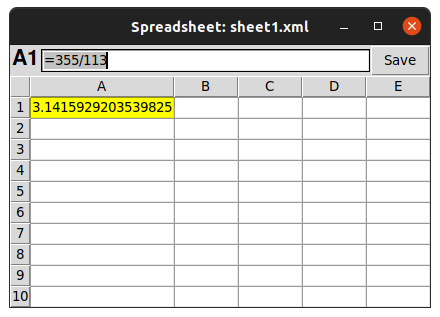
At the top of the screen is the ribbon, a collection of toolbars organized into tabs like 'Home,' 'Insert,' and 'Data.' This is where you'll find most of the tools you need. Just below the ribbon is the formula bar. This bar shows the actual content of the selected cell, which is especially useful when a cell contains a formula but displays a calculated result.
A single Excel file is called a workbook. A workbook can hold multiple worksheets, which you can navigate using the tabs at the bottom of the screen. You can add, rename, or delete sheets to organize your work.
Entering and Formatting Data
Getting data into Excel is as simple as clicking a cell and typing. You can enter text, numbers, dates, or currencies. Once your data is in, you can make it easier to read.
The 'Home' tab on the ribbon has all the basic formatting tools. You can change the font, make text bold or italic, adjust alignment, and change the color of the text or the cell's background. These tools work just like they do in a word processor.
| Formatting | What It Does |
|---|---|
| Bold / Italic / Underline | Emphasizes text. |
| Font Size & Color | Changes the appearance of text. |
| Fill Color | Changes the background color of a cell. |
| Alignment | Positions text within a cell (left, center, right). |
Formatting helps you organize your sheet visually. For example, you can make headers bold and give them a colored background to distinguish them from your data.
Making Excel Do the Work
Excel's real power comes from its ability to perform calculations. You can tell Excel to calculate something by starting your entry with an equals sign (=). This signals that you're entering a formula, not just plain text or a number.
You can perform basic math right in a cell. For example, typing
=5+3into a cell and pressing Enter will display the result, 8.
You can also refer to other cells in your formulas. If cell A1 contains the number 10 and cell B1 contains 20, you could type =A1+B1 into cell C1. Cell C1 would then display 30. The best part is that if you change the value in A1 or B1, the result in C1 updates automatically.
Simple Functions
Beyond basic arithmetic, Excel has hundreds of built-in functions that perform specific calculations. A function is just a pre-made formula. You use them by typing the function name followed by the data it needs in parentheses.
Function
noun
A predefined formula in Excel that performs a specific calculation.
Let's look at three of the most common functions. Imagine you have a list of numbers in cells A1 through A5.
| Function | Example | What It Does |
|---|---|---|
SUM | =SUM(A1:A5) | Adds all the numbers in the range. |
AVERAGE | =AVERAGE(A1:A5) | Calculates the average of the numbers. |
COUNT | =COUNT(A1:A5) | Counts how many cells in the range contain numbers. |
The colon (:) in A1:A5 tells Excel to include all the cells from A1 down to A5. This is called a range. Using functions and ranges saves you from having to type out long formulas like =A1+A2+A3+A4+A5.
In Excel, what does the 'B' in the cell address 'B5' represent?
If cell C1 contains the formula =A1+B1 and displays the number 30, what will you see in the formula bar when you select cell C1?