Excel for Beginner Data Handling
Excel Basics
The Excel Workspace
When you first open Excel, you're looking at a workbook. Think of a workbook as a digital binder. Inside this binder are individual pages called worksheets, or just sheets. You can see tabs for these sheets at the bottom-left of the screen, usually starting with "Sheet1".
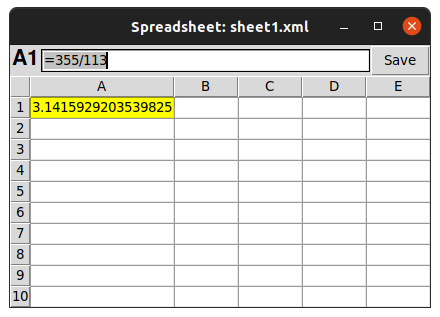
Each sheet is a grid of columns (labeled A, B, C...) and rows (labeled 1, 2, 3...). The box where a column and row intersect is called a cell. Every cell has a unique address, like A1, B2, or C15. The currently selected cell is called the active cell, and it's highlighted with a border.
Above the grid, you'll find a few key areas:
- Formula Bar: This bar shows the contents of the active cell. If you have a formula in a cell, you'll see the formula here, while the cell itself shows the result.
- The Ribbon: This is the big toolbar at the top with tabs like "Home," "Insert," and "Page Layout." Each tab organizes related commands and features into groups.
- Quick Access Toolbar: Located at the very top-left, this small toolbar holds common commands like Save, Undo, and Redo. You can customize it to add your favorite buttons.
Moving Around
Navigating through a worksheet is simple. You can click any cell to make it active, or you can use the arrow keys on your keyboard to move one cell at a time in any direction.
To move between different worksheets in your workbook, just click on the sheet tabs at the bottom. You can have many sheets in one workbook, which is great for organizing different sets of related data, like monthly sales figures or student grades for different subjects.
Pro tip: Hold down the
Ctrlkey while pressing an arrow key to jump to the edge of your data in that direction. It's much faster than holding down the arrow key.
Entering and Editing Data
To enter data, simply click a cell and start typing. When you're done, press Enter to move to the cell below, or Tab to move to the cell to the right. Excel automatically recognizes whether you're typing text or numbers.
Need to make a change? You have a few options for editing the contents of a cell:
- Double-click the cell. This places your cursor directly in the cell for editing.
- Select the cell and press
F2. This works just like double-clicking. - Select the cell and type in the Formula Bar. This is useful for longer entries or formulas.
If you want to delete the contents of a cell or a range of selected cells, just press the Delete key. This clears the data but leaves the cell's formatting intact. If you make a mistake, don't worry. You can almost always undo your last action by pressing Ctrl+Z.
Essential Keyboard Shortcuts
Using keyboard shortcuts can make you much more efficient in Excel. Here are a few fundamental ones to get you started.
| Shortcut | Action |
|---|---|
Ctrl + C | Copy the selected cell(s). |
Ctrl + V | Paste the copied cell(s). |
Ctrl + X | Cut the selected cell(s). |
Ctrl + Z | Undo the last action. |
Ctrl + S | Save the current workbook. |
Ctrl + Arrow Key | Jump to the last cell with data in that direction. |
Shift + Arrow Key | Extend the current selection by one cell. |
Getting comfortable with these basics is the first step to becoming proficient with Excel. Now, let's see what you've learned.
What is the primary file you open and work with in Excel, which acts as a container for all your data, charts, and individual sheets?
If cell C5 contains the formula $$=10*2$$, what will you see in the Formula Bar when you select cell C5?
Practice these simple actions, and you'll build a solid foundation for handling data and unlocking more of Excel's power.