Excel for Basic Reporting and Charts
Excel Basics
Getting to Know the Workspace
At its heart, Excel is a grid of boxes, called cells. Each cell has a unique address, like a street address, based on its column and row. Columns are the vertical stacks labeled with letters (A, B, C), and rows are the horizontal lines labeled with numbers (1, 2, 3).
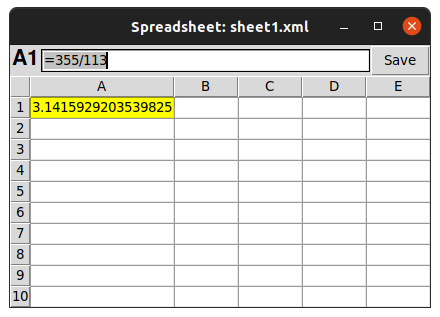
The cell where column A and row 1 intersect is called A1. The cell to its right is B1, and the cell below it is A2. This grid system makes it easy to organize and locate information.
This entire grid is called a worksheet, or just a sheet. You can have multiple sheets in a single Excel file, which is called a workbook. You can switch between sheets using the tabs at the bottom-left of the screen.
Think of a workbook as a binder and each worksheet as a page inside it. You can have separate pages for a monthly budget, a project timeline, and a contact list, all neatly organized in one file.
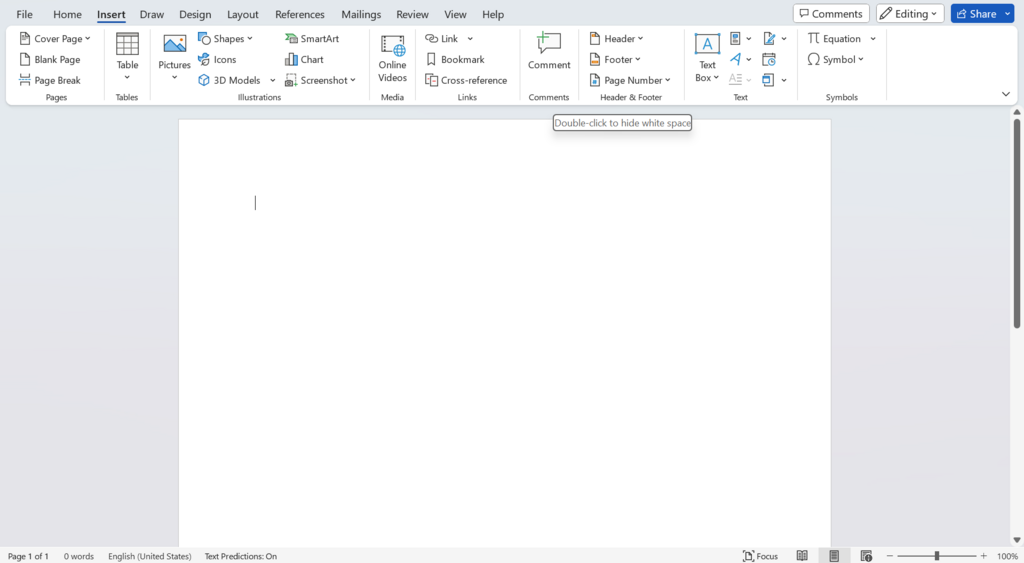
Above the main grid, you'll find the Ribbon. This is where all of Excel's tools and features are located. It's organized into tabs like 'Home,' 'Insert,' and 'Page Layout.' Each tab contains groups of related commands. For now, we'll mostly use the 'Home' tab, which has the most common tools for formatting and editing.
Moving Around and Entering Data
Getting around your worksheet is simple. You can click on any cell with your mouse to select it, or you can use the arrow keys on your keyboard to move one cell at a time. The selected cell will have a dark border around it, making it easy to see where you are.
To enter data, just select a cell and start typing. You can type text, numbers, or dates. When you're done, press the Enter key to move down to the cell below, or press the Tab key to move to the cell on the right. This makes entering rows or columns of data quick and efficient.
If you make a mistake, you can either click the cell and retype the entry, or double-click the cell to edit the existing text directly.
Making Your Data Readable
Raw data can be hard to read. Basic formatting helps your spreadsheet look clean and professional, making the information easier to understand at a glance. All the essential formatting tools are on the 'Home' tab of the Ribbon.
You can change the appearance of text to make it stand out. Select a cell or a group of cells, then use the buttons in the 'Font' group to make text bold, italic, or change its color. You can also change the background color of a cell, which is useful for creating headers or highlighting important numbers.
| Formatting Action | Purpose |
|---|---|
| Bold | Makes text thicker for emphasis. |
| Italic | Slants text to draw attention. |
| Fill Color | Changes the background color of a cell. |
| Font Color | Changes the color of the text itself. |
| Alignment | Positions text to the left, center, or right of a cell. |
Adjusting text alignment is another simple way to improve organization. By default, text lines up on the left and numbers on the right. Using the alignment buttons in the 'Alignment' group, you can center your column titles or adjust positioning for a cleaner look.
What is the unique address of a cell in Excel based on?
A single Excel file, which can contain one or more sheets, is called a...
With these basics, you're ready to start organizing information in Excel. You can navigate the workspace, enter data, and apply simple formatting to make it clear and readable.