Excel File Fundamentals
Excel Basics
Your First Look at Excel
At its heart, Microsoft Excel is a powerful tool for organizing and analyzing information. Think of it as a digital ledger or a massive grid where you can store data, from a simple grocery list to complex financial models. The main file you work with is called a workbook, and each workbook can contain one or more pages, called worksheets or sheets.
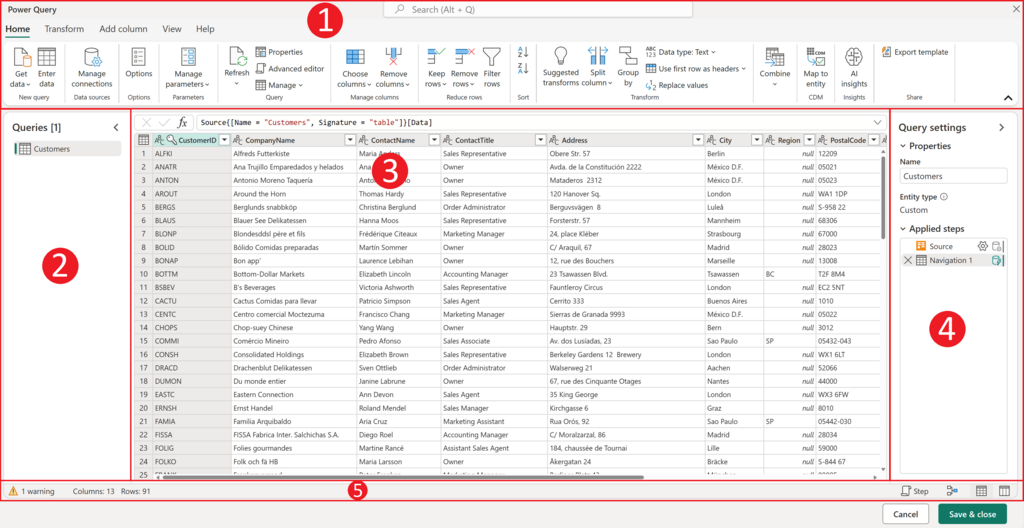
When you open Excel, you'll see a few key areas. At the top is the Ribbon, which contains tabs like 'Home', 'Insert', and 'Data'. Each tab holds groups of related commands. This is where you'll find most of the tools you need, from formatting text to creating charts.
The main part of the screen is the worksheet itself, a grid of columns and rows. Columns are labeled with letters (A, B, C...) and rows are labeled with numbers (1, 2, 3...). The box where a column and row intersect is called a cell. Each cell has a unique address, like A1, B2, or C20. This is how you reference specific locations in your sheet.
Just above the column letters, you'll find the Formula Bar. This bar displays the contents of the currently selected cell. It’s also where you'll edit data or write formulas later on.
Moving and Selecting
Getting around a worksheet is straightforward. You can click any cell to select it, or use the arrow keys on your keyboard to move one cell at a time. The selected cell will have a green border around it.
If your workbook has multiple sheets, you'll see tabs for them at the bottom-left. Just click a tab to switch to that sheet. You can also add a new sheet by clicking the plus (+) icon next to the sheet tabs.
To select a block of cells, known as a range, click one cell, hold the mouse button down, and drag to highlight the area you need. A range is written with a colon, like A1:C5, which means all the cells from A1 through C5.
You can also select an entire column or row in one go. Click the column letter (like 'A') to highlight the whole column, or click the row number (like '1') to highlight the entire row. This is useful for applying formatting to large sections of your data at once.
Entering Your First Data
Putting data into Excel is easy. Just click a cell and start typing. What you type will appear in both the cell and the Formula Bar. When you're done, press Enter to confirm the entry and move to the cell below, or press Tab to move to the cell to the right.
Excel recognizes different types of data. You can enter text, numbers, dates, or times. For now, we'll stick to the basics of text and numbers.
| Step | Action |
|---|---|
| 1. | Click on cell A1. |
| 2. | Type Product and press Enter. |
| 3. | The selection moves to A2. Type Apples and press Enter. |
| 4. | Now, click on cell B1. |
| 5. | Type Quantity and press Enter. |
| 6. | In cell B2, type 10 and press Enter. |
You've just created a simple table with headers and data. If you make a mistake, just click the cell and retype the correct information. You can also edit the contents of a cell by double-clicking it or by selecting it and then clicking inside the Formula Bar.
In Microsoft Excel, what is the main file you work with called, which can contain one or more individual sheets?
What is the unique address of the cell located at the intersection of column D and row 5?