Excel Essentials
Excel Interface
Your Digital Spreadsheet
Opening Excel for the first time can feel like stepping into the cockpit of an airplane. There are buttons, menus, and a vast grid of cells. But just like a cockpit, every element has a purpose, and once you know the layout, navigating becomes second nature.
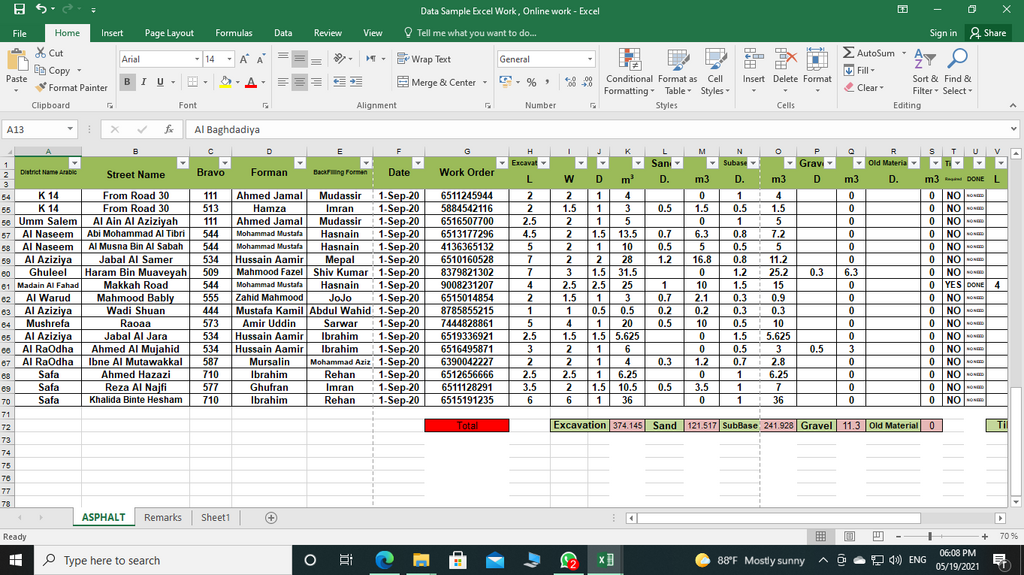
Let's start with the big picture. The main components you'll interact with are the Ribbon at the top, the Quick Access Toolbar just above it, the Formula Bar below the Ribbon, and the Status Bar at the very bottom. These are your primary tools for telling Excel what to do.
The Ribbon Command Center
The Ribbon is the wide band of buttons and icons at the top of the Excel window. It's organized into a series of tabs, like Home, Insert, Page Layout, and Data. Each tab groups related commands together to keep things tidy. You don't need to memorize every button, just know where to look for the tool you need.
The Home tab contains the most common tasks, such as formatting text (bold, italics, font size), aligning content in cells, and cutting, copying, and pasting data. When you want to add something new to your sheet, like a chart, table, or picture, you'll click the Insert tab. Think of the Ribbon as your main toolbox.
You can double-click any tab name (like
HomeorInsert) to collapse the Ribbon, giving you more space to view your spreadsheet. Double-click it again to bring it back.
Toolbars and Bars
Above the Ribbon, usually in the top-left corner, is the Quick Access Toolbar. By default, it holds just a few key buttons: Save, Undo, and Redo. Its purpose is to give you one-click access to your most frequently used commands, no matter which Ribbon tab is currently active. You can easily customize it by adding any command you find yourself using often.
Below the Ribbon is the Formula Bar. This bar is your window into the true contents of a cell. If you click on a cell containing the number 10, the Formula Bar will show 10. But if you click on a cell that shows 10 because it's the result of a formula like $5+5$, the Formula Bar will reveal the formula itself. It’s also where you can type or edit the data or formulas for the selected cell.
Finally, at the very bottom of the window, is the Status Bar. This subtle but useful bar provides quick information about your current selection. For example, if you highlight a few cells with numbers, the Status Bar will automatically show you their sum, count, and average without you having to write a formula. It also houses the zoom controls and different page view options.
Workbooks and Worksheets
In Excel, the entire file you create and save is called a workbook. You can think of a workbook as a digital binder or notebook.
Inside that binder, you have individual pages, which Excel calls worksheets (or just "sheets"). You can see the tabs for each worksheet at the bottom-left of the window, usually starting with Sheet1. You can add new sheets by clicking the plus + icon, rename them by double-clicking the tab name, and reorder them by dragging the tabs around.
This structure is great for organizing related data. You could have one worksheet for January sales, another for February, and a third that summarizes the totals, all within a single "Annual Sales" workbook.
When you're ready to save your work, go to the File tab. This takes you to a different view where you can manage your file. Select Save or Save As. The first time you save a new workbook, you'll need to choose a location on your computer and give it a name. After that, you can just click the Save icon in the Quick Access Toolbar or press Ctrl + S (Cmd + S on a Mac) to quickly save your changes.
Which part of the Excel interface contains tabs like Home, Insert, and Data that group related commands together?
A cell in your worksheet displays the number 50. The value was calculated using the formula =20+30. If you select this cell, what will be displayed in the Formula Bar?
Now that you're familiar with the basic layout, you're ready to start entering and working with data.