Excel Essentials for Data Mastery
Excel Basics
The Lay of the Land
Opening Excel for the first time reveals a grid of boxes. This grid is your workspace, and it’s called a worksheet. Think of it as a limitless digital piece of graph paper.
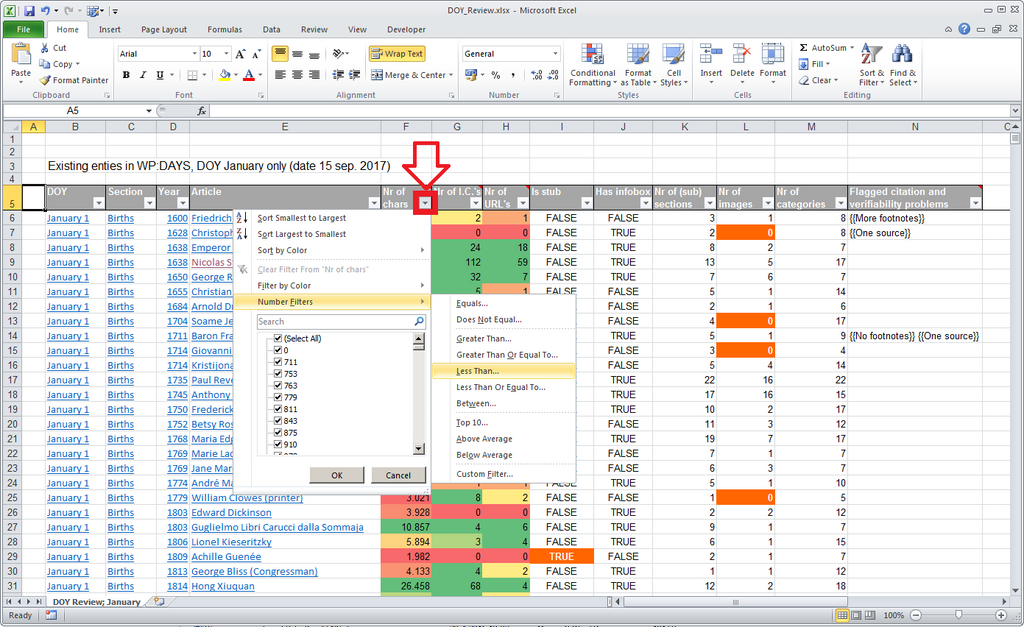
At the top, you'll see a collection of menus and icons called the Ribbon. This is where you'll find all of Excel's tools, grouped into tabs like 'Home,' 'Insert,' and 'Data.' We'll explore these tools later on.
The grid itself is made of columns and rows.
- Columns are vertical and are labeled with letters (A, B, C, ...).
- Rows are horizontal and are labeled with numbers (1, 2, 3, ...).
The box where a column and row intersect is called a cell. Each cell has a unique address, or reference, based on its column letter and row number. For example, the cell in the top-left corner is A1. The cell to its right is B1, and the cell below it is A2.
Moving Around
An Excel file is called a workbook. A workbook is like a binder, and inside it, you can have multiple worksheets. These are represented by tabs at the bottom-left of the screen, usually named 'Sheet1,' 'Sheet2,' and so on. You can switch between them by clicking the tabs, and add a new sheet by clicking the plus (+) icon.
To navigate within a worksheet, you can use your mouse to click on any cell to select it. You can also use the arrow keys on your keyboard to move one cell at a time in any direction. For larger spreadsheets, the scroll bars on the right and bottom of the window help you move through your data quickly.
Entering and Editing Data
Putting information into Excel is straightforward. Just click on a cell and start typing. When you're done, press the Enter key, which confirms the entry and usually moves you to the cell below.
You can enter different types of data into a cell. The most common are text (like names or descriptions), numbers (like quantities or prices), and dates or times. Excel is pretty smart about recognizing what you're typing. For instance, if you type 12/25/2024, it will recognize it as a date.
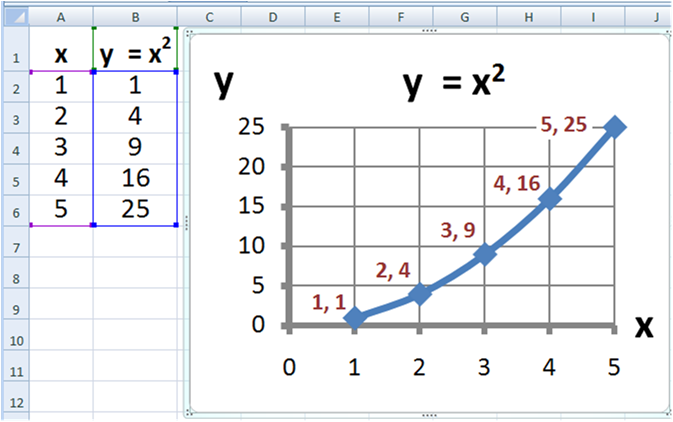
Made a mistake? No problem. Editing data is just as easy. You have two main options to change the contents of a cell:
- Double-click the cell. This places your cursor inside the cell, allowing you to make changes directly.
- Click the cell once, then edit in the Formula Bar. The Formula Bar is the long white bar located just above the column letters. It always shows the contents of the currently selected cell.
Whether you double-click or use the Formula Bar is a matter of personal preference. Both achieve the same result.
Once you're comfortable navigating the grid and entering information, you've mastered the first step. This foundation is all you need to start organizing data and, eventually, perform powerful calculations.