Excel Essentials for Beginners
Excel Interface
The Excel Workspace
Opening a new Excel workbook presents you with a grid of cells, but the real power lies in the controls surrounding it. Let's break down the main parts of the interface. Knowing your way around is the first step to using Excel efficiently.
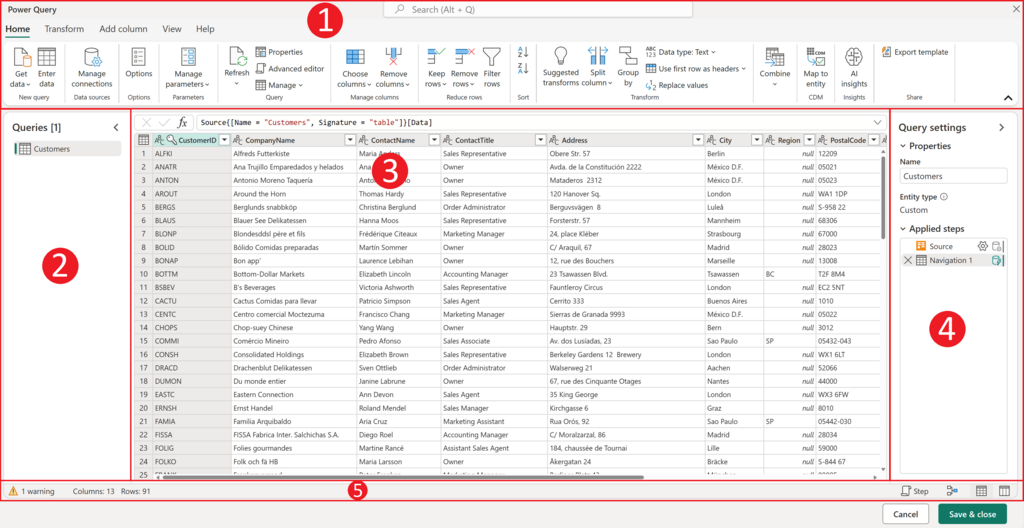
Think of the top section of the window as your command center. It's organized to help you find the tools you need quickly, without having to memorize complex commands.
The Ribbon
The most prominent feature at the top of the Excel window is the Ribbon. It's designed to help you find, understand, and use commands. The Ribbon is organized into a few key parts:
- Tabs: These sit across the top of the Ribbon. Each tab (like Home, Insert, and Formulas) relates to a specific type of activity.
- Groups: Within each tab, related commands are clustered into groups. For example, the Home tab has groups for Font, Alignment, and Number formatting.
- Commands: These are the individual buttons, menus, and input boxes within each group that let you perform specific actions, like making text bold or changing a cell's color.
| Tab | Purpose |
|---|---|
| File | Manages the file itself: open, save, print, and share. |
| Home | Contains the most common formatting and editing commands. |
| Insert | Used to add objects like charts, tables, and pictures. |
| Page Layout | Adjusts print settings, margins, and page orientation. |
| Formulas | Provides access to Excel's library of functions. |
| Data | Includes tools for sorting, filtering, and managing data. |
| Review | Has tools for spell-checking, comments, and worksheet protection. |
| View | Changes how the workbook is displayed on screen. |
Spending a little time clicking through these tabs is a great way to get familiar with where everything is located.
Shortcuts and Formulas
Just above the Ribbon are two smaller, but very important, components: the Quick Access Toolbar and the Formula Bar.
The Quick Access Toolbar is the small collection of icons at the very top left of the window. By default, it includes Save, Undo, and Redo. Its purpose is to give you one-click access to your most frequently used commands, no matter which Ribbon tab is currently selected. You can easily customize it by adding any command you like.
Below the Ribbon, you'll find the Formula Bar. This bar serves two key functions. First, it displays the actual content of the selected cell. If you've typed text or a number, you'll see that content. Second, and more importantly, it's where you enter and edit formulas. When you type a formula like =A1+B2 into a cell, the cell will show the result of the calculation, but the Formula Bar will show the formula itself.
Navigating Your Sheets
An Excel file is called a workbook. A workbook is like a notebook, and inside it, you can have multiple pages, which Excel calls worksheets (or just "sheets"). You navigate between these sheets using the tabs at the bottom-left of the window.
By default, new workbooks start with one sheet, but you can easily add more by clicking the plus (+) icon next to the sheet tabs. You can also rename sheets by double-clicking on their tabs, which is essential for keeping your work organized. For example, you might have separate sheets for January, February, and March sales data all within the same workbook.
Now that you've seen the main components, let's test your knowledge.
In Excel, what is the primary purpose of the Ribbon?
An Excel file is called a workbook, and it can contain multiple pages called ______.
Understanding these four areas—the Ribbon, Quick Access Toolbar, Formula Bar, and Worksheet Tabs—is the foundation for everything else you'll do in Excel.