Excel Essentials for Beginners
Excel Interface
The Lay of the Land
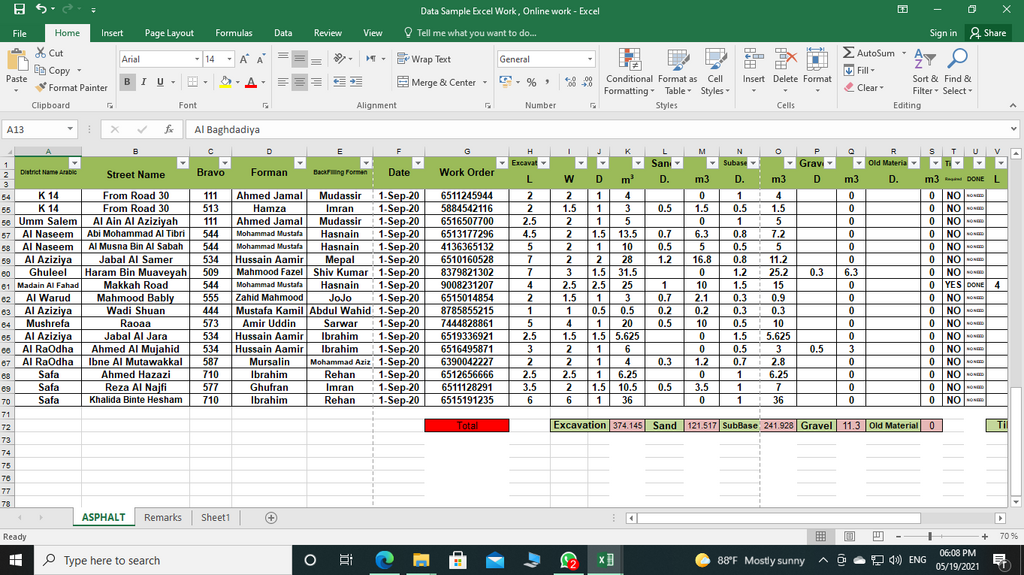
When you first open Excel, you're looking at a workbook. Think of a workbook as a digital binder. Inside this binder are individual pages, called worksheets or just 'sheets'. You can have many sheets in one workbook, and you can switch between them using the tabs at the bottom of the screen.
The main part of the screen is a large grid. This is your active worksheet, where you'll enter data, create charts, and perform calculations. It's the heart of Excel.
Your Command Center
At the top of the screen is a wide band of buttons and menus called the Ribbon. This is your primary toolkit. The Ribbon is organized into tabs, like 'Home', 'Insert', and 'Data'. Each tab groups together related commands. For example, the 'Insert' tab has tools for adding charts, tables, and pictures to your sheet.
Above the Ribbon, you'll find the Quick Access Toolbar. It's a small, customizable toolbar that holds your most frequently used commands, like 'Save' and 'Undo'. You can add any command to it so your favorite tools are always just one click away, no matter which Ribbon tab is active.
Customize your Quick Access Toolbar by right-clicking any command on the Ribbon and selecting 'Add to Quick Access Toolbar'. It's a simple way to make Excel work for you.
The Building Blocks
Every worksheet is a grid made of three basic parts: columns, rows, and cells.
- Columns run vertically and are identified by letters at the top (A, B, C, ...).
- Rows run horizontally and are identified by numbers on the left side (1, 2, 3, ...).
- A Cell is the small rectangle where a row and a column intersect. This is where you enter your information, whether it's text, a number, or a formula.
Each cell has a unique address, or reference, based on its column letter and row number. For example, the cell in the top-left corner is called A1. The cell to its right is B1. This address system is fundamental to how Excel works, especially when you start writing formulas.
| A | B | C | |
|---|---|---|---|
| 1 | Cell A1 | Cell B1 | Cell C1 |
| 2 | Cell A2 | Cell B2 | Cell C2 |
Getting Around
You can move around the worksheet in a few ways. The simplest is to use your mouse to click on any cell, which makes it the active cell. You can also use the arrow keys on your keyboard to move one cell at a time in any direction.
For bigger jumps, use the scroll bars on the right side and bottom of the screen to move up, down, left, or right across your worksheet. If you know the exact address of the cell you want to go to, you can type it into the Name Box, located to the left of the formula bar, and press Enter. This will instantly take you there.
Pro tip: Hold down the
Ctrlkey (orCmdon a Mac) and press an arrow key. Excel will jump to the last cell with data in that direction. It's a fast way to navigate large tables.
Switching between worksheets is as easy as clicking the sheet tabs at the bottom-left of the workbook. To add a new sheet, just click the plus sign (+) next to the tabs.
What is the term for an individual page or sheet within an Excel file?
If you wanted to add a chart to your spreadsheet, which tab on the Ribbon would you look for?
Now that you're familiar with the basic layout, you're ready to start entering and formatting data.