Excel Essentials for Beginners
Excel Interface
Finding Your Way Around
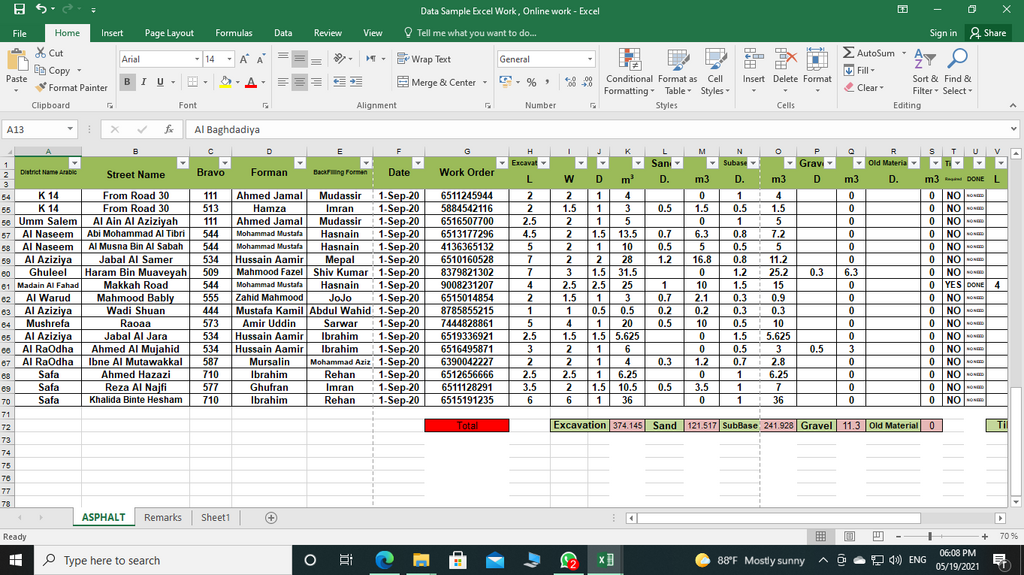
Opening a new Excel workbook for the first time reveals a grid of empty boxes. This is your canvas. At the top, you'll see a collection of menus and buttons. Let's break down what these different parts are and what they do.
The Ribbon
The large area at the top of the screen is called the Ribbon. Think of it as Excel's main command center. It organizes all of Excel's features into a series of tabs, like "Home," "Insert," and "Page Layout."
Each tab is dedicated to a specific type of task. For example, the Home tab contains the most common commands, like changing fonts or aligning text. The Insert tab is for adding things to your sheet, like charts or pictures.
Within each tab, commands are organized into logical groups. On the Home tab, you'll find groups like "Font," "Alignment," and "Number." This structure makes it easier to find the button you need.
Some tabs, called contextual tabs, only appear when you've selected a specific item, like a chart or an image. They provide special tools just for that item and disappear when you select something else.
Quick Access Toolbar
Above the Ribbon, usually in the top-left corner, is the Quick Access Toolbar. It’s a small, customizable space that keeps your most-used commands available, no matter which Ribbon tab is selected.
By default, it holds commands like Save, Undo, and Redo. You can add any command you use frequently.
To customize it, click the small dropdown arrow at the end of the toolbar. A menu will appear with common commands you can add. You can also select "More Commands..." to add any button from the Ribbon.
The Worksheet Area
The main part of the Excel window is the worksheet, which is a grid made of columns and rows. It’s where you'll do all of your work.
Column
noun
A vertical series of cells in a worksheet. Columns are identified by letters (A, B, C, etc.) at the top of the worksheet.
When you reach column Z, Excel continues with AA, AB, and so on.
Row
noun
A horizontal series of cells in a worksheet. Rows are identified by numbers (1, 2, 3, etc.) on the left side of the worksheet.
The intersection of a column and a row is a cell. Each cell has a unique address, or reference, based on its column letter and row number. For example, the cell at the very top left is A1. The cell in column C and row 5 is C5.
You can always see the address of your currently selected cell in the Name Box, which is located just above column A.
With a good grasp of the Ribbon, Quick Access Toolbar, and worksheet structure, you're ready to start navigating Excel with confidence.