Excel Essentials
Excel Basics
The Lay of the Land
Think of Excel as a massive, intelligent grid. It's a digital spreadsheet made up of columns (labeled with letters) and rows (labeled with numbers). Each box where a row and column intersect is called a cell. Every cell has a unique address, like A1, B2, or C19. This is where you'll put your information.
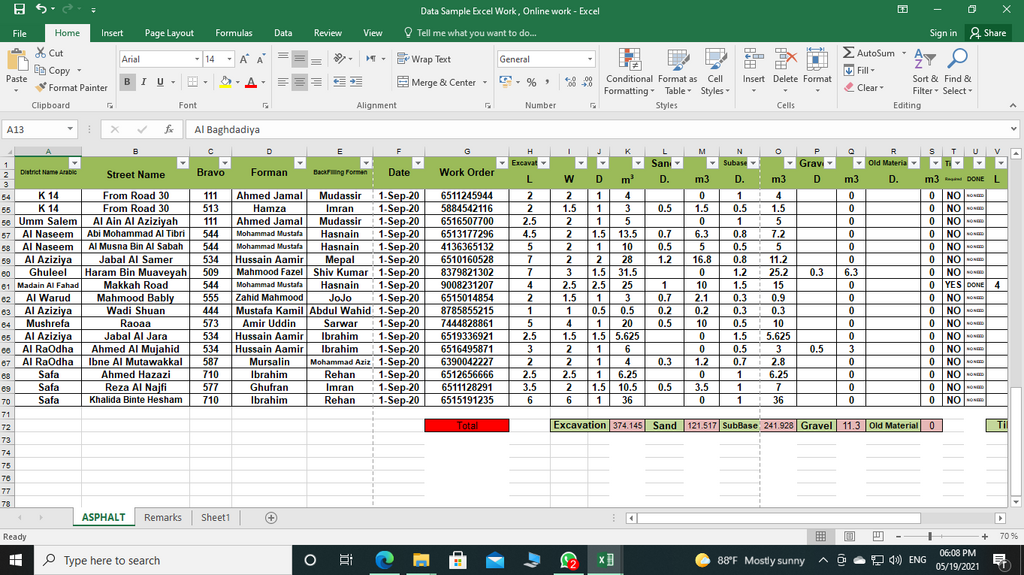
The entire file you're working in is called a workbook. A workbook can hold one or more worksheets, which are like individual pages in a notebook. You can see your worksheets as tabs at the bottom of the screen, often named "Sheet1," "Sheet2," and so on. You can switch between them with a click.
At the top of the screen is the Ribbon. This is your main toolkit, organized into tabs like "Home," "Insert," and "Page Layout." Each tab contains groups of related commands. For example, the Home tab has all your basic formatting tools for changing fonts and colors. Just below the Ribbon is the Formula Bar. This bar shows you the actual content of the selected cell, which is handy when you start working with formulas later on.
Entering and Formatting Data
Getting data into Excel is straightforward. Just click on a cell and start typing. You can enter text, numbers, or dates. When you're done, press Enter to move to the cell below, or Tab to move to the cell to the right. This makes entering rows or columns of data quick and easy.
Use the arrow keys on your keyboard to navigate between cells without needing your mouse. It’s a small trick that saves a lot of time.
Raw data can be hard to read. That's where formatting comes in. Basic formatting helps you organize your sheet and make important information stand out. On the "Home" tab, you'll find the most common tools.
You can make text bold, italicized, or change its color. You can also change the background color of a cell to highlight it. Try selecting a cell or a range of cells and clicking the paint bucket icon to fill them with color. Aligning your text to the left, right, or center of the cell can also make your data much easier to scan.
| Formatting Action | Where to Find It (Home Tab) | What It Does |
|---|---|---|
| Bold, Italic, Underline | Font Group | Emphasizes text |
| Fill Color | Font Group | Changes a cell's background color |
| Font Color | Font Group | Changes the text color |
| Alignment | Alignment Group | Positions text within the cell |
These simple tools are the foundation for creating clean, readable spreadsheets. Now, let's test what you've learned.
What is the correct term for the entire Excel file you are working in?
What is the unique address of the cell at the intersection of column D and row 5?