Excel Essentials
Excel Interface
The Excel Workspace
When you open Microsoft Excel, you're looking at a digital grid called a workbook. This is your main file, and it's made up of individual pages called worksheets. Think of a workbook as a binder and each worksheet as a sheet of paper inside it.
The main command center at the top of the screen is called the Ribbon. It's designed to help you find the commands you need to complete tasks.
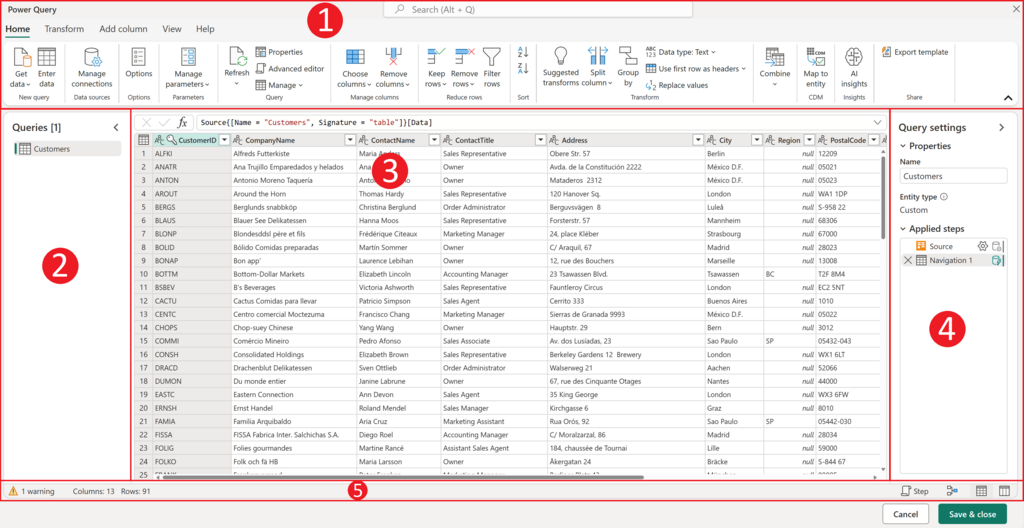
The Ribbon is organized into tabs, like Home, Insert, and Page Layout. Each tab relates to a type of activity, such as formatting text or adding a chart. Within each tab, related commands are clustered into groups. For example, the Home tab has groups for Font, Alignment, and Number formatting.
This structure keeps tools organized and easy to find. You don't need to know what every button does right now, just where to look for them.
Quick Access and Formulas
Above the Ribbon, you'll find a small set of icons. This is the Quick Access Toolbar. Its job is to keep your most-used commands a single click away, no matter which tab you're on. By default, it includes Save, Undo, and Redo.
You can customize the Quick Access Toolbar by clicking the small downward-pointing arrow at the end of it. This lets you add or remove common commands or even add any command from the Ribbon.
Just below the Ribbon is the Formula Bar. This bar has two main purposes. First, it shows you the contents of the currently selected cell. If you've typed text or a number, you'll see it here. Second, if a cell contains a formula, the Formula Bar displays the formula itself, while the cell shows the result.
For instance, if a cell shows the number 10, the Formula Bar might show the formula =5+5. This makes it easy to see and edit the logic behind your calculations without changing the cell's displayed value.
Your Workbook's Foundation
Your work is done on a worksheet, which is the grid of cells that fills most of the screen. A new workbook starts with one worksheet, usually named Sheet1. You can see tabs for each worksheet at the bottom-left of the window.
You can have many worksheets in a single workbook. To add a new one, just click the plus sign (+) next to the existing tabs. To rename a worksheet, double-click its tab and type a new name. This is great for organizing different types of information, like keeping monthly sales figures on separate sheets within the same annual sales workbook.
At the very bottom of the window is the Status Bar. It's more helpful than it looks. By default, it's pretty empty, but if you select a few cells containing numbers, the Status Bar instantly displays useful information about them, like their Average, Count, and Sum. You don't have to write a formula; Excel does the quick math for you.
Like the Quick Access Toolbar, the Status Bar can be customized. Right-click it to see a list of other information you can display, such as the minimum or maximum value in your selection.
In Microsoft Excel, what is the correct relationship between a workbook and a worksheet?
If a cell displays the value 50, but the Formula Bar shows =25*2, what does this indicate?
Now that you're familiar with the layout, you're ready to start entering and working with data.