Excel Essentials
Excel Interface
Getting Around in Excel
When you open Excel, you're looking at a workbook. Think of it like a digital notebook. Each page in this notebook is a worksheet, which you can see as tabs at the bottom. The main part of the worksheet is a grid made of columns (labeled with letters) and rows (labeled with numbers).
The box where a column and row intersect is called a cell. Each cell has a unique address, like A1, B2, or C15. This is where you'll enter your data.
The Command Center
At the top of the screen is the Ribbon. It's your primary tool for working in Excel. The Ribbon is organized into tabs, like Home, Insert, and Page Layout. Each tab contains groups of related commands. For example, the Home tab has a Font group for changing text appearance and an Alignment group for positioning text within a cell.
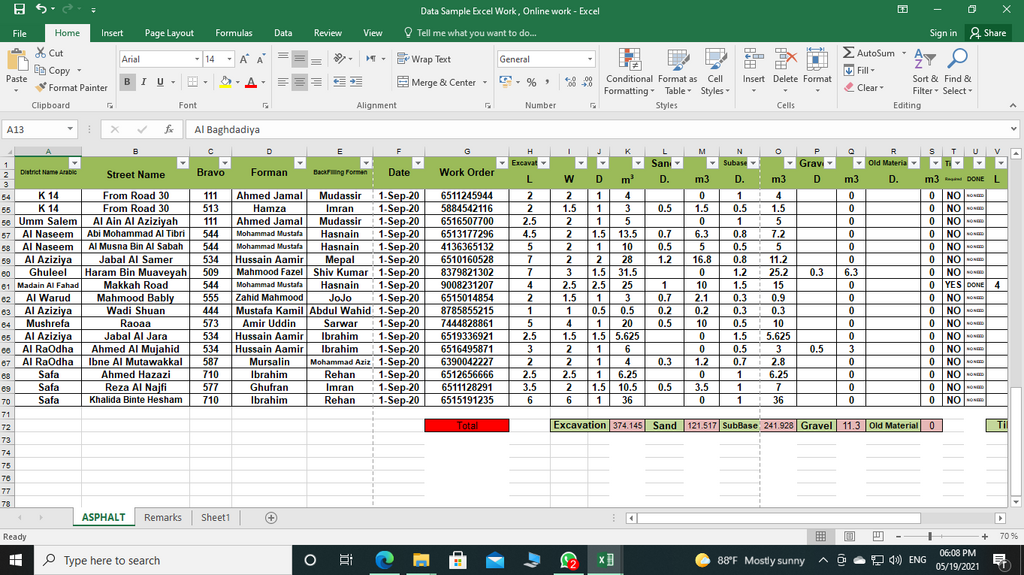
Above the Ribbon, you'll find the Quick Access Toolbar. It's a small, customizable toolbar that holds a set of your most frequently used commands, like Save, Undo, and Redo. You can add any command to it so your favorite tools are always just one click away, no matter which tab you're on.
Moving Through the Grid
Navigating your worksheet is simple. You can click any cell with your mouse to select it, or use the arrow keys on your keyboard to move one cell at a time. The selected cell is called the active cell, and it will have a border around it.
| Action | Keystroke |
|---|---|
| Move one cell up, down, left, or right | Arrow Keys |
| Jump to the edge of the current data region | Ctrl + Arrow Key |
| Go to the beginning of the worksheet (cell A1) | Ctrl + Home |
| Go to the last cell with content | Ctrl + End |
To move between different worksheets in your workbook, just click the sheet tabs at the bottom-left of the screen.
Entering Data
Getting data into your spreadsheet is straightforward. Just select a cell and start typing. What you type appears in both the active cell and the Formula Bar, which is located right above the column letters. When you're done, press Enter to move to the cell below, or Tab to move to the cell to the right. This makes entering rows or columns of data quick and easy.
If you need to edit data that's already in a cell, you can double-click the cell or select it and then click inside the Formula Bar. Pressing F2 on your keyboard also works.
You now know the basic layout of Excel and how to navigate and enter data. With these fundamentals, you're ready to start organizing information.