Excel Essentials
Excel Interface
Getting Around in Excel
Opening Excel for the first time can feel like looking at an airplane cockpit. There are buttons, grids, and tabs everywhere. But once you know what the main parts are, you'll find it's a very organized space. Let's take a tour of the basic layout.
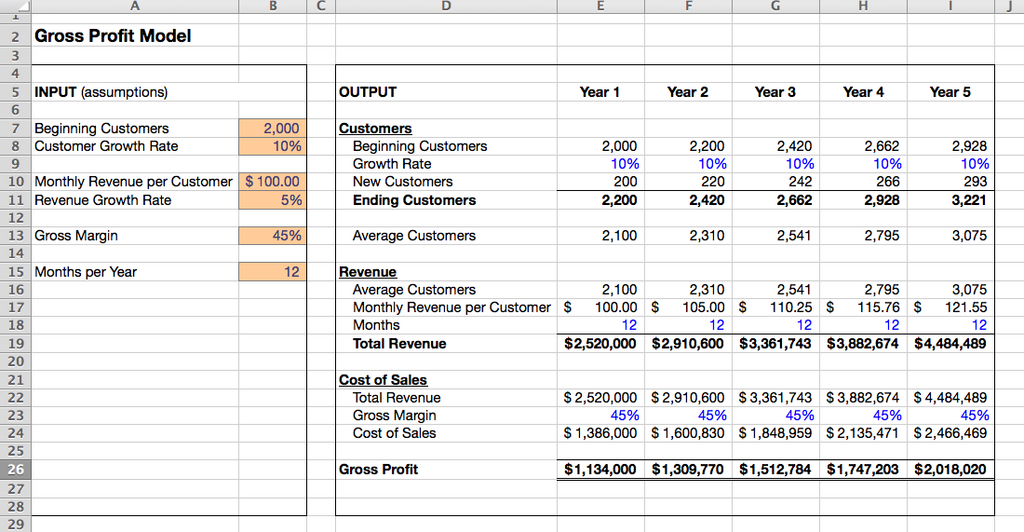
The entire Excel file is called a workbook. A workbook opens with one or more pages, called worksheets (or just "sheets"). Think of it like a digital notebook, where each sheet is a separate page you can work on.
The Ribbon and Toolbars
At the very top of the window is the Ribbon. This is your main command center. The Ribbon is organized into a series of tabs, like 'Home,' 'Insert,' 'Page Layout,' and 'Data.' Clicking a tab changes the set of tools you see.
Each tab contains groups of related commands. For example, the 'Home' tab has groups for 'Font,' 'Alignment,' and 'Number.' This keeps all the text formatting tools together and separate from, say, the chart-making tools you'd find on the 'Insert' tab.
Above the Ribbon, you'll find the Quick Access Toolbar. This small, customizable toolbar is always visible, no matter which tab you're on. By default, it holds commands like Save, Undo, and Redo, but you can add any tool you use frequently.
The Ribbon is designed to put the most common commands right at your fingertips. You'll spend most of your time on the 'Home' tab.
The Worksheet Grid
The biggest part of the Excel window is the worksheet itself, which is a grid of rectangles. This is where you'll enter and work with your data. The grid is made up of three basic components: cells, rows, and columns.
Cell
noun
The basic building block of a worksheet. A cell is a single box in the grid where you can enter data, such as text, numbers, or formulas.
Columns are the vertical lines of cells and are identified by letters at the top (A, B, C, ...). Rows are the horizontal lines of cells and are identified by numbers on the left side (1, 2, 3, ...).
Every cell has a unique address, or reference, based on its column and row. The cell in the top-left corner is A1, the one to its right is B1, and the one below it is A2. The address of the currently selected cell appears in the Name Box, located just above the column headers.
Working with Sheets
At the bottom-left of the Excel window, you'll see tabs with names like 'Sheet1,' 'Sheet2,' etc. These are your worksheets. You can have many sheets within a single workbook, which is useful for organizing related data.
To switch between sheets, just click on the tab you want to view. You can also add a new sheet by clicking the plus (+) icon next to the tabs. To rename a sheet, double-click its tab and type a new name that's more descriptive, like 'January Sales' or 'Contact List'.
Now that you know the basic layout, let's test your knowledge.
What is an entire Excel file called?
Where would you find the main command center, organized into tabs like 'Home', 'Insert', and 'Data'?
Familiarizing yourself with these core components is the first step to becoming comfortable in Excel. In the next section, we'll start entering some data.