Excel Data Cleaning and Extraction
Introduction to Excel Data Cleaning
The Foundation of Good Analysis
Before you can build a house, you need a solid foundation. In data analysis, that foundation is clean data. Raw data, collected from surveys, sales records, or user activity, is almost never perfect. It arrives with all sorts of quirks and errors that can throw off your results. Trying to analyze messy data is like trying to cook with spoiled ingredients; the final dish will be disappointing, no matter how skilled the chef.
Data cleaning is the process of fixing or removing incorrect, corrupted, incorrectly formatted, duplicate, or incomplete data within a dataset.
When you clean your data, you’re not just tidying up. You're ensuring that your conclusions are accurate and trustworthy. A simple miscalculation caused by a stray character or a duplicated entry can lead to poor business decisions. Taking the time to clean your dataset first saves you from headaches and rework later.
Common Data Problems
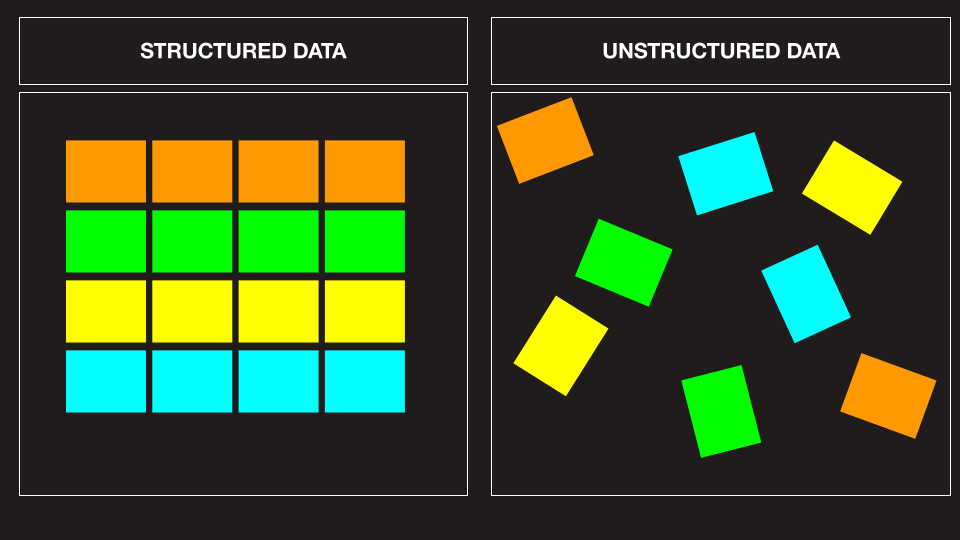
Most datasets have the same few types of problems. Once you learn to spot them, you're halfway to cleaning them up.
Duplicates: This happens when the exact same record appears more than once. If you're counting the number of unique customers, duplicate entries will inflate your numbers and give you a false sense of your customer base.
Missing Values: You'll often find cells that are simply empty. A customer might not have provided their phone number, or a sensor may have failed to record a temperature. These gaps can cause errors in calculations like averages or sums, and you need a strategy to handle them.
Inconsistent Formatting: This is a broad category for many small, frustrating errors. A column for dates might have entries like "10/25/2023", "Oct 25, 2023", and "25-10-23". A computer sees these as three completely different things. Other examples include extra spaces before or after text, or inconsistent capitalization like "Apple" and "apple".
| Messy Data | Clean Data | Issue |
|---|---|---|
Apple | Apple | Leading spaces |
BROOKLYN | Brooklyn | Inconsistent case |
7/4/2024 | 2024-07-04 | Mixed date formats |
N/A | (blank) | Non-standard null value |
John Smith | John Smith | Duplicate entry |
Excel's Cleaning Toolkit
Excel has a powerful set of built-in tools designed to tackle these common data issues. You don't need to be a programmer to use them.
For duplicate entries, the Remove Duplicates feature does exactly what it says, getting rid of entire rows that are identical. The Find and Replace tool is your best friend for correcting widespread inconsistencies, like changing every instance of "USA" to "United States".
To handle formatting, functions like TRIM() remove extra spaces, while PROPER() fixes capitalization. For more complex issues, like splitting a full name from one cell into "First Name" and "Last Name" columns, the Text to Columns feature is incredibly useful. These tools provide a great starting point for turning a messy spreadsheet into a clean, analysis-ready dataset.
Use Data Validation to Avoid Future Errors Prevent messy data by using Excel’s Data Validation tool.
Now, let's check your understanding of these core concepts.
Why is data cleaning considered a critical first step in the data analysis process?
A column in your dataset is supposed to list states, but you find entries like "CA", "ca", and "California". This is an example of what type of data quality issue?
Getting comfortable with these ideas is the first step. By identifying and correcting common errors, you ensure the integrity of your analysis from the very beginning.