Excel Data Cleaning and Extraction
Understanding Excel Basics
Getting Around Excel
At its heart, Microsoft Excel is a spreadsheet program. Think of it as a massive digital grid made of columns and rows. Where a column and a row meet, you have a cell. Each cell has a unique address, like A1, B2, or C15, based on its column letter and row number.
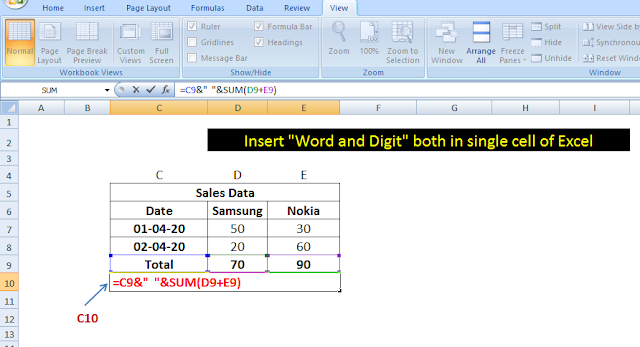
When you open Excel, you'll see a few key areas:
- The Ribbon: This is the toolbar at the top, packed with buttons and commands organized into tabs like 'Home', 'Insert', and 'Formulas'. It's where you'll find most of the tools you need.
- The Formula Bar: Just below the Ribbon, this bar shows the contents of the currently selected cell. If the cell contains a formula, you'll see the formula here, not the result.
- The Grid: This is the main workspace with all the cells. You can have multiple sheets, or worksheets, within a single file, which is called a workbook. You can switch between worksheets using the tabs at the bottom left.
Entering and Formatting Data
Getting data into Excel is as simple as clicking a cell and typing. You can enter text, numbers, dates, or times. After typing, press Enter to move to the cell below, or Tab to move to the cell to the right.
Raw data can be hard to read. That's where formatting comes in. On the 'Home' tab of the Ribbon, you'll find options to make your text bold, change font colors, or fill cells with different background colors. You can also change how numbers are displayed, for instance, by adding currency symbols or decimal places.
Pro tip: If your text is too long for a cell, you can automatically resize the column. Just move your mouse to the line between the column headers (like between A and B) and double-click.
Your First Formulas
The real power of Excel comes from its ability to perform calculations. A formula is an expression that calculates the value of a cell. Every formula in Excel starts with an equals sign (=).
You can perform basic math using standard operators. For example, if you have the number 10 in cell A1 and the number 5 in cell B1, you could type the following formula into cell C1:
Cell C1 would then display the result, 15. The great thing is that if you change the value in A1 or B1, the result in C1 will update automatically.
Excel also has hundreds of built-in formulas called functions, which simplify complex calculations. The most common one is SUM, which adds up a range of numbers. To add the numbers in cells A1 through A10, you would use:
=SUM(A1:A10)
The part in the parentheses, A1:A10, is called a range. The colon indicates you want to include everything from A1 to A10.
Here are a few other essential functions you'll use all the time:
| Function | What it Does |
|---|---|
AVERAGE | Calculates the average of a range |
COUNT | Counts cells with numbers in them |
MAX | Finds the highest value in a range |
MIN | Finds the lowest value in a range |
Now let's review what we've covered.
Ready to test your knowledge?
What is the intersection of a column and a row in an Excel spreadsheet called?
Which symbol must every formula in Excel begin with?
Mastering these basics gives you a solid foundation for everything else you can do in Excel.