Excel Data Cleaning and Extraction
Understanding Data Cleaning
The Prep Work of Data
Before you cook, you wash the vegetables. Before you paint, you prep the walls. And before you analyze data, you clean it. Data cleaning is the process of finding and fixing errors in your dataset. It's about making sure your information is accurate, consistent, and complete. Without this step, your analysis can be misleading or just plain wrong.
Data cleaning is the cornerstone of effective data analysis, and Microsoft Excel is a powerful tool for the job.
Think of it as quality control for your information. Taking the time to clean your data ensures that the conclusions you draw are based on a solid foundation. It's one of the most important steps in any data project.
Common Data Messes
Data rarely arrives in perfect condition. It often comes with a few common issues that need to be tidied up. Let's look at the main culprits.
Duplicate Entries
Duplicates are identical rows of data that appear more than once. This can happen from data entry errors or when combining data from multiple sources. If you have a duplicate sale record, for example, you might overstate your revenue.
| Order ID | Customer | Amount |
|---|---|---|
| 101 | J. Smith | $50.00 |
| 102 | A. Chu | $75.00 |
| 101 | J. Smith | $50.00 |
| 103 | B. Patel | $30.00 |
In the table above, Order ID 101 is listed twice. This duplicate would inflate your total sales calculation if left unchecked.
Missing Values
Sometimes, cells that should contain data are just empty. These are called missing values or nulls. A blank cell in a sales column could throw off your average sale calculation, or an empty date could prevent you from analyzing sales trends over time.
Inconsistent Formatting
This is one of the most common problems. Inconsistent formatting happens when the same type of data is entered in different ways. For instance:
- Dates: "Jan 5, 2024", "1/5/2024", and "2024-01-05" might all refer to the same day, but a computer sees them as different text strings.
- Text: "New York", "new york", and " New York " (with extra spaces) will be treated as three separate categories when you try to group or filter your data.
- Numbers as Text: A number might be accidentally formatted as text, which means Excel won't be able to use it in mathematical calculations like
SUMorAVERAGE.
The Impact of Dirty Data
Working with unclean data is like trying to build a house on a shaky foundation. Your entire project becomes unstable. Inaccurate calculations can lead to poor business decisions, skewed charts can misrepresent reality, and you can waste hours trying to figure out why your formulas aren't working.
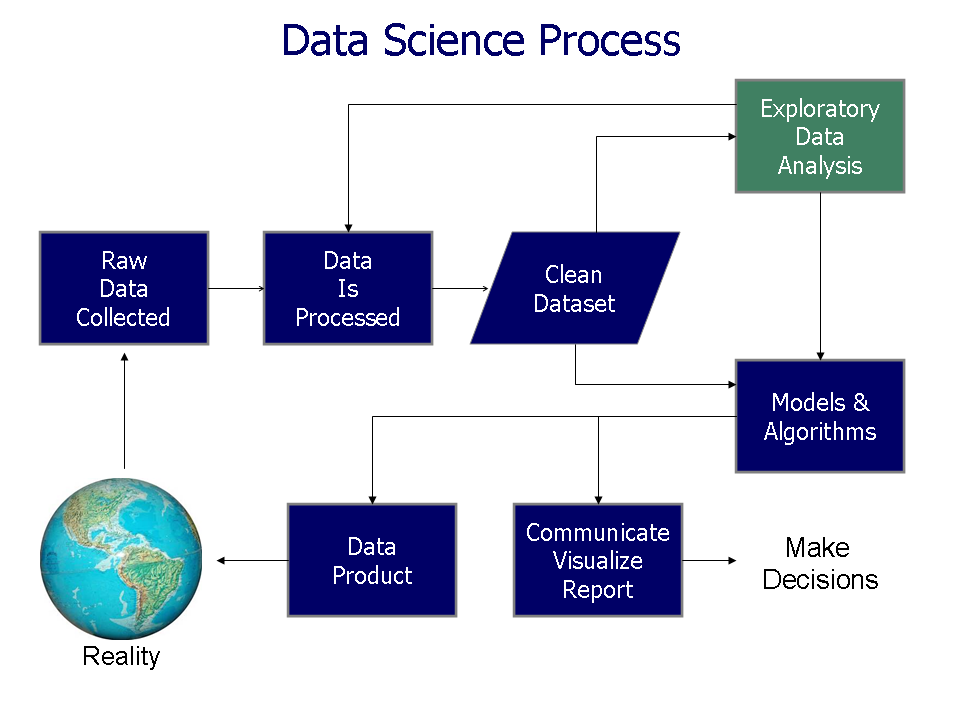
By cleaning your data first, you create a reliable source of information. This ensures that any charts, reports, or conclusions you generate are accurate and trustworthy.
Excel's Cleaning Toolkit
Luckily, Excel has a suite of built-in tools designed to help you tackle these common data messes. You don't need to be a formula wizard to start cleaning your data effectively. Some of the most helpful features include:
| Tool | What It Does |
|---|---|
| Remove Duplicates | Scans your selected data and deletes entire rows that are identical. |
| Find and Replace | A simple but powerful tool for correcting typos or standardizing terms (e.g., changing all instances of "NY" to "New York"). |
| Text to Columns | Splits the data from one cell into multiple columns. It's great for separating first and last names that are in the same cell. |
| Trim Spaces | The TRIM function removes extra spaces from the beginning or end of text, which is a common and hard-to-spot formatting issue. |
Learning to use these basic tools is the first step toward mastering data preparation in Excel. They provide a solid foundation for ensuring your data is ready for analysis.
What is the primary goal of data cleaning?
If a dataset of online sales has two identical rows for the same order ID, what is the most likely consequence of not removing this duplicate?