Excel Data Cleaning and Extraction
Excel Basics
Getting Around in Excel
Opening Excel for the first time reveals a grid of boxes. This grid is your worksheet, and each box is a cell. Think of it as a limitless sheet of digital graph paper. Each cell has a unique address, named after its column letter and row number, like A1, B4, or F22.
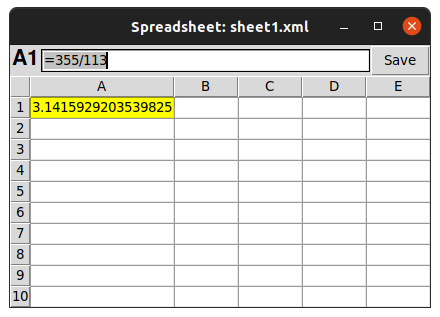
At the top of the screen is the ribbon, which organizes all of Excel's tools into tabs like 'Home,' 'Insert,' and 'Data.' Just below the ribbon is the formula bar. This is where you can see and edit the actual content of a selected cell, which is especially useful when a cell contains a formula but displays a result.
Entering and Formatting Data
To enter data, just click on a cell and start typing. You can input text, numbers, dates, or currencies. Press Enter to confirm the entry and move to the cell below, or Tab to move to the cell on the right.
Raw data can be hard to read. Basic formatting helps you organize your worksheet and highlight important information. You can change text to be bold or italic, adjust font sizes and colors, or even change the background color of cells to make them stand out. Most of these options are located in the 'Home' tab of the ribbon.
Clear formatting isn't just about looks. It makes your data easier to understand at a glance for both you and anyone you share it with.
Your First Calculations
Excel's real power comes from its ability to perform calculations. To tell Excel you want to calculate something, you must start by typing an equals sign (=) in a cell. You can perform simple arithmetic directly, like =12+35.
But the best practice is to use cell references. Instead of typing numbers into your formula, you refer to the cells that hold those numbers. If cell A1 contains the number 12 and cell A2 contains 35, you would type =A1+A2 in another cell. If you later change the number in A1 to 15, the result of your formula will update automatically. This makes your spreadsheets dynamic and easy to update.
Excel also has hundreds of built-in functions that perform common calculations for you. A function is a named operation that takes some inputs and produces a result. Here are a few essential ones:
| Function | What It Does |
|---|---|
SUM | Adds up a range of numbers. |
AVERAGE | Calculates the average of a range of numbers. |
COUNT | Counts how many cells in a range contain numbers. |
MAX | Finds the largest value in a range. |
MIN | Finds the smallest value in a range. |
To use a function, you type its name followed by the cell range you want to apply it to in parentheses. For example, to add the numbers in cells A1 through A10, you would use the formula =SUM(A1:A10). The colon (:) signifies a range of cells.
Managing Your Workspace
An Excel file is called a workbook, and it can contain multiple worksheets. Think of it like a notebook with many pages. You can see the tabs for each worksheet at the bottom-left of the screen. By default, you start with one sheet, often named 'Sheet1'.
You can manage these worksheets to keep your projects organized:
- Add a new sheet: Click the plus
+icon next to the existing sheet tabs. - Rename a sheet: Double-click the sheet tab, type a new name, and press Enter. Giving sheets descriptive names like 'January Sales' or 'Client List' is much better than keeping 'Sheet1' and 'Sheet2.'
- Delete a sheet: Right-click the sheet tab and select 'Delete.' Be careful, as you can't undo this action.
- Reorder sheets: Click and drag a sheet tab to a new position.
Organizing your data across different worksheets is a great way to keep a workbook clean and easy to navigate, especially as your projects become more complex.
What is the primary purpose of the formula bar in Excel?
To tell Excel that you are entering a formula to perform a calculation, the first character you must type in the cell is a(n) ___.
With these fundamentals, you're ready to start using Excel to organize and calculate your own data.