Excel Data Cleaning and Extraction
Introduction to Excel Data Cleaning
Why Clean Data?
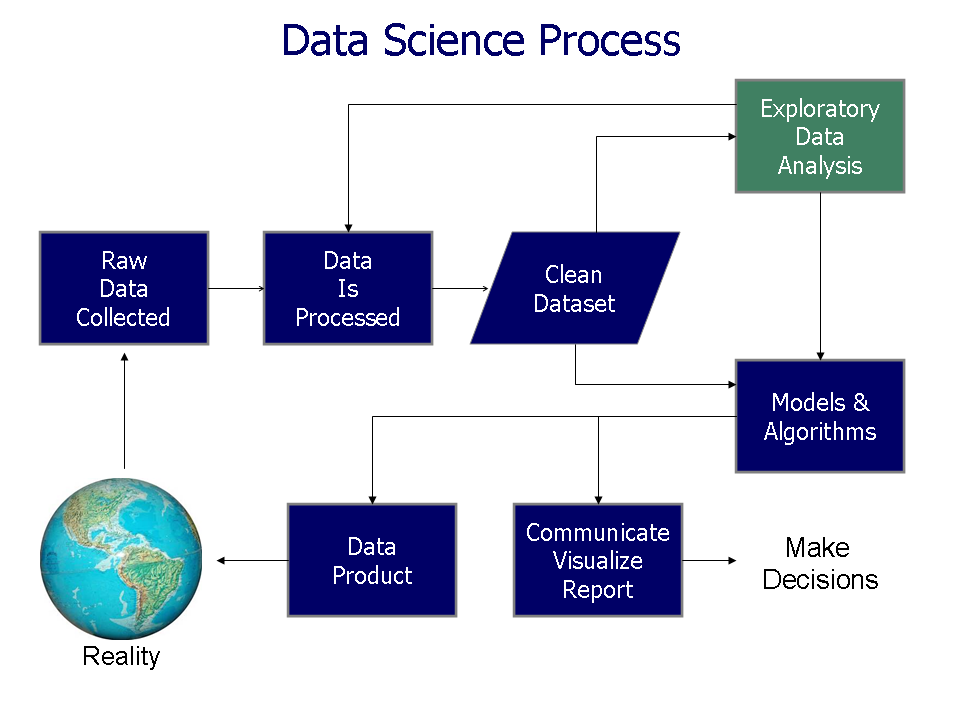
Raw data is rarely perfect. Think of it like ingredients for a recipe. Before you can cook, you need to wash the vegetables, trim the fat, and measure the flour. Data is the same. Before you can analyze it, you need to prepare it.
This preparation is called data cleaning. It’s the process of finding and fixing errors, inconsistencies, and inaccuracies in your dataset. If you skip this step, your analysis will be based on faulty information, leading to incorrect conclusions. Clean data is the foundation of trustworthy results.
Common Data Messes
Data can be messy in many ways, but a few common problems pop up again and again. Let's look at the biggest culprits.
Three common issues are unwanted spaces, hidden characters, and duplicate records.
Extra Spaces
Sometimes, text data includes extra spaces you can't easily see. These can be at the beginning of a cell (leading spaces), at the end (trailing spaces), or multiple spaces between words. While they may seem harmless, Excel sees " apples" and "apples" as two different things. This can ruin sorting, filtering, and calculations.
| Problem | Example |
|---|---|
| Leading Space | " apple" |
| Trailing Space | "apple " |
| Double Space | "red apple" |
Hidden Characters
Data copied from websites or other sources can bring along invisible, non-printable characters. These are things like line breaks or other formatting symbols that don't show up in the cell but can cause errors in formulas and functions.
Duplicate Entries
Duplicate rows are exact copies of another row in your dataset. If you're analyzing sales data, a duplicate entry could mean you count the same sale twice, throwing off your totals. It's crucial to find and remove these to ensure every record is unique.
Your Basic Cleaning Toolkit
Excel has simple but powerful tools to fix these common issues. Let's focus on three: the TRIM function, the CLEAN function, and the Remove Duplicates tool.
TRIM
verb
An Excel function that removes all extra spaces from text, except for single spaces between words. It gets rid of leading, trailing, and double spaces.
To use TRIM, you simply create a new column next to your messy data. If your text is in cell A2, you would type this formula into cell B2:
=TRIM(A2)
You can then drag this formula down the entire column. Once you're done, you'll have a new, clean column of data. You can then copy this new column and use "Paste Values" to replace the original messy data.
CLEAN
verb
An Excel function that removes all non-printable characters from text. These are often characters that are imported from other applications or websites.
The CLEAN function works just like TRIM. But what if you have both extra spaces and hidden characters? You can combine them into a single formula. The best practice is to nest them like this:
=TRIM(CLEAN(A2))
This formula first removes any non-printable characters with CLEAN, and then TRIM removes any extra spaces from that result. It’s a powerful two-in-one cleanup tool.
Finally, let's tackle duplicates. For this, you don't need a formula. Excel has a built-in tool.
- Select the data you want to check for duplicates.
- Go to the Data tab on the ribbon.
- Click the Remove Duplicates button.
- A dialog box will appear. You can choose which columns to check for duplicate values. If you want to find rows that are identical across all columns, make sure all columns are checked.
- Click OK, and Excel will remove any duplicate rows, telling you how many were found and deleted.
Data cleaning is the cornerstone of effective data analysis, and Microsoft Excel is a powerful tool for the job.
With these three simple tools, you can solve a majority of the data quality issues you'll encounter. Getting into the habit of cleaning your data first will make your analysis faster, easier, and much more accurate.