Excel Data Cleaning and Extraction
Excel Basics
The Excel Workspace
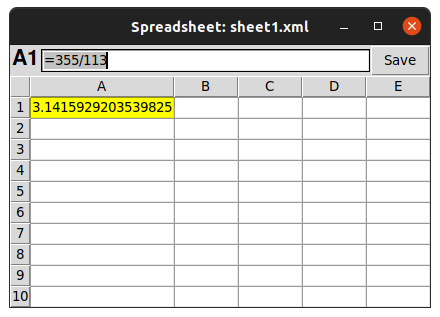
Opening Excel for the first time reveals a grid of cells, which might look a bit intimidating. Let's break it down. This grid is called a worksheet, and it's where all your data lives. Each box in the grid is a cell, and each cell has a unique address, like A1, B2, or C15. The letter refers to the column, and the number refers to the row.
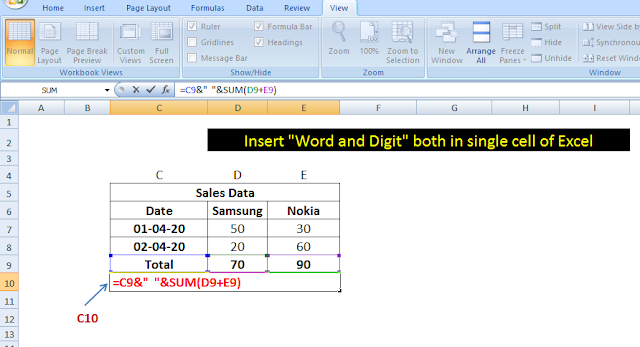
At the top of the screen, you'll see the Ribbon, which contains all the tools and commands organized into tabs like 'Home,' 'Insert,' and 'Data.' Just below the Ribbon is the Formula Bar. This bar shows the actual content of the selected cell, whether it's text, a number, or a formula.
Entering and Formatting Data
To enter data, just click on a cell and start typing. You can input text, numbers, dates, or almost anything else. Press 'Enter' to move to the cell below, or 'Tab' to move to the cell to the right.
Raw data can be hard to read, which is where formatting comes in. You can make your data clearer and more professional with a few clicks. In the 'Home' tab of the Ribbon, you'll find options to:
- Make text bold or italic.
- Change the font style and size.
- Adjust text alignment within a cell.
- Change the color of the text or the background color of the cell.
Good formatting isn't just about looks. It helps you and others understand your data quickly.
Formulas and Functions
Excel's real power comes from its ability to perform calculations. You can do this using formulas. Every formula in Excel starts with an equals sign (=). After the sign, you can perform simple math using standard operators:
+for addition-for subtraction*for multiplication/for division
For example, typing =5*10 into a cell and pressing 'Enter' will display the result, 50.
Instead of typing numbers directly into your formulas, you can refer to the cells that contain those numbers. This is called a cell reference. For instance, if cell A1 has the number 5 and cell B1 has the number 10, you could type the formula =A1*B1 into cell C1. The magic here is that if you later change the value in A1 to 20, the result in C1 will automatically update to 200.
When you copy and paste a formula, Excel automatically adjusts the cell references for you. This is called a relative reference. It's incredibly useful for applying the same calculation across many rows or columns.
Sometimes, you don't want a reference to change when you copy a formula. You might have a single value, like a tax rate, that you want every formula to point to. For this, you use an absolute reference. You can make a reference absolute by adding dollar signs ($) before the column letter and row number, like \$A\$1. This locks the reference to that specific cell.
| Reference Type | Example | Behavior when Copied |
|---|---|---|
| Relative | A1 | Adjusts relative to the new location. |
| Absolute | \$A\$1 | Stays locked on cell A1. |
| Mixed (Column) | \$A1 | The column is locked, but the row adjusts. |
| Mixed (Row) | A\$1 | The row is locked, but the column adjusts. |
Beyond simple math, Excel has hundreds of built-in functions that perform specific calculations. A function takes your data, performs an operation, and gives back a result. Some of the most common ones are:
SUM(): Adds up a range of cells.AVERAGE(): Calculates the average of a range of cells.MAX(): Finds the highest value in a range.MIN(): Finds the lowest value in a range.
A range is a group of cells, written with a colon between the first and last cell, like A1:A10. So, to add all the numbers from cell A1 through A10, you would use the formula =SUM(A1:A10).
Time to check your understanding of these core concepts.
What uniquely identifies a single cell within an Excel worksheet?
Every formula in Excel must begin with which character?
Mastering these fundamentals gives you a solid base for everything else you can do in Excel.