Excel Data Analysis Mastery
Data Import and Cleaning
Beyond the Spreadsheet
Data rarely starts its life in a neat Excel spreadsheet. It lives in databases, text files, on the web, and in various other systems. The first challenge in any analysis is simply getting this external data into a workable format. This is where Power Query comes in.
Power Query is Excel's data connection and preparation tool. Think of it as a gateway that can connect to a huge variety of sources, from simple CSV files and other Excel workbooks to complex SQL databases and web pages. It lets you pull data directly from its source without messy copy-pasting.
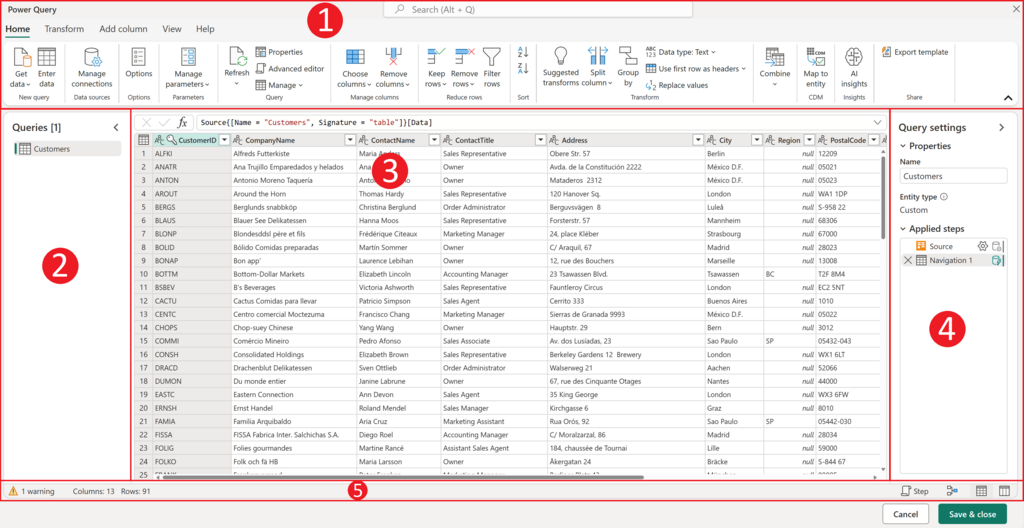
The Power Query Workflow
Importing data is the first step. You start by going to the Data tab on the Excel ribbon and selecting Get Data. From there, you choose your source type, like a file or a database, and navigate to your data.
Once connected, the data opens in the Power Query Editor, a separate window where the real work happens. Every cleaning action you take here is recorded as a step in a query. This is the magic of Power Query: your cleaning process becomes a repeatable, automated recipe. If the source data changes, you don't need to repeat all the steps manually. You just refresh the query, and it re-applies your recipe to the new data.
Every transformation in Power Query is a recorded step. This creates an automated pipeline from raw, messy data to a clean, analysis-ready table.
Common Cleaning Tasks
Raw data is often messy. It contains duplicates, missing information, and inconsistent formatting. The Power Query Editor provides tools to fix these common problems efficiently.
Removing Duplicates
Duplicate records can skew your analysis, leading to incorrect sums, counts, and averages. Power Query makes removing them simple. You just right-click the column header you want to check for duplicates and select Remove Duplicates. The tool will remove entire rows based on duplicate values in that specific column.
Handling Missing Values Empty cells, or nulls, can cause errors in calculations and formulas. You have a few options for dealing with them:
- Remove Empty: If a row has a null value in a critical column, you might choose to remove the entire row. This is easy, but be careful not to discard too much valuable information.
- Replace Values: A more common approach is to replace nulls with something else. You can replace them with a zero, a text string like "Not Applicable," or even a calculated value like the column's average. This keeps the row but fills the gap.
Standardizing Formats
Inconsistency is a major source of data headaches. A column of country names might contain "USA," "usa," and "U.S.A.". To a computer, these are three different things. The Transform tab in Power Query offers powerful tools for standardization:
- Change Case: You can quickly convert text in a column to UPPERCASE, lowercase, or Capitalize Each Word to ensure uniformity.
- Trim & Clean: Often, data copied from other sources has hidden leading or trailing spaces, or non-printable characters.
Trimremoves the extra spaces, andCleanremoves the non-printable characters. - Change Data Type: Sometimes numbers are imported as text, or dates are not recognized correctly. You can set the correct data type (e.g., Whole Number, Date, Text) for each column, which is essential for accurate calculations and sorting.
Once you've applied all your cleaning and transformation steps, you click Close & Load. Power Query then loads the clean, structured data into a new worksheet in Excel, ready for analysis.