Excel 2019 Fundamentals
Excel Interface
Getting Around in Excel
Opening a new Excel workbook can feel like stepping into a vast digital workshop. At the top, you have your main set of tools, and below, a massive grid ready for your data. Let's get familiar with the layout. Think of it as learning where everything is before starting a project.
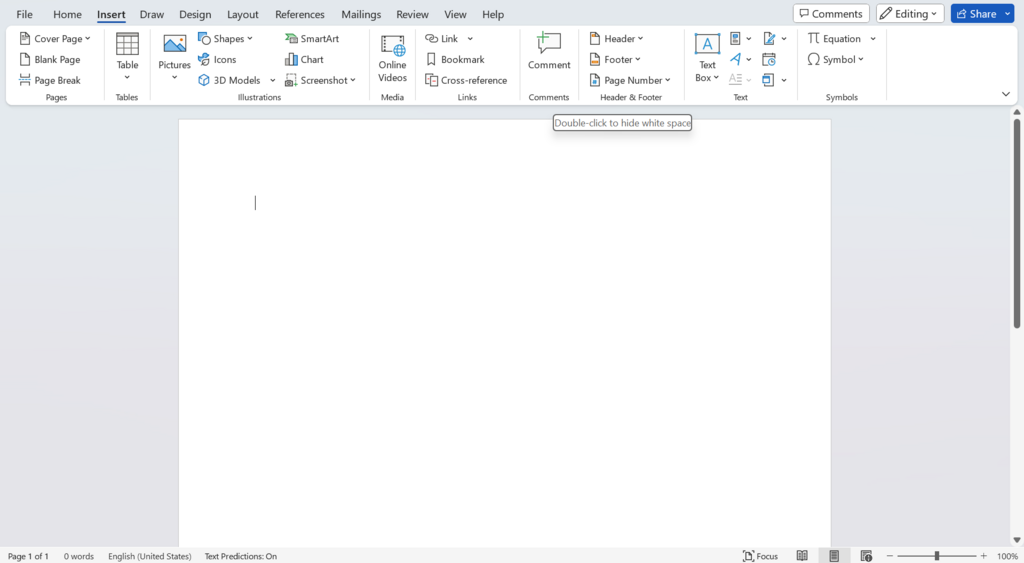
The two most important areas to know are the Ribbon and the Worksheet Grid. The Ribbon contains nearly every command you'll need, while the grid is where all your data lives and breathes.
The Ribbon Your Command Center
The Ribbon is the wide band of buttons and icons at the top of the Excel window. It's organized into a series of tabs, each dedicated to a specific type of task. It's like a well-organized toolbox where all the screwdrivers are in one drawer and all the hammers are in another.
The Home tab has your everyday tools: copy, paste, font formatting, and text alignment. When you want to add something new to your sheet, like a chart or a picture, you'll go to the Insert tab. This logical grouping helps you find the right tool without having to search through endless menus.
| Tab | Primary Function |
|---|---|
| Home | Basic formatting and editing commands. |
| Insert | Add objects like tables, charts, and shapes. |
| Page Layout | Manage printing options, themes, and page setup. |
| Formulas | Access the function library and calculation tools. |
| Data | Tools for sorting, filtering, and analyzing data. |
| Review | Check spelling, add comments, and protect sheets. |
| View | Change how the workbook is displayed on screen. |
Just above the Ribbon is the Quick Access Toolbar. This is a small, customizable row of icons for your most-used commands. By default, it has Save, Undo, and Redo. It’s perfect for tools you need constantly, regardless of which Ribbon tab is currently open.
Navigating the Grid
The main part of the screen is the worksheet grid, a vast sea of cells. Each cell has a unique address, or reference, based on its column letter and row number. The cell in the top-left corner is A1. The one to its right is B1, and the one below it is A2.
You can move between cells using your keyboard's arrow keys. To jump across larger distances, you can use shortcuts:
- Ctrl + Arrow Key: Jumps to the last cell with data in that direction.
- Page Up / Page Down: Moves one full screen up or down.
- Ctrl + Home: Jumps directly to cell
A1.
You can also go directly to any cell by typing its reference into the Name Box, located just to the left of the formula bar above the grid.
Make It Your Own
Excel's interface is not set in stone. You can tailor it to fit your workflow. The most common customization is adding commands to the Quick Access Toolbar.
To do this, simply right-click any button on the Ribbon and select "Add to Quick Access Toolbar." Instantly, that button will appear at the top of your screen, ready for one-click access.
You can also customize the Ribbon itself. Right-click anywhere on the Ribbon and choose "Customize the Ribbon." This opens a window where you can add, remove, or rearrange entire tabs and command groups. You can even create your own custom tab filled with only the tools you use most.
Feeling comfortable with the layout is the first step. Let's test your knowledge.
What is the primary function of the Ribbon in Excel?
If you wanted to add a chart or a picture to your worksheet, which tab on the Ribbon would you use?
Now that you know your way around, you're ready to start working with data.