Excel 2019 Essentials
Excel Interface
Getting Around Excel
Opening Excel for the first time can feel like stepping into the cockpit of an airplane. There are buttons and menus everywhere. But once you know what the main controls do, you'll find it's all quite logical.
The main workspace is a grid of columns and rows. Where they intersect, they form a cell. Each cell has a unique address, like A1, B2, or C3. This grid is called a worksheet, and you can have multiple worksheets organized together in a single file, which is called a workbook.
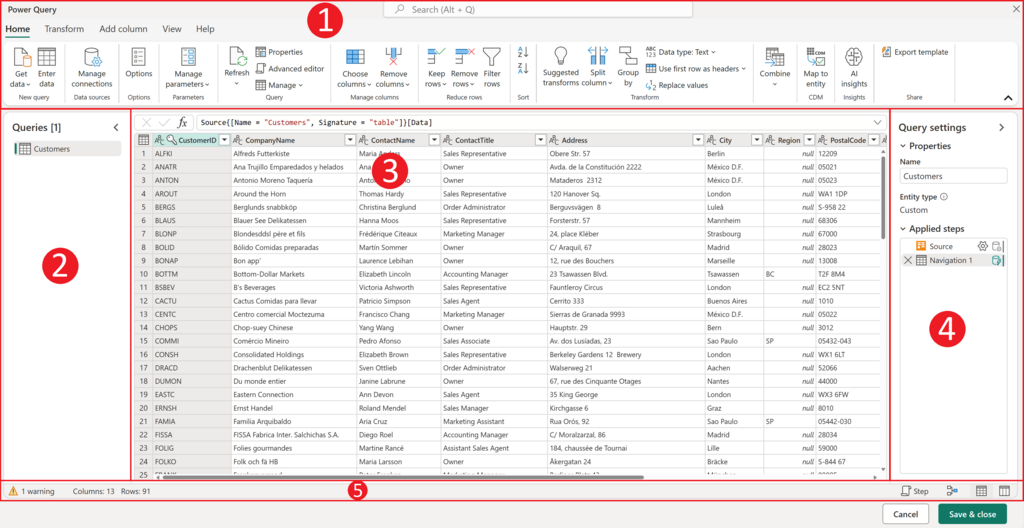
Above the worksheet is the Ribbon, which holds most of Excel's commands. It's the wide band running across the top of the screen. Think of it as your main control panel. It's organized into a series of tabs, like "Home," "Insert," and "Page Layout."
The Ribbon and Toolbar
Each tab on the Ribbon is divided into groups of related commands. The "Home" tab, for example, has groups for formatting text ("Font"), aligning content in cells ("Alignment"), and working with numbers ("Number").
When you select different items in your worksheet, like a chart or a table, you might see new, temporary tabs appear on the Ribbon. These are called contextual tabs, and they provide specific tools for the item you've selected. They disappear when you click away.
Above the Ribbon, you'll find the Quick Access Toolbar. It's a small, customizable toolbar that’s always visible, no matter which tab you're on. By default, it holds commands for Save, Undo, and Redo. You can easily add your favorite commands to it for one-click access.
To add a button to the Quick Access Toolbar, just right-click any command on the Ribbon and select "Add to Quick Access Toolbar."
This is great for tools you use constantly, saving you from hunting through the tabs every time.
Backstage and Navigation
When you click the "File" tab on the far left of the Ribbon, you enter what's called the Backstage view. This is where you manage your workbook files and Excel itself. Here you can save, open, print, and share your workbooks. You can also access Excel's settings by clicking "Options."
Getting around your worksheet is simple. You can click any cell to select it, or use the arrow keys on your keyboard to move from one cell to the next. To select a range of cells, click and drag your mouse from one corner of the range to the other.
Here are a few useful shortcuts for selecting cells:
| To Select | Action |
|---|---|
| An entire column | Click the column letter at the top. |
| An entire row | Click the row number on the left. |
| The entire worksheet | Click the triangle button at the corner of the worksheet. |
| Multiple ranges | Select the first range, then hold down Ctrl while selecting others. |
You can switch between different worksheets in your workbook by clicking the tabs at the bottom-left of the screen. You can also rename these tabs by double-clicking them to better organize your work.
Now that you know the layout, let's test your knowledge.
What is a single Excel file, which can contain one or more worksheets, called?
What is the name of the wide band across the top of the Excel window that contains the main tabs and commands?
Getting comfortable with the interface is the first step to mastering Excel. Once you know where to find the tools, you can focus on what you want to achieve with them.