Essential Bash Commands for Code Execution
Introduction to Bash
What is Bash?
Think of Bash as a direct line of communication with your computer. Instead of clicking on icons and menus, you type commands. Bash, which stands for Bourne Again Shell, is a program that takes your typed commands and tells the computer's operating system what to do. It’s a powerful tool used widely on Unix-based systems like Linux and macOS.
shell
noun
A program that provides a user interface for accessing the services of an operating system. It interprets commands and passes them on to be executed.
This text-based interface is called the command-line interface, or CLI. It might look simple, but it's the foundation for automating tasks, managing files, and running programs with a high degree of control.
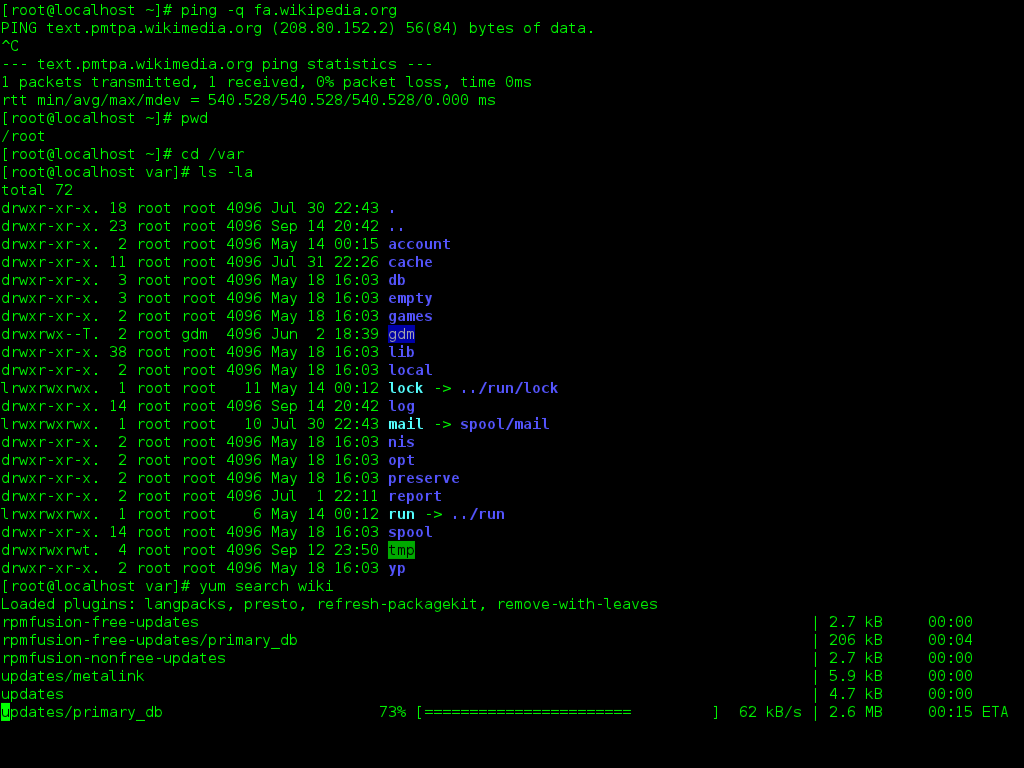
Your First Commands
When you open a terminal, you'll see a shell prompt. It's the computer's way of saying, "I'm ready for your command." The prompt might look different on various systems, but it often ends with a $ or # symbol and shows your username and current location in the file system, like user@hostname:~$.
The
~symbol is a shortcut that represents your personal home directory.
Let's try a few basic commands. The pwd command stands for "print working directory." It tells you where you are right now in the computer's file structure. After you type it and press Enter, the shell will print your current directory's full path.
$ pwd
/home/username
To see what's inside your current directory, use the ls command, which stands for "list."
$ ls
Desktop  Documents  Downloads  Music  Pictures  Videos
Navigating the File System
Moving between directories is a core skill. The cd command, short for "change directory," lets you navigate. To move into the Documents directory, you would type:
$ cd Documents
Now, if you run pwd again, you'll see your location has changed. Your prompt might also update to reflect the new directory.
$ pwd /home/username/Documents
How do you go back? To move up one level to the parent directory, you use two dots .. as the destination.
$ cd ..
This command takes you from /home/username/Documents back to /home/username. It's like clicking the "Up" button in a graphical file explorer. These simple commands—pwd, ls, and cd—are the building blocks for working effectively in the command line.
Now, let's test your understanding of these fundamental concepts.
What is the primary function of Bash?
If you are in the /home/user/documents directory, which command will move you to the /home/user directory?
With these basics, you can start exploring your computer's file system directly through the command line.