Embedded Linux for Windows Developers
Linux Terminal Fundamentals
Welcome to the Linux Shell
If you're coming from Windows, the command line isn't a new concept. But in the Linux world, especially for embedded systems like the Digi ConnectCore, the terminal is more than a tool. It's the primary way you'll configure, debug, and interact with the device. The program that runs in the terminal and interprets your commands is called the shell. On most Linux systems, including your ConnectCore device, you'll be using Bash (Bourne Again SHell).
Two immediate differences from Windows PowerShell or Command Prompt are critical. First, Linux is case-sensitive. MyFile.txt and myfile.txt are two distinct files. Second, paths use forward slashes (/) instead of backslashes (\).
Navigating the Filesystem
Forget C: drives. The Linux filesystem is a single, unified hierarchy. Everything starts from the root directory, represented by a single forward slash: /. All other directories, files, and even connected devices branch out from this single point.
Your personal files live in your home directory, often found at /home/your_username. The shell provides a handy shortcut for this location: the tilde ~. To navigate this structure, you'll use three core commands:
pwd(print working directory): Shows you where you are right now.ls(list): Shows the contents of the current directory.cd(change directory): Moves you to a different directory.
# Check your current location
pwd
# Output: /home/user

# List files in the current directory
ls
# Output: Documents Downloads Pictures

# Move into the Documents directory
cd Documents

# Check your new location
pwd
# Output: /home/user/Documents

# Go back to the parent directory
cd ..

# Go directly to your home directory from anywhere
cd ~
File Operations and Permissions
Creating, moving, and deleting files and directories is straightforward. The commands are concise and powerful.
| Task | Linux Command | Description |
|---|---|---|
| Make Directory | mkdir | Creates a new directory. |
| Copy | cp | Copies a file or directory. |
| Move/Rename | mv | Moves or renames a file or directory. |
| Remove | rm | Deletes a file. Use rm -r for a directory. |
In Linux, everything is a file, and every file has permissions. These permissions determine who can read, write, or execute it. When you list files with ls -l, you'll see a string like -rwxr-xr--.
This string has 10 characters. The first character indicates the file type (e.g., - for a file, d for a directory). The next nine characters are three sets of three, representing the permissions for the user (owner), the group, and others (everyone else). Each set specifies read (r), write (w), and execute (x) permissions.
-rwx r-x r--means: The user can read, write, and execute. The group can read and execute. Others can only read.
When you need to perform an action that requires higher privileges, like modifying a system configuration file in /etc, you can't just do it. This is where sudo comes in. It's the Linux equivalent of Windows' 'Run as Administrator'. By prefixing a command with sudo (superuser do), you execute that single command with root (administrative) privileges.
# This will likely fail due to permissions
rm /etc/some_config.conf
# Output: rm: cannot remove '/etc/some_config.conf': Permission denied

# This will work, after prompting for your password
sudo rm /etc/some_config.conf
Filtering and Editing
The true power of the command line comes from combining tools. On an embedded device, you'll often deal with long log files or verbose command outputs. Manually searching them is impractical. Instead, you can use pipes and filters.
The | character is one of the most powerful tools in the shell. It takes the output of the command on its left and uses it as the input for the command on its right. This allows you to chain commands together to process information.
Two essential filtering commands are grep and find.
grepsearches the input it receives for lines containing a matching pattern.findsearches a directory hierarchy for files based on criteria like name or type.
For example, to find all mentions of error in a system log on your ConnectCore device, you might use:
# Display the system log and pipe it to grep to filter for 'error'
cat /var/log/syslog | grep error
Finally, you'll need to edit configuration files directly on the device. Since you won't have a graphical text editor, you'll use a terminal-based one. Two common options are nano and vi.
Nano is simpler and more intuitive for beginners. It displays a list of commands at the bottom of the screen (e.g., ^X for Exit). Vi (or its modern version, Vim) is incredibly powerful but has a steeper learning curve, as it operates in different modes (insert mode for typing, normal mode for commands).
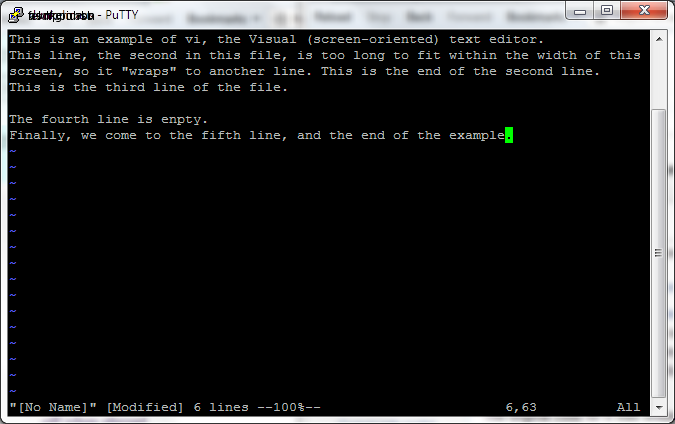
To edit a file, you'd simply type nano /path/to/file or vi /path/to/file. If the file requires administrative privileges to save, remember to use sudo.
What does the pwd command do in a Linux terminal?
In the permission string -rwxr-x--- displayed by ls -l, what permissions does the 'group' have?