Docker Fundamentals and Application Integration
Docker Basics
The “Works on My Machine” Problem
Every developer knows the feeling. You’ve spent weeks building an application. It runs perfectly on your laptop. You hand it off to a teammate, or deploy it to a server, and... it crashes. Suddenly, you’re debugging missing files, different software versions, and subtle operating system differences.
This is the classic “it works on my machine” problem. Keeping development, testing, and production environments consistent is a huge challenge. A tiny difference in a library version or a configuration file can cause big headaches.
Docker solves this by packaging an application and all its dependencies into a single, portable unit that runs reliably anywhere.
Containers, Images, and Dockerfiles
Docker’s solution revolves around a concept called containerization. A container is a lightweight, standalone package that includes everything needed to run a piece of software: the code, runtime, system tools, libraries, and settings. It’s like a sealed box for your application, ensuring it behaves the same no matter where you put the box.
Containers are created from images. An image is a read-only template—a blueprint or a recipe—that contains the instructions for creating a container. You can think of an image as a stopped container. When you run the image, you create a live, running instance: the container.
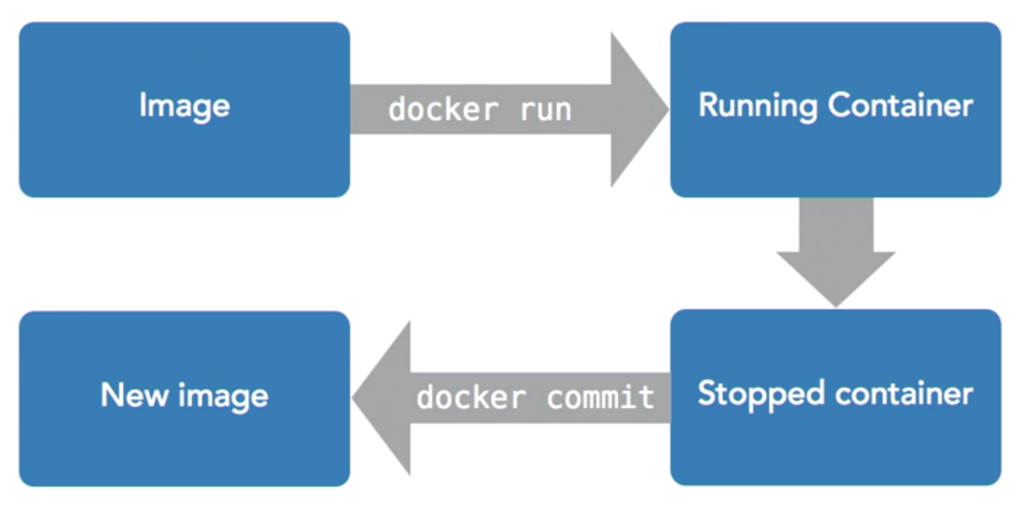
So, how do we create an image? We write a Dockerfile. A Dockerfile is a simple text file that lays out the step-by-step instructions for building a Docker image. You specify a base image (like a minimal version of an operating system), add your files, install dependencies, and define the command to run when the container starts.
# Use an official Python runtime as a parent image
FROM python:3.9-slim

# Set the working directory in the container
WORKDIR /app

# Copy the current directory contents into the container at /app
COPY . /app

# Install any needed packages specified in requirements.txt
RUN pip install --no-cache-dir -r requirements.txt

# Make port 80 available to the world outside this container
EXPOSE 80

# Run app.py when the container launches
CMD ["python", "app.py"]
Each instruction in this file creates a layer in the image. This layered approach is efficient, as Docker can cache layers and only rebuild the ones that have changed.
Docker's Architecture
Docker uses a client-server architecture. The Docker client is the command-line tool (docker) that you interact with. When you type a command like docker run, the client sends instructions to the Docker daemon (or server), which does the heavy lifting.
The Docker daemon, dockerd, is a background process that listens for API requests from the client. It manages all the objects: building and running containers, managing images, and handling storage and networking.
Finally, a Docker registry is where images are stored. Docker Hub is the default public registry, but you can also run your own private one. When you run docker pull nginx, the daemon fetches the official Nginx image from the Docker Hub registry.
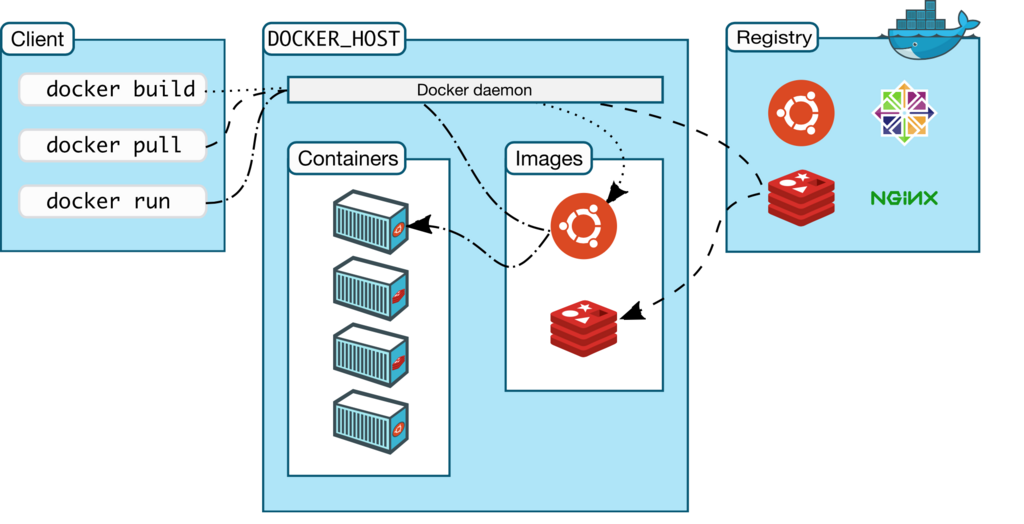
This setup allows you to build an image on your machine, push it to a registry, and then have a colleague or a production server pull that exact same image and run it. The result? No more “it works on my machine” surprises.
Time to check what you've learned.
What is the primary problem Docker was designed to solve?
What is the relationship between a Docker image and a Docker container?
By understanding these core components—containers, images, and Dockerfiles—you have the foundation needed to start containerizing your own applications and ensuring they run consistently everywhere.