Docker Fundamentals
Docker Basics
The “Works on My Machine” Problem
Picture this: a developer spends weeks building a new feature. On her computer, everything runs perfectly. She hands it off to the operations team to deploy it for users. Suddenly, nothing works. The server is missing a specific library. The database version is different. The operating systems don't quite match.
This is a classic headache in software development, often ending with the frustrated developer saying, “But it works on my machine!”
Docker was created to solve this exact problem. It’s a tool for packaging an application and all its dependencies—libraries, configuration files, and system tools—into a single, standardized unit called a container.
Think of a Docker container like a shipping container. It doesn't matter what's inside; the container itself has a standard shape and size, so it can be moved and loaded by any ship or crane in the world. Similarly, a Docker software container can run on any computer that has Docker installed, regardless of the underlying operating system.
Docker is a containerization platform that packages applications and their dependencies, ensuring consistent behavior across all environments.
How Docker Works
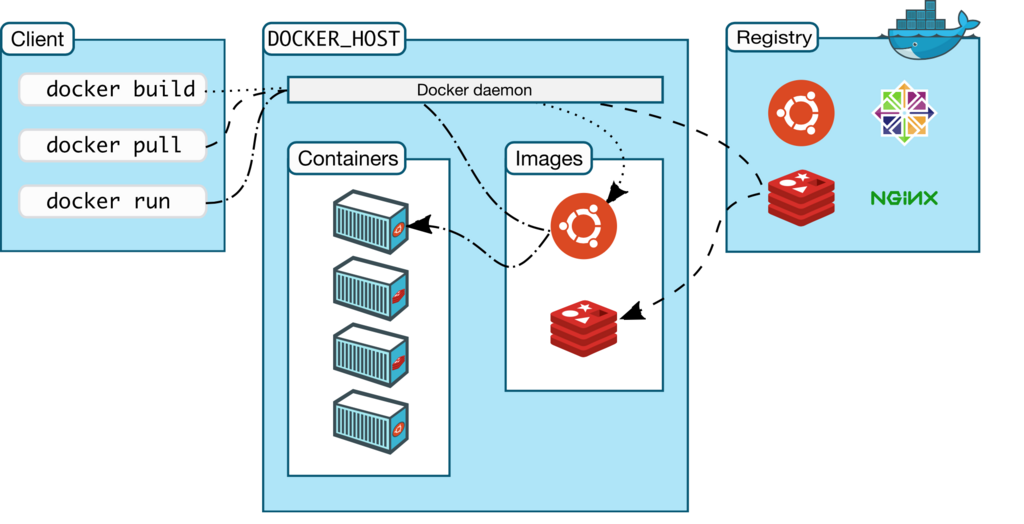
Docker's architecture is straightforward. It operates on a client-server model. You, the user, interact with the Docker client, which then sends instructions to the Docker server, or daemon, which does all the heavy lifting.
There are three main parts to know:
- Docker CLI (Command Line Interface): This is how you issue commands. When you type something like
docker run, you're using the CLI. - Docker Daemon: This is a background service that listens for commands from the CLI. It manages everything: building, running, and distributing your containers.
- Docker Registry: This is where container images are stored. The default public registry is Docker Hub, but you can also run your own private registry.
Getting Docker Running
Docker is free to download and install on Mac, Windows, and Linux. For Mac and Windows users, the easiest way to get started is by installing Docker Desktop. It provides a graphical user interface for managing your containers and includes the Docker Engine, CLI, and other tools in one package.
Because installation steps vary slightly by operating system, it's best to follow the official guides. They are always kept up to date.
You can find detailed installation instructions for your system on the official Docker website.
Once the installation is complete, you can verify that everything is working by opening a terminal or command prompt and running a simple command to check the version.
docker --version
If Docker is installed correctly, you'll see output showing the Docker version number, like Docker version 20.10.17, build 100c701.
Running Your First Container
Now for the fun part. Let's run a container. The hello-world container is a tiny program whose only job is to print a confirmation message and then exit. It’s the perfect way to test your setup.
In your terminal, run the following command:
docker run hello-world
When you press Enter, a few things happen very quickly:
- The Docker CLI tells the Docker daemon to run a container from the
hello-worldimage. - The daemon checks if it has the
hello-worldimage on your machine. - Since this is your first time, it doesn't find it. So, it automatically goes to Docker Hub and pulls (downloads) the image.
- Once the image is downloaded, the daemon creates a new container from it and runs it.
You'll see a message that starts with "Hello from Docker!" This confirms that your installation is working correctly. You've just downloaded an image and run your first container.
If you run the docker run hello-world command again, you’ll notice it’s much faster. That’s because Docker already has the image stored locally and doesn't need to download it from the registry a second time. This simple example shows the power and efficiency of Docker's image layering and caching system.