Docker Essentials
Introduction to Docker
The “Works on My Machine” Problem
Every developer has heard it. A piece of software works perfectly on their computer, but when it’s moved to a testing environment or a colleague's machine, it breaks. This usually happens because of tiny differences in environments, like a different operating system version or a missing software library.
Docker solves this problem by packaging an application with all of its dependencies into a single, standardized unit. This unit is called a container.
Think of Docker containers like physical shipping containers. A shipping container can hold anything from coffee beans to car parts. It can be moved by ship, train, or truck without anyone needing to know what's inside. Similarly, a Docker container can hold any application and run it consistently on any machine that has Docker installed.

Containers vs. Virtual Machines
Before containers, the standard way to isolate applications was using virtual machines (VMs). A VM is an emulation of a full computer system. It runs on a physical machine using a piece of software called a hypervisor, but it has its own complete guest operating system. Running an entire OS for each application is resource-intensive, slow to start, and takes up a lot of disk space.
Containers are a more lightweight solution. Instead of virtualizing the entire hardware stack, containers virtualize the operating system. This means multiple containers can run on a single machine, sharing the host OS kernel but running in isolated processes. They don't need their own guest OS, which makes them much smaller, faster, and more efficient.
Docker's Architecture
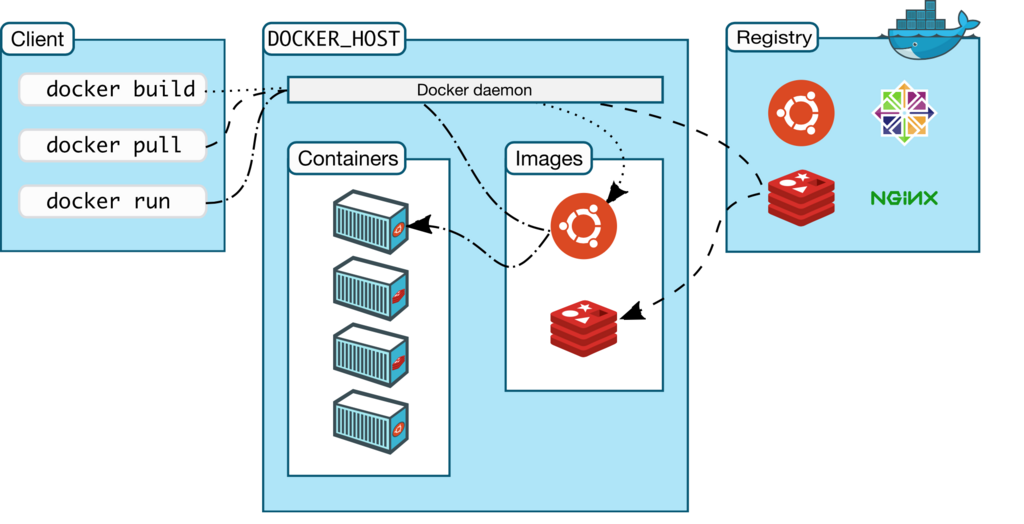
Docker uses a client-server architecture. The Docker client talks to the Docker daemon, which does the heavy lifting of building, running, and distributing your Docker containers.
There are three main components:
| Component | Description |
|---|---|
| Docker Client | The command-line tool (docker) that you use to interact with Docker. It sends commands to the daemon. |
| Docker Host | The machine where the Docker daemon runs. The daemon listens for API requests from the client and manages Docker objects like images and containers. |
| Docker Registry | A remote location where Docker images are stored. Docker Hub is the default public registry, but you can run your own private registry. |
When you type a command like docker run hello-world, the client sends this command to the daemon. The daemon checks if it has the hello-world image locally. If not, it downloads the image from the Docker Hub registry. Then, it uses that image to create and run a new container.
Images and Containers
The two most fundamental concepts in Docker are images and containers. It's helpful to think of them using a class and object analogy from programming.
Image
noun
A read-only template used to create a container. It's like a blueprint or a recipe. An image contains the application, along with all the necessary code, libraries, and configuration files needed to run it.
Container
noun
A runnable instance of an image. It is the living, running version of the image's blueprint. You can create, start, stop, move, or delete a container based on an image.
Essentially, an image is the set of instructions, and a container is the execution of those instructions. You can create many containers from a single image, just like you can bake many cookies from one recipe.
Let's review the key ideas before moving on.
Ready to test your knowledge?
What is the primary problem Docker is designed to solve?
In the context of Docker, an image is a running instance of a container.
By understanding these core concepts, you have a solid foundation for using Docker to streamline your development and deployment workflows.