DJI Pocket 3 Travel Film Masterclass
Understanding the DJI Pocket 3
Meet Your Pocket Studio
The DJI Pocket 3 is a tiny camera with a big superpower: incredibly smooth video. It combines a high-quality 4K camera with a built-in stabilizer called a gimbal.
A gimbal is a clever device that uses motors to counteract your hand's natural shakiness. While you walk, run, or pan, the gimbal keeps the camera steady, resulting in footage that looks like it was shot by a professional.
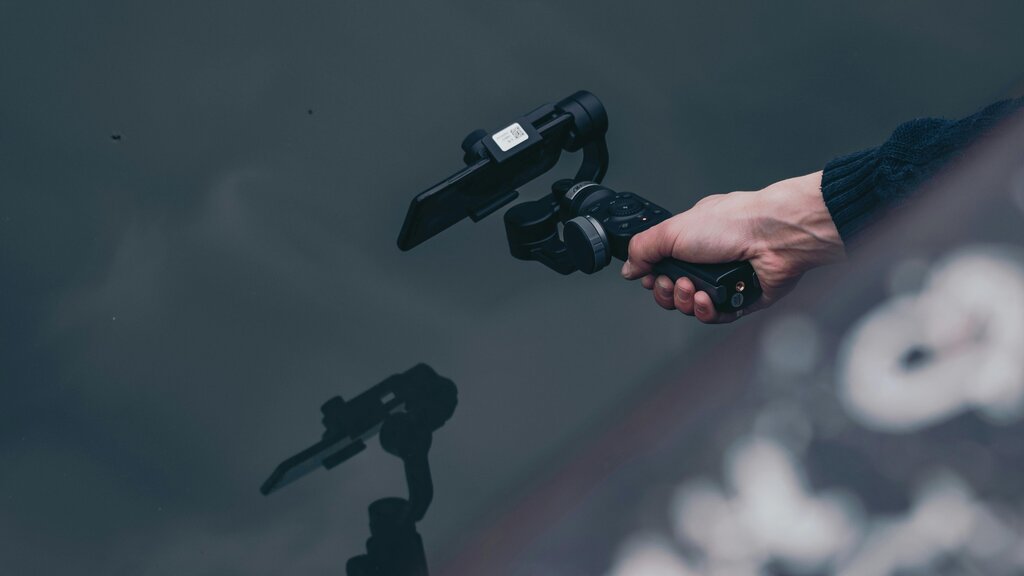
This combination of a great camera and a powerful stabilizer, all in a device that fits in your hand, makes it perfect for travel vlogs, family videos, or any time you want to capture life in motion without the jitters.
A Quick Hardware Tour
Getting to know the Pocket 3 is simple. It’s designed to be intuitive, so you can start shooting quickly. Let's look at the main parts.
Camera & Gimbal: This is the heart of the device. The gimbal physically moves to keep the camera level, while the camera captures everything in crisp detail.
Rotatable Touchscreen: Your command center. A quick turn switches between horizontal and vertical shooting. You'll use it to change settings, frame your shot, and review footage.
Record Button: The big red button. Press it once to start recording video, and press it again to stop. When in photo mode, it acts as the shutter button.
5D Joystick: This small stick lets you control the camera's movement. You can pan left and right, tilt up and down, and zoom in or out.
USB-C Port: Located at the bottom, this port is for charging the device and transferring your files to a computer.
Getting Started
Setting up the Pocket 3 for the first time takes just a few moments.
First, charge the device using the included USB-C cable until the status LED turns solid green. Once it's charged, press and hold the record button to power it on. The gimbal will spring to life, and the touchscreen will light up.
When you first turn it on, you'll be guided through a quick setup process on the touchscreen, including selecting your language. You will also be prompted to connect to the DJI Mimo app on your smartphone to activate the device. This is a one-time requirement.
The Pocket 3 starts up in about one second, so you can capture moments as they happen without a long wait.
Basic Operations
Once set up, operating the Pocket 3 is all about the touchscreen and a few physical controls. Swiping on the screen is the main way to navigate the menus. Here's a quick guide to the basic gestures.
| Swipe Direction | Action |
|---|---|
| Swipe Up | Adjust gimbal settings (like Follow Mode). |
| Swipe Down | Access the main settings menu. |
| Swipe Left | Review photos and videos you've already taken. |
| Swipe Right | Change shooting parameters like resolution and frame rate. |
To switch between taking photos and recording videos, simply tap the mode icon on the right side of the touchscreen. You'll see options for Photo, Video, and other creative modes.
To capture a moment, frame your shot using the screen and the joystick. When you're ready, press the red record button once. To stop recording, just press it again. It's that straightforward.
What is the primary purpose of the built-in gimbal on the DJI Pocket 3?
How can a user switch the DJI Pocket 3 between horizontal and vertical shooting orientations?
Now you know the essentials for getting started with your Pocket 3. With these basics, you're ready to start capturing incredibly smooth and professional-looking video.