Desktop Support Engineering Essentials
Enterprise Hardware Troubleshooting
The First Few Seconds
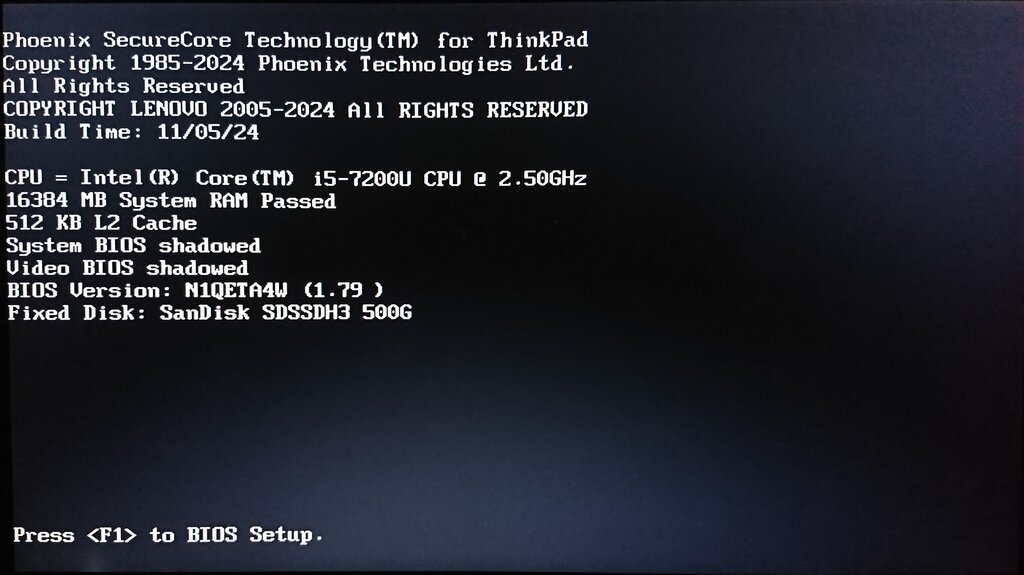
When you press the power button on an enterprise machine, a critical process called the Power-On Self-Test, or POST, kicks into gear. This isn't just about showing a logo on the screen. The system's firmware quickly checks that essential hardware like the CPU, memory, and storage are present and functional. If everything checks out, the boot process continues. If not, you get a warning.
These warnings can be cryptic. Sometimes it's a message on the screen, but other times it's a series of beeps. These are a low-level language that communicates specific hardware failures. For example, one short beep might mean a memory refresh failure, while a series of three could point to a problem with the first 64 KB of RAM. Each manufacturer has its own set of codes, so a technician's first step is often to look up the specific beep pattern for that model.
After the POST, the system hands off to the BIOS or, more commonly now, UEFI. In a corporate environment, this is where crucial security policies are enforced. Settings like Secure Boot ensure that the operating system hasn't been tampered with, while a Trusted Platform Module (TPM) can be used for hardware-level encryption.
Using Diagnostic Suites
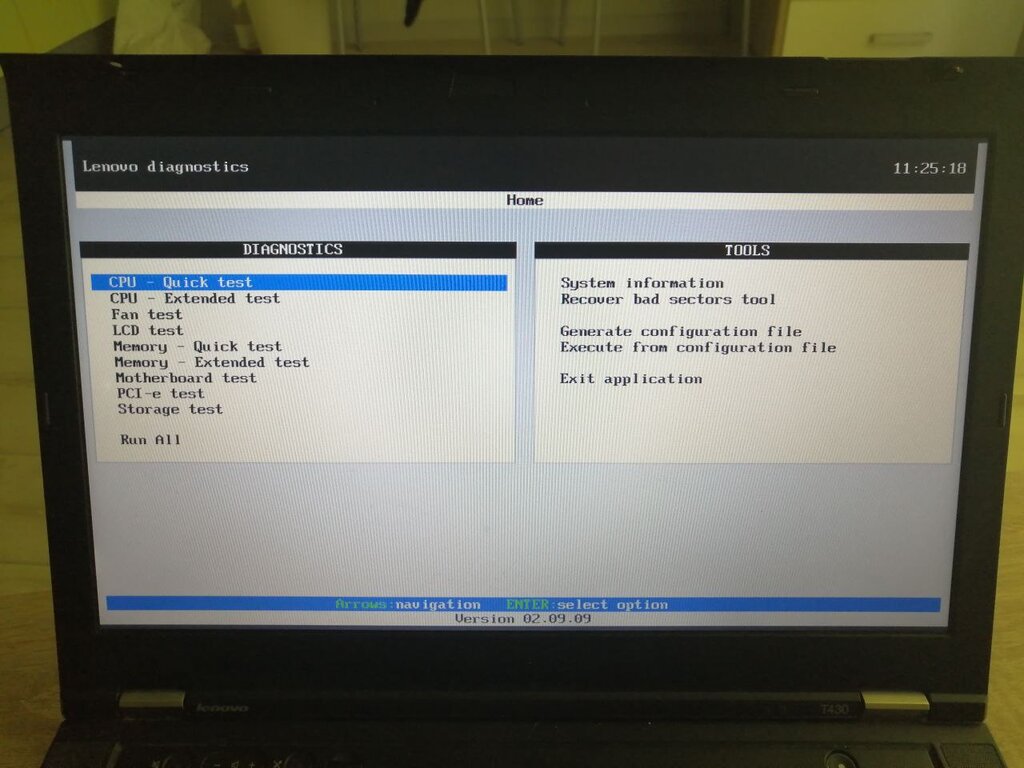
Instead of guessing based on beep codes, technicians rely on built-in diagnostic suites. Major manufacturers like Dell and HP build these tools directly into their hardware. Dell's version is called the Enhanced Pre-boot System Assessment, or , while HP has its PC Hardware Diagnostics. You can typically access them by pressing a specific key, like F12 or F2, during the initial boot sequence.
These suites run comprehensive tests on individual components outside of the operating system. This is a key advantage, as it eliminates software conflicts or OS-level issues as a potential cause of the problem. You can run a quick check that takes a few minutes or an extended, thorough test that can run for hours, checking every sector of a hard drive or every block of memory for errors. The results usually provide a clear pass/fail status and, if a failure occurs, an error code that points directly to the faulty component.
Common Points of Failure
While any component can fail, some are more prone to issues than others in a high-usage enterprise setting. Understanding their specific failure patterns is key to fast and accurate troubleshooting.
Memory and storage are mechanical-sympathetic parts. They don't have moving components in the traditional sense, but they degrade over time with use. Heat and heavy workloads accelerate this process.
Memory Errors
Workstations and servers use a special type of RAM called because data integrity is paramount. ECC stands for Error-Correcting Code. It can detect and correct single-bit memory errors on the fly, preventing data corruption that might otherwise crash the system. Most operating systems log these corrections silently. A rising number of corrected errors in the system logs (like the Windows Event Viewer or Linux's dmesg log) is a strong indicator that a RAM module is beginning to fail and should be replaced before it causes a more serious, uncorrectable error.
Storage Degradation
NVMe SSDs offer incredible speed, but they aren't immortal. Their memory cells have a finite number of write cycles. Diagnostic tools can read the drive's S.M.A.R.T. (Self-Monitoring, Analysis and Reporting Technology) data, which provides health statistics like 'Percentage Used' or 'Media and Data Integrity Errors'. When these values start to climb, it's a sign that the drive is wearing out. Sudden performance drops or files becoming corrupt are also classic symptoms of a failing SSD controller or degrading flash memory.
Thermal Management
High-performance workstations generate a lot of heat. If not managed properly, the CPU and GPU will engage in —intentionally slowing down to prevent overheating. This isn't a failure, but a protective measure. However, persistent throttling indicates a problem with the cooling system. Often, the cause is simple: dust clogging the heatsinks and fans. A can of compressed air is the first tool to reach for. If cleaning doesn't solve the issue, it could be a failing fan or dried-out thermal paste between the processor and its heatsink, which would need to be replaced.
Repair or Replace?
In an enterprise, the decision to repair a faulty component or replace the entire machine is a business calculation, not just a technical one. The goal is always to minimize user downtime. The process differs significantly between form factors.
| Consideration | Desktops / Workstations | Laptops |
|---|---|---|
| Accessibility | Easy. Standardized parts and spacious cases. | Difficult. Components are often integrated or hard to access. |
| Component Cost | Lower. RAM, SSDs, and power supplies are commodity parts. | Higher. Parts are proprietary and specific to the model. |
| Repair Time | Fast. A swap can often be done in under 30 minutes. | Slow. Requires complete disassembly and reassembly. |
| Typical Action | Repair. Swap the failed component (RAM, SSD, GPU). | Replace. Issue a replacement laptop to the user immediately. The faulty unit is sent for depot repair later. |
This workflow is part of a corporate lifecycle management plan. A desktop with a failed SSD is a quick fix. A laptop with a faulty motherboard is not. The cost of a technician spending hours disassembling a laptop, plus the cost of the proprietary part, can often approach the cost of a new device, especially when factoring in the employee's lost productivity. For this reason, many organizations keep a stock of ready-to-deploy laptops to get employees back to work in minutes, not days.
A good, logical troubleshooting process should help you identify hardware-related computer issues.
Before you dive in to diagnose hardware issues, here's a quick quiz to check your understanding.
What is the primary purpose of the Power-On Self-Test (POST) process when an enterprise machine is turned on?
A technician observes that a high-performance workstation is running much slower than usual under heavy load. They suspect the CPU is overheating. What is the protective mechanism that is likely causing this slowdown?
By moving beyond basic component identification to a systematic diagnostic process, you can quickly and accurately resolve hardware issues, keeping systems and the people who use them running smoothly.