Design Ebooks in Canva
Canva Basics
Getting Started in Canva
Canva is a design tool that helps anyone create professional-looking graphics, from social media posts to presentations. You don't need any prior design experience to jump in and start creating.
Free and user-friendly, Canva makes designing easy and fun for both the amateur and pro.
Think of it as a digital workspace filled with all the tools you need. It uses a simple drag-and-drop system, which makes arranging things on your page intuitive.
Your Design Dashboard
When you first log in to Canva, you'll land on your dashboard. This is your home base. At the top, you'll see a prominent search bar. Here, you can type in what you want to create, like "presentation" or "Instagram post."
To the right, there's a "Create a design" button. This lets you start a new project, either by choosing a suggested size or by entering custom dimensions.
On the left-hand side, you'll find a navigation menu. This is where you can access all your past projects, view templates, and explore other Canva features. The main area of the dashboard will show your recent designs, making it easy to pick up where you left off.
The Building Blocks of Design
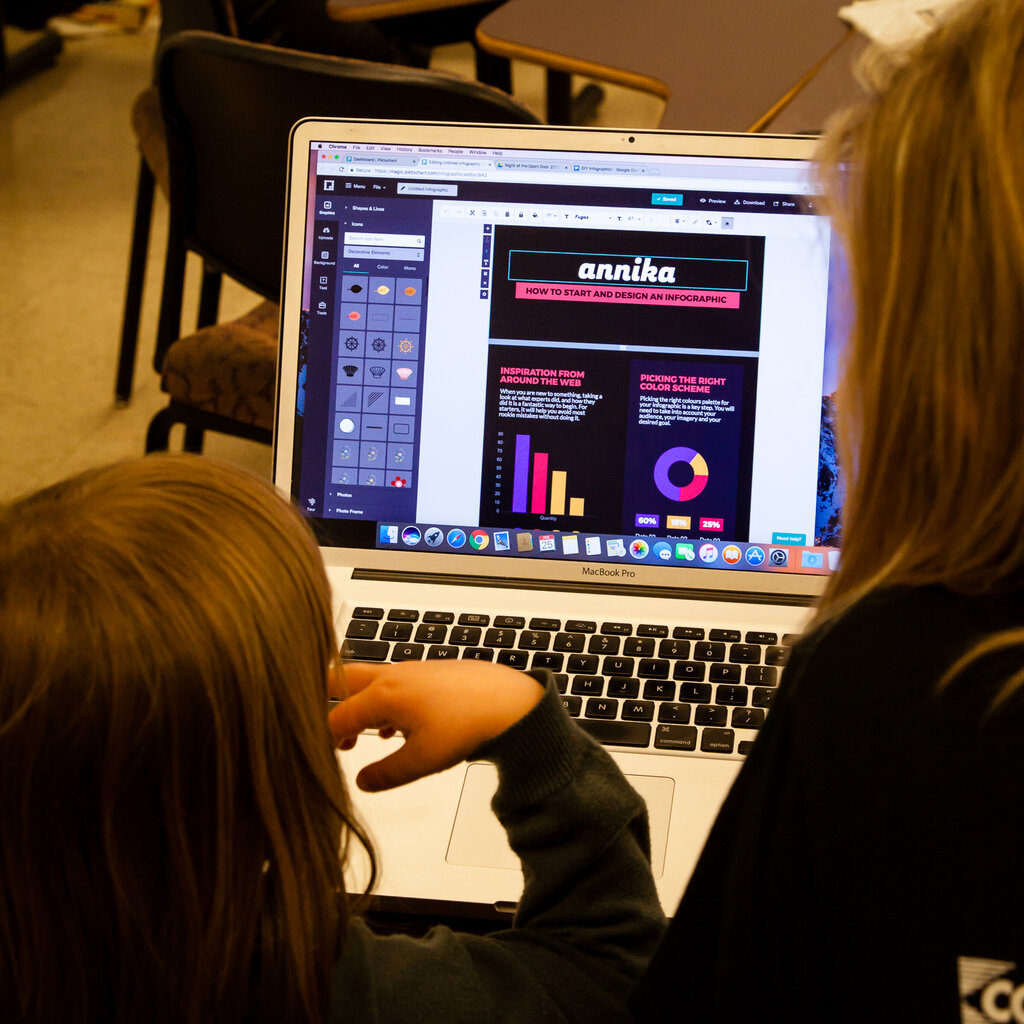
Once you open a new or existing design, you'll see the editor. On the left side is a panel with all the building blocks you can add to your project. Let's walk through the most important ones.
- Templates: This tab shows professionally designed layouts you can use as a starting point.
- Elements: Here you'll find a huge library of shapes, lines, icons, graphics, photos, and videos. You can search for almost anything you can imagine.
- Text: This is where you add headings, subheadings, and body text. You can also find pre-designed font combinations that look great together.
- Uploads: If you have your own images, logos, or other files, you can upload them here to use in your designs.
A good rule of thumb for beginners is to keep it simple. Using just a few core elements often results in a cleaner, more effective design.
Templates to the Rescue
Canva's biggest strength, especially for new users, is its vast library of templates. Instead of starting with a blank page, you can choose a design that already looks good and simply customize it to fit your needs.
Instead of creating your social media graphics from scratch, use Canva’s amazing library of templates, which you can use and customize — for free!
To use a template, just click on one you like from the Templates tab, and it will appear on your canvas. From there, everything is editable. You can click on any text box to change the wording. You can select an image and replace it with one of your own or one from Canva's library. You can also change the colors of any element to match your personal style or brand.
Working with templates is a great way to learn about design. You can see how professionals combine fonts, colors, and layouts to create a balanced look.
Time to check your understanding of these core concepts.
What is the primary function of the Canva dashboard?
If you want to add your own company logo to a design, which tab in the editor panel should you use?
With these basics, you're ready to start exploring Canva and creating your own designs.