Data Analysis Integration with Python and Power BI
Configuring Python Power Integration
Connecting Python and Power BI
To get started, you first need to tell Power BI where your Python installation lives. Power BI needs to know the exact path to the executable file to run your scripts. This step is crucial, as a misconfigured path is the most common reason for integration errors.
In the "Options" menu, navigate to the "Python scripting" tab. Power BI will attempt to detect your local Python installation. If it finds the correct one, simply confirm it. If not, you'll need to manually browse to the root folder of your Python environment. This is often called the "home directory."
Using a is highly recommended. It isolates the packages for your Power BI projects, preventing conflicts with other Python projects on your machine. When you set the path, point it to the Python executable inside your virtual environment's Scripts folder.
Install Essential Libraries
Power BI relies on a few key Python libraries to handle data and create visuals. While you can use many libraries, three are fundamental for most tasks: Pandas, Matplotlib, and Seaborn.
Pandas: The workhorse for data manipulation. Power BI converts its data tables into a Pandas DataFrame before passing them to your Python script. Matplotlib: The foundational plotting library. It provides the low-level building blocks for creating charts and graphs. Seaborn: Built on top of Matplotlib, Seaborn offers more aesthetically pleasing and statistically sophisticated plot types with less code.
You'll need to install these packages into the Python environment that Power BI is configured to use. Open your command prompt or terminal (making sure your virtual environment is activated, if you're using one) and run the following commands.
# Install the core data manipulation library
pip install pandas

# Install the primary plotting library
pip install matplotlib

# Install the statistical visualization library
pip install seaborn
Version compatibility is key. Power BI may not support the absolute latest version of Python or its libraries. If you encounter errors when running scripts, a version mismatch is a likely culprit. Check the official Power BI documentation for the currently supported Python versions to ensure a smooth experience.
Enable Python Features
With the path set and libraries installed, the final step is to enable Python scripting features within Power BI and set up a comfortable editing environment.
By default, script visuals are a preview feature and might be disabled. You'll need to enable them in the "Preview features" section of the "Options" menu. Just check the box next to "Python script editor" and restart Power BI.
While you can write code directly in the small editor that pops up in Power BI, it's not ideal for anything complex. A much better workflow is to use a dedicated code editor. Power BI allows you to specify your preferred Python IDE. When you go to edit a script, Power BI will launch that application with the script pre-loaded.
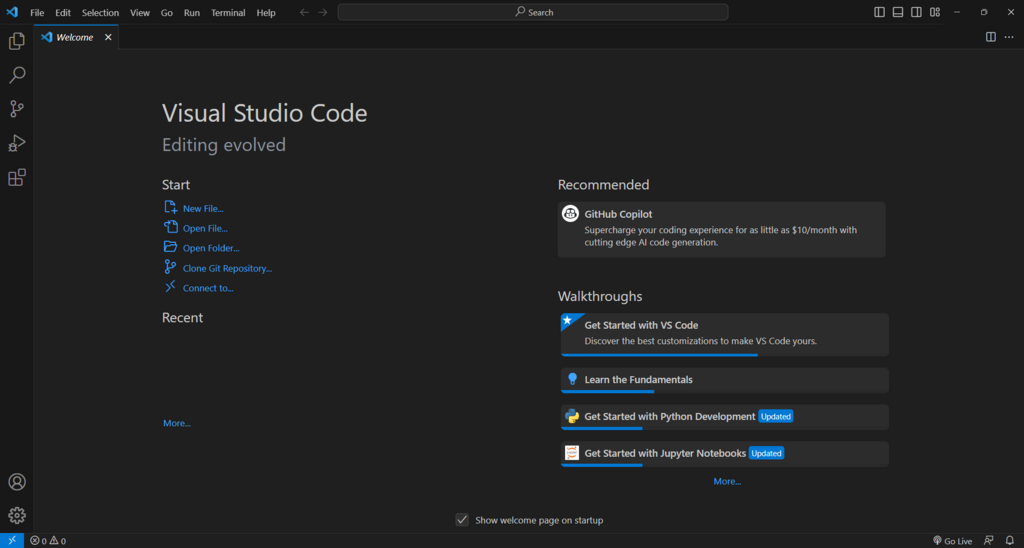
A popular choice is , a free and powerful editor from Microsoft. You can set this in the same "Python scripting" options window where you configured the home directory.
Once these settings are configured, your environment is ready. You have successfully bridged Power BI and Python, opening up a world of advanced data manipulation and custom visualization possibilities.
What is the most common reason for errors when first integrating Python with Power BI?
Why is using a virtual environment recommended for Power BI Python projects?