Cursor IDE for Databricks Data Science
Introduction to Cursor IDE
Meet Your AI Coding Partner
Cursor is a code editor built specifically for working with artificial intelligence. Think of it as a traditional editor, like the ones you might already be used to, but with powerful AI features baked right in. This design helps you write, debug, and manage your code much faster.
Cursor is more than just a code editor, it’s your AI coding partner, built on top of VS Code but reimagined for the AI era.
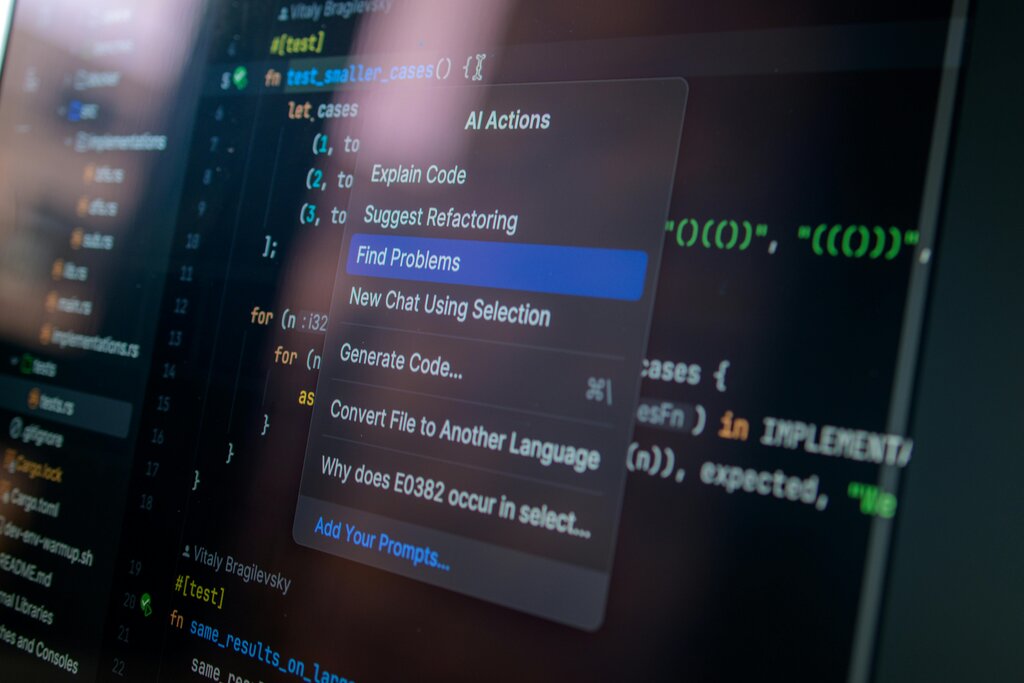
Because Cursor is built on top of Visual Studio Code (VS Code), it has a familiar feel and supports all the same extensions and themes. The key difference is its native AI integration. You can chat with an AI about your codebase, ask it to generate new code from a simple description, or have it find and fix bugs for you.
Cursor supports a wide array of programming languages right out of the box, including Python, R, SQL, Java, C++, and JavaScript. This makes it a versatile tool for data science, web development, and general-purpose programming.
Installation and Setup
Getting started with Cursor is straightforward. You can download the installer directly from the Cursor website. Here’s a quick guide for different operating systems.
| Operating System | Installation Steps |
|---|---|
| Windows | Download the .exe installer and run it. Follow the on-screen instructions. |
| macOS | Download the .dmg file. Open it and drag the Cursor application into your Applications folder. |
| Linux | Download the .AppImage file. Make it executable (chmod +x cursor-*.AppImage) and then run it. |
After installing, the first thing you'll want to do is configure it to your liking. When you open Cursor for the first time, you can import your settings, themes, and extensions directly from VS Code if you have it installed. This makes the transition seamless.
You can also configure your AI settings. By default, Cursor uses models like OpenAI's GPT-4, but you can connect it to other AI models if you have the appropriate API keys. This is found in the settings menu, usually under a tab labeled 'AI' or 'Cursor'.
Common Troubleshooting
Sometimes, installation doesn't go as planned. Here are a few common issues and how to solve them.
Path
noun
A variable that specifies the locations of directories where executable programs are located on your computer.
Issue: The application won't open.
On macOS, you might get a security warning because the app was downloaded from the internet. To fix this, open 'System Settings,' go to 'Privacy & Security,' and scroll down. You should see a message about Cursor being blocked, with an option to 'Open Anyway.' On Linux, ensure the .AppImage file has execute permissions.
Issue: My VS Code extensions are missing.
Cursor should prompt you to import settings on first launch. If it doesn't, you can trigger this manually. Look for a command in the Command Palette (usually opened with Ctrl+Shift+P or Cmd+Shift+P) called 'Cursor: Import from VS Code'.
Issue: AI features are not working. This is often due to a network issue. First, check your internet connection. Some corporate networks or firewalls may block access to the AI services Cursor uses. If you are on a VPN, try disconnecting from it temporarily to see if that resolves the problem.
Now that you have Cursor installed and configured, you're ready to start exploring its features.
What is the key feature that distinguishes Cursor from traditional code editors like VS Code?
If you install Cursor on macOS and it won't open due to a security warning, what should you do?