Cursor IDE Development
Introduction to Cursor IDE
What is Cursor?
Cursor is a code editor with a powerful AI assistant built directly into it. Think of it as a standard coding environment that has been supercharged to help you write, edit, and fix code faster.
It's built on top of Visual Studio Code (VS Code), one of the most popular code editors in the world. This is a huge advantage. If you've ever used VS Code, Cursor will feel immediately familiar. The layout, keyboard shortcuts, and even most extensions work just the same. The learning curve is practically flat.
Cursor represents a complete reimagining of the code editor, built from the ground up with AI assistance as a core feature rather than an add-on.
The goal of Cursor is to make programming more of a conversation. Instead of just typing code line-by-line, you can give instructions in plain English, ask for help debugging a tricky problem, or have the AI refactor a messy block of code for you.
Key Features
While Cursor has many advanced capabilities, its core strengths lie in a few key areas that set it apart from other editors.
First and foremost is its AI-powered assistance. This goes far beyond simple code suggestions. You can highlight a piece of code and ask the AI to explain it, improve it, or find bugs. You can also generate new code from scratch just by describing what you want to accomplish. This fundamentally changes how you approach coding, turning it into a more collaborative process.
Because it’s a fork of VS Code, Cursor inherits its best qualities. It supports a vast number of programming languages, from Python and JavaScript to C++ and Go. It also has a powerful, built-in terminal and debugging tools that work just as you'd expect.
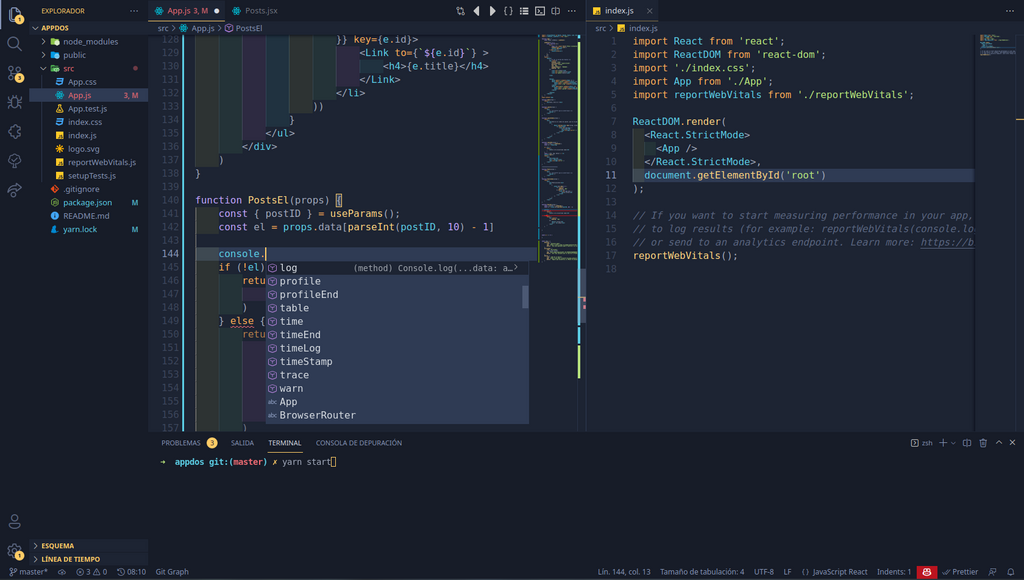
Cursor vs. Traditional Editors
So how is this different from a regular Integrated Development Environment (IDE) like VS Code with an AI plugin like GitHub Copilot?
The main difference is the level of integration. In traditional setups, AI is often an add-on, a separate tool that sits on top of the editor. In Cursor, the AI is woven into the fabric of the application. It understands the context of your entire project, not just the file you're currently working on. This allows it to provide more accurate, relevant, and helpful suggestions.
Traditional IDEs provide the tools to write code. Cursor acts like a partner, actively helping you build, refine, and debug with those tools.
This deeper integration enables features that aren't possible with simple plugins. For example, you can ask Cursor to perform project-wide changes or reference specific documentation files while generating code. It shifts the AI from a simple autocomplete tool to a true programming assistant.
Installation and Setup
Getting started with Cursor is straightforward. The process is similar to installing any other application on your computer.
- Download: Go to the official Cursor website (cursor.sh) and download the installer for your operating system (macOS, Windows, or Linux).
- Install: Run the installer and follow the on-screen prompts. On macOS, you'll likely drag the app to your Applications folder. On Windows, you'll run through a standard installation wizard.
- Launch: Once installed, open Cursor. On your first launch, it will ask you to log in or create an account. It may also offer to import your settings, themes, and extensions from an existing VS Code installation, which makes the transition seamless.
After these quick steps, you’ll be ready to start coding with your new AI partner.