Cursor IDE
Introduction to Cursor IDE
Meet Your AI Coding Partner
Think of an Integrated Development Environment, or IDE, as a programmer's workshop. It’s a single application that bundles all the essential tools for software development: a text editor to write code, tools to build and test it, and a debugger to find and fix problems. Popular IDEs like Visual Studio Code have made coding more efficient for millions of developers.
Cursor is a new kind of IDE. It takes the familiar, powerful foundation of VS Code and integrates artificial intelligence directly into the workflow. Instead of just being a place to write code, Cursor becomes an active partner in the coding process. It's designed to help you write, refactor, and understand code faster than ever before.
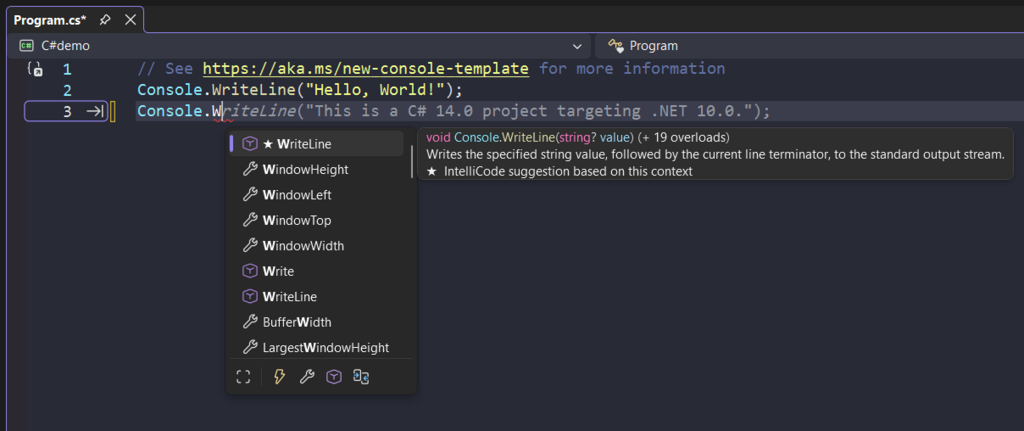
The core idea is to reduce the friction between a thought and functional code. Instead of searching online for syntax or boilerplate code, you can ask the AI to generate it for you. If you're struggling to understand a complex function, you can ask for an explanation in plain English. This tight integration makes it different from simply having a separate AI chatbot window open.
Getting Started with Cursor
Setting up Cursor is simple. You can download it directly from the official Cursor website. The installation works just like any other application for your operating system.
One of the best parts of the setup process is its connection to VS Code. If you're already a VS Code user, Cursor can automatically import all your existing extensions, themes, and settings. This means you can get the benefits of AI without having to reconfigure your entire development environment. Your keyboard shortcuts and favorite color scheme will be there waiting for you.
Migrating is easy. Cursor's ability to import your VS Code settings makes the switch nearly seamless, letting you focus on the new AI features right away.
A Quick Tour of the Interface
When you first open Cursor, the interface will feel instantly familiar if you've used VS Code. It maintains the same core layout to ensure a comfortable transition.
Here are the main components you'll interact with:
The key difference is the integrated AI Chat panel. This is your command center for interacting with the AI. You can ask it questions, request code, or ask for help debugging, all without leaving your editor.
Core Features
While Cursor has many capabilities, its power comes from a few core features that fundamentally change how you code.
| Feature | Description |
|---|---|
| AI Chat | Ask questions about your codebase or general programming concepts. The AI has context of your open files. |
| Code Generation | Prompt the AI to write new functions, classes, or boilerplate code directly in your editor. |
| Code Refactoring | Highlight a block of code and ask the AI to improve it, simplify it, or add comments. |
| Inline Edits | Make quick, AI-assisted changes to your code without a separate chat panel, using a simple keyboard shortcut. |
These features work together to create a fluid development process. For example, you might generate a new function using the chat, then use an inline edit to quickly modify a variable name within it, and finally ask the chat to add documentation explaining what the function does.
Cursor is an AI-powered code editor that can significantly accelerate your development with Composio.
With these tools, you can spend more time thinking about the logic of your application and less time getting bogged down by syntax and boilerplate.