Cursor for Web App Development
Introduction to Cursor IDE
Meet Your AI Coding Partner
Cursor is a code editor designed from the ground up to work with AI. It's built on top of Visual Studio Code (VS Code), which means if you've used VS Code before, Cursor will feel very familiar. The layout, shortcuts, and themes are all there.
Cursor is built on VS Code but reimagines the editing experience with AI at the center.
The key difference is its deep integration of artificial intelligence. Instead of just suggesting the next word or line of code, Cursor can chat with you about your project, write entire functions from a simple description, and help you track down tricky bugs. Because it's a fork of VS Code, you can still use all your favorite extensions and settings. You get the best of both worlds: a familiar, powerful editor supercharged with AI.
Installation and Setup
Getting started is simple. You can download and install Cursor from its official website. Once it's installed, you can open any of your existing coding projects just like you would with any other editor.
When you open a folder, Cursor gets to work right away. It scans your files to understand the structure of your project and how different parts of your code relate to each other. This indexing process is what allows the AI to provide smart, context-aware assistance.
By understanding your entire codebase, Cursor's AI can give you more relevant suggestions and generate code that fits seamlessly with your existing work.
Core AI Features
Cursor's AI capabilities are woven directly into the development workflow. Here are the three main ways it can help you.
AI-Powered Code Generation
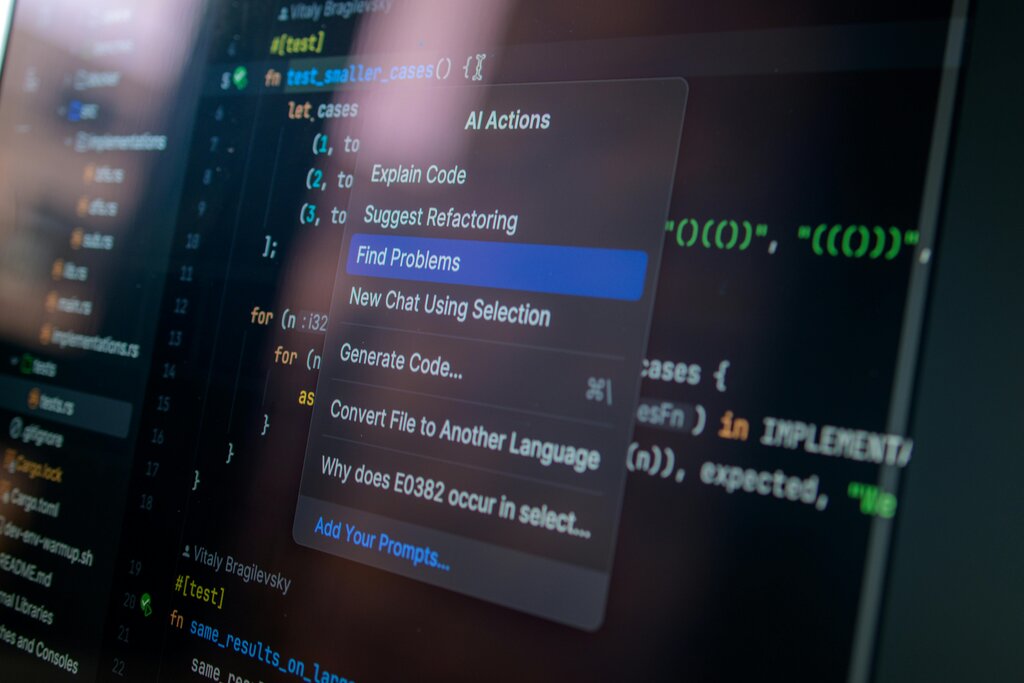
You can generate code using natural language. Open the chat panel (with Cmd+K on Mac or Ctrl+K on Windows) and simply ask the AI to write what you need. For example, you can highlight a block of code and ask the AI to refactor it, or you can prompt it to create a new function from scratch.
/*
  Prompt: Write a JavaScript function that takes an array of numbers and returns the sum.
*/

function calculateSum(numbers) {
  let sum = 0;
  for (let i = 0; i < numbers.length; i++) {
    sum += numbers[i];
  }
  return sum;
}
AI-Assisted Debugging Chasing bugs can be one of the most time-consuming parts of programming. With Cursor, you can highlight a piece of code that isn't working and ask the AI to find the problem. It can often spot logical errors, syntax mistakes, or other issues and suggest a fix. This turns a frustrating debugging session into a quick conversation.
Automated Documentation Good documentation is crucial for maintaining a project, but writing it can be tedious. Cursor can automate this process. You can select a function, a class, or even an entire file and ask the AI to generate clear, concise documentation for it. It can add comments explaining what the code does, document parameters, and summarize the purpose of a file.
Now, let's test your understanding of what makes Cursor a unique tool for developers.
What is the primary foundation of the Cursor code editor?
If you've used Visual Studio Code before, what can you expect when switching to Cursor?
These features work together to create a smoother, faster, and more intuitive coding experience.