Cursor and GitHub Mastery
Introduction to Cursor
Meet Your AI Coding Partner
Imagine a code editor that not only understands your project but actively helps you build it. That's Cursor. It's an AI-first code editor designed to make you a more efficient and effective developer. If you've used Visual Studio Code (VS Code), Cursor will feel instantly familiar because it's built on top of it. You get all the features you already know, plus a powerful suite of integrated AI tools.
Cursor is an AI-first code editor that fundamentally changes how developers write code.
Instead of just suggesting the next word or line of code, Cursor understands the context of your entire project. This allows it to generate more accurate code, help you debug tricky problems, and answer questions about your codebase. It’s designed to be a true collaborator.
Core AI Features
Cursor's main strength lies in how deeply AI is woven into the editing experience. Here are some of the key capabilities you'll use right away:
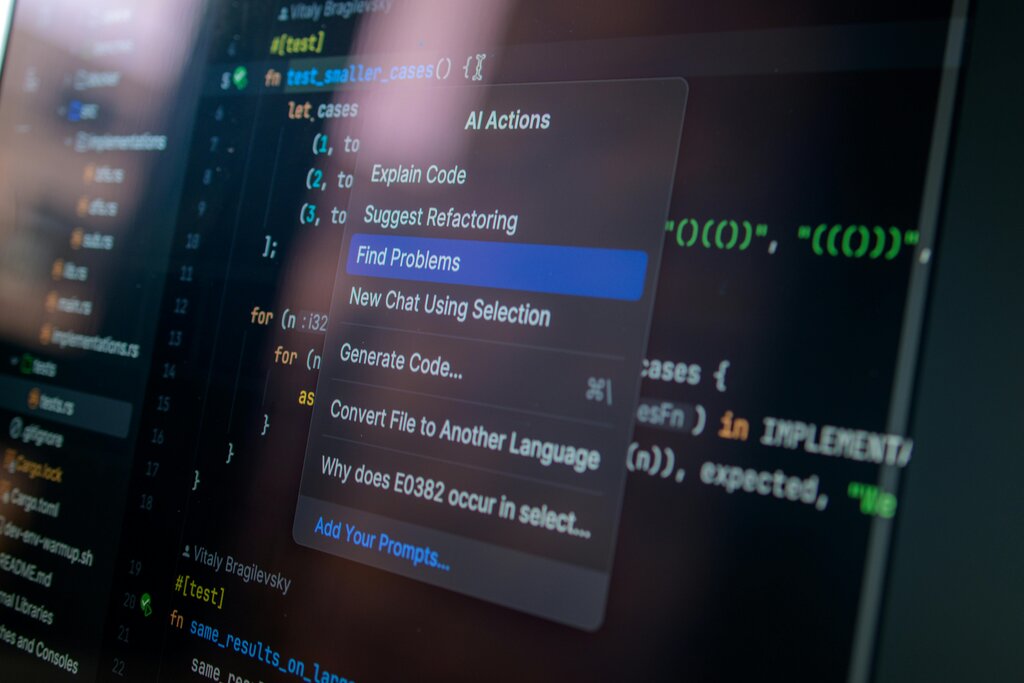
- Context-Aware Chat: You can chat with an AI that has context on your entire codebase. Highlight a piece of code and ask it to explain, refactor, or debug it. You can also ask broader questions about your project's architecture.
- AI Code Generation: Describe a feature or a function in plain English, and Cursor will generate the code for you. This is great for scaffolding new components or tackling unfamiliar libraries.
- Inline Editing: Request changes directly within your code files. The AI can apply edits, fix bugs, or add new functionality based on your instructions, showing you a diff of the proposed changes before you accept them.
- Broad Language Support: Cursor works with dozens of programming languages, from Python and JavaScript to Rust and Go, making it a versatile tool for any project.
The key difference from other tools is context. Cursor can scan all the files in your project to give more relevant and accurate assistance.
Installation and Setup
Getting started with Cursor is straightforward. You can download it directly from the official website. The installation process is similar to any other desktop application.
| Operating System | Installation Steps |
|---|---|
| Windows | Download the .exe installer and follow the setup wizard. |
| macOS | Download the .dmg file. Drag the Cursor app into your Applications folder. |
| Linux | Download the .AppImage file, make it executable, and run it. |
Once installed, you can open a project folder just like you would in VS Code. Cursor will automatically begin indexing your files to prepare its AI features. This initial scan allows the AI to understand your project's structure and dependencies.
A Tour of the Interface
Cursor maintains the classic, clean layout of VS Code, so you'll feel right at home. The main components are:
- File Explorer (Left Sidebar): This is where you navigate your project's files and folders.
- Editor Pane (Center): This is the main area where you'll write and edit your code.
- AI Chat Panel (Right Sidebar): This is your command center for interacting with the AI. You can ask questions, generate code, and get help without leaving your editor. You can also trigger AI actions directly from the editor with keyboard shortcuts (
Cmd+Kon Mac,Ctrl+Kon Windows/Linux).
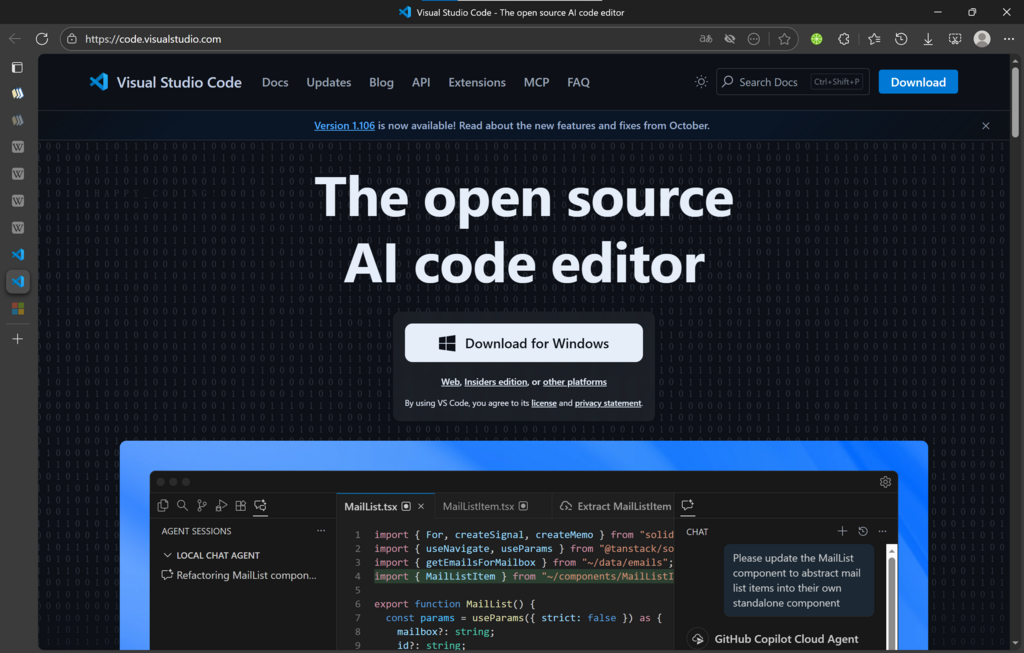
The most powerful workflow involves using the chat panel and inline edits together. You can ask a high-level question in the chat, and then use inline commands to apply the AI's suggestions directly to your code. It's a fluid and interactive way to program.
Now that you have a basic understanding of what Cursor is and how it works, let's test your knowledge.
Cursor is built on top of which popular code editor, giving it a familiar feel for many developers?
What is the primary advantage of Cursor's AI being "context-aware" of your entire codebase?
You're now ready to start exploring Cursor on your own. Try opening one of your existing projects and see how its AI features can help you understand and improve your code.