CUDA Programming with Python
CUDA Fundamentals
What is CUDA?
CUDA, which stands for Compute Unified Device Architecture, is a platform created by NVIDIA. It allows developers to use the immense parallel processing power of a graphics processing unit (GPU) for general-purpose computing. Instead of just rendering graphics for video games, GPUs can be used to accelerate scientific simulations, data analysis, and machine learning tasks.
CUDA is a parallel computing platform and programming model developed by NVIDIA that enables dramatic increases in computing performance by harnessing the power of the GPU.
Think of a CPU as a specialist, great at handling a few complex tasks one by one. A GPU, on the other hand, is like an army of workers, each capable of performing a simpler task, but all working at the same time. CUDA provides the tools to manage this army.
GPU Architecture for CUDA
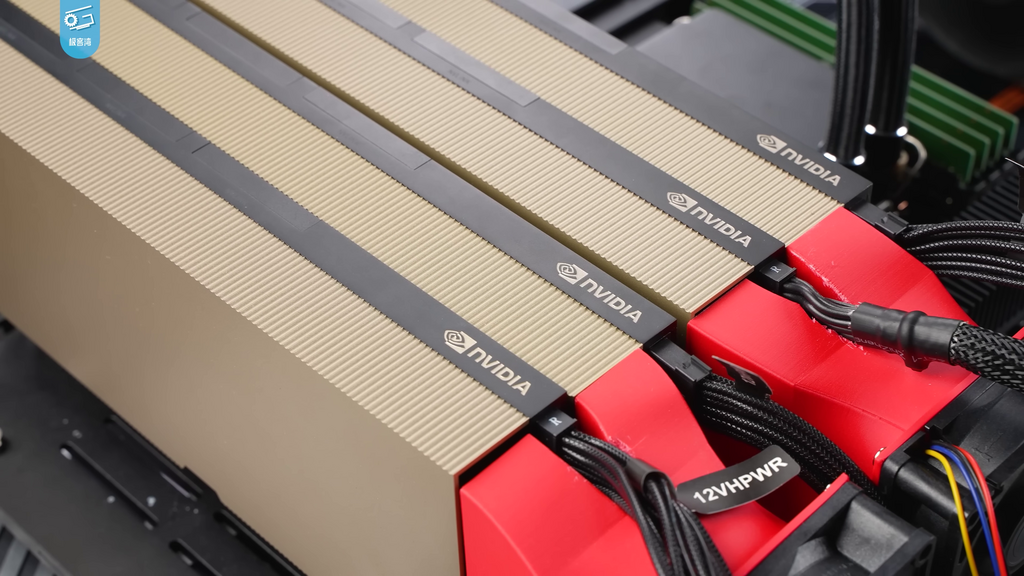
To understand CUDA, you first need a basic picture of the hardware it runs on. A modern NVIDIA GPU is not a single, monolithic processor. It's a collection of smaller processors called Streaming Multiprocessors, or SMs.
Each SM contains its own set of processing units, known as CUDA Cores. These are the fundamental workhorses that execute instructions.
A single high-end GPU can have dozens of SMs, and each SM might have hundreds of CUDA cores. This hierarchical structure is what allows a GPU to execute thousands of operations in parallel. The CUDA programming model is designed to map directly onto this hardware architecture.
The Execution Model
CUDA organizes parallel computations using a simple three-tiered hierarchy: threads, blocks, and grids. When you write a program to run on the GPU (called a kernel), you launch it with this structure in mind.
-
Thread: The smallest unit of execution. A single thread executes a sequence of instructions and runs on a single CUDA core.
-
Block: A group of threads. Threads within the same block can communicate and synchronize with each other. A block of threads is scheduled to run on a single SM.
-
Grid: A collection of blocks. All the blocks in a grid run the same kernel code. The grid represents the entire computation you want to perform on the GPU.
This model lets you scale your problem. A small problem might launch one grid with a few blocks, while a massive problem might launch a grid with thousands of blocks, each containing hundreds of threads.
The Memory Hierarchy
Efficiently managing memory is key to getting good performance in CUDA. Just like the execution model, the memory system is hierarchical, offering different trade-offs between speed, size, and scope.
-
Global Memory: This is the largest memory space on the GPU, comparable to a computer's RAM. It's accessible by all threads in the grid and also by the CPU (the host). However, it's also the slowest. Most CUDA operations begin by copying data from host RAM to GPU global memory.
-
Shared Memory: This is a smaller, much faster memory space that is shared by all threads within a single block. It's a powerful tool for threads to cooperate on a task, acting as a user-managed cache. Data can be loaded from global memory into shared memory once, then accessed many times at high speed.
-
Local Memory: This memory is private to a single thread. It's as slow as global memory and is typically used automatically by the compiler when a thread needs more storage space than the available registers.
-
Registers: The fastest memory of all. Each thread has its own private set of registers. The compiler does its best to store variables here, but their number is limited.
The art of CUDA programming often involves carefully orchestrating data movement between these memory spaces to keep the CUDA cores busy with data from the fastest possible source.
Getting Started with the CUDA Toolkit
The NVIDIA CUDA Toolkit provides everything you need to start developing CUDA applications. It includes the compiler, libraries, and tools for debugging and profiling. Setting it up involves a few general steps.
| Step | Action |
|---|---|
| 1. Check Hardware | Ensure you have a CUDA-capable NVIDIA GPU in your system. Most modern NVIDIA GPUs are. |
| 2. Install Driver | Download and install the latest NVIDIA driver for your GPU from NVIDIA's website. |
| 3. Install Toolkit | Download the CUDA Toolkit from the NVIDIA Developer website. Run the installer and follow the on-screen instructions. |
| 4. Verify Installation | Open a terminal or command prompt and run the command to check the compiler version. |
After installation, you can verify it by checking the version of the NVIDIA CUDA Compiler (NVCC). This command confirms that the toolkit is installed and accessible from your system's path.
# In your terminal or command prompt
nvcc --version
With these fundamentals in place—understanding the hardware, the execution model, and the memory hierarchy—you're ready to start writing code that unlocks the parallel power of GPUs.