Crafting Engaging Tweets
Understanding Twitter Basics
Navigating the Twitterverse
When you first open Twitter, you'll land on your main timeline. This is a constantly updating feed of posts, or "tweets," from the accounts you follow. It's where you'll discover news, ideas, and conversations in real time.
At the side or bottom of your screen, you'll find a navigation bar. This is your command center for exploring the platform. It typically includes a link to your timeline (the home feed), a search or explore page for discovering new topics, notifications, messages, and your own profile.
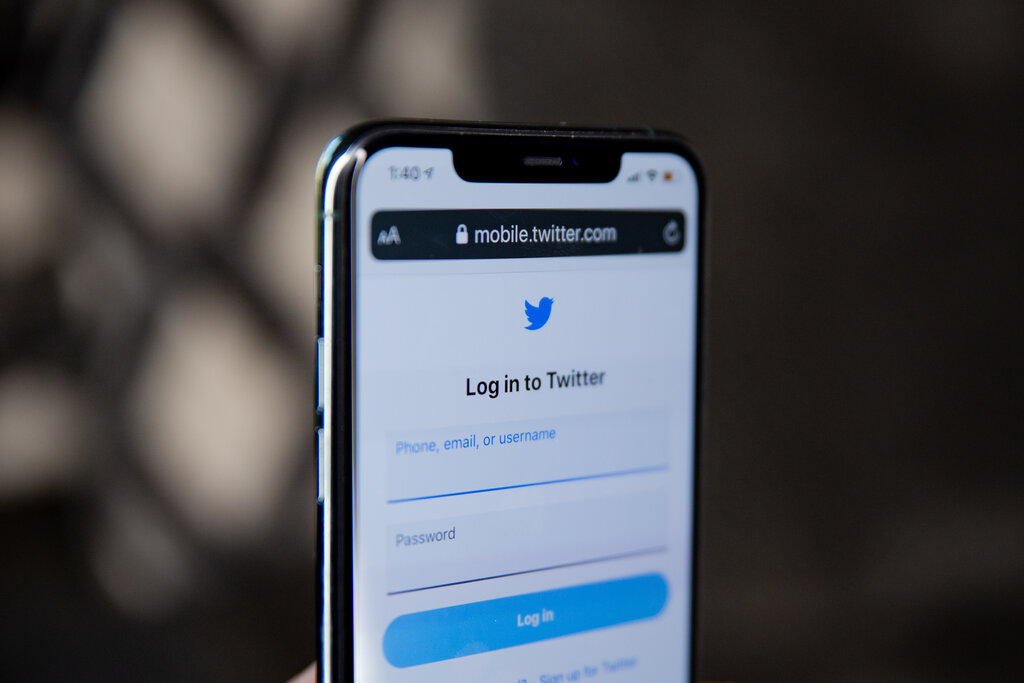
Your profile is your public space. It displays your photo, a short bio, and every tweet you've ever posted. It’s how other users get to know who you are and what you're interested in.
Composing Your First Tweet
Ready to share your thoughts? Composing a tweet is simple. Look for a button with a feather or a plus sign and tap it to open the composer window.
Tweet
noun
A short post on Twitter, limited to 280 characters. It can include text, photos, videos, links, and GIFs.
The 280-character limit encourages concise and impactful messages. You can type your message, add media like photos or a GIF to make it more engaging, and then hit the "Tweet" button to send it out to the world. Your followers will see it on their timelines.
Joining the Conversation
Twitter is all about interaction. You don't just post; you engage with what others are saying. The main tools for this are hashtags, likes, retweets, and replies.
Hashtag
noun
A word or phrase preceded by a hash sign (#), used to identify messages on a specific topic.
Hashtags are like filing cabinets for conversations. Adding one to your tweet makes it discoverable to anyone interested in that topic, not just your followers. Using relevant hashtags can greatly expand the reach of your message.
Below every tweet, you'll see a few icons. These are your tools for engagement.
- Reply: The speech bubble icon lets you respond directly to a tweet. Your reply will appear in a thread, keeping the conversation organized.
- Retweet: The icon with two arrows lets you share someone else's tweet with your own followers. It's a way of amplifying a message you agree with or find interesting.
- Like: The heart icon is a simple way to show appreciation for a tweet without having to write a response.

Finally, the best way to customize your experience is by following other users. When you follow an account, their tweets will appear on your timeline. You can follow friends, news organizations, experts in your field, or anyone whose content you find valuable. This is how you build a feed that's tailored to your interests.
Let's check your understanding of these core concepts.
What is the primary purpose of your main Twitter timeline?
What is the function of a hashtag (e.g., #topic) in a tweet?
Now you have the building blocks for navigating and participating in conversations on Twitter.