Core Developer Ecosystem and Tooling
Terminal Mastery
Beyond Basic Navigation
You already know how to move around with cd and see what's there with ls. Let's elevate those skills. True terminal mastery isn't about knowing more commands, but about using them with greater precision and speed. The first step is understanding paths.
An absolute path starts from the root directory (
/) and spells out the full location. A relative path starts from your current directory (pwd).
For example, if you are in /home/user and want to get to /home/user/documents/project, you can use the relative path cd documents/project. If you were in /var/log, you'd need the absolute path cd /home/user/documents/project.
Working efficiently also means minimizing keystrokes. Use tab completion aggressively. Type the first few letters of a file or directory and hit Tab. The shell will autocomplete the name or show you the options. For command history, use the up arrow to recall previous commands. You can also use history to see a list, and ![number] to re-run a specific command. Two powerful history expansions are !! (repeats the last command) and !$ (uses the last argument of the previous command).
# Create a nested directory structure in one go
mkdir -p project/src/components

# Move all .js files to the new directory
mv *.js project/src/components/

# Let's say we made a mistake. Use history expansion to undo.
mv project/src/components/!$ .
Chaining Commands
Every command in a Unix-like system operates on three standard streams: standard input (stdin), standard output (stdout), and standard error (stderr). By default, stdin is your keyboard, and both stdout and stderr are your terminal screen. The real power comes when you redirect these streams.
You can save the output of a command to a file using the > operator. This is called redirection. If the file exists, it will be overwritten. To append instead, use >>.
For example, ls -R > file_tree.txt will save a recursive listing of the current directory into file_tree.txt. If a command produces an error, that message goes to stderr. You can redirect it specifically with 2>. For instance, find / -name "secret.txt" > results.txt 2> errors.log separates successful results from permission-denied errors.
Even more powerful is the pipe |. It connects the stdout of one command to the stdin of the next, allowing you to build complex data processing pipelines.
# Count the number of .md files in the current directory
# ls: lists files
# grep: filters for lines containing ".md"
# wc -l: counts the lines
ls -l | grep ".md" | wc -l
Managing Your Workspace
The terminal isn't just for one task at a time. You can manage multiple running programs, known as processes. To run a command in the background, add an ampersand (&) at the end. This frees up your terminal for the next command while the first one continues to run.
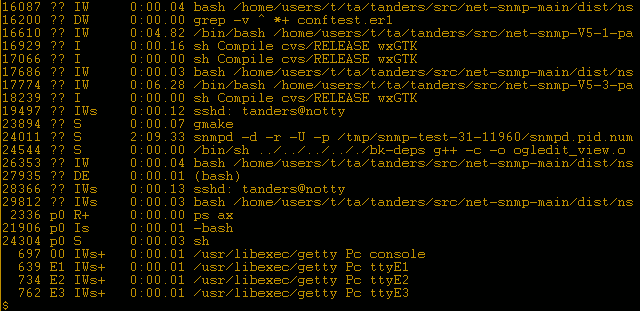
You can see a list of your background tasks with the jobs command. To bring a job back to the foreground, use fg %[job_number]. To let it continue in the background, use bg %[job_number]. If you need to stop a process, you can use ps aux | grep [process_name] to find its Process ID (PID), then use kill [PID].
Another key productivity tool is , or using wildcards to match filenames. The shell expands these patterns before the command is executed. The most common wildcards are * (matches any number of characters) and ? (matches any single character). You can also use curly braces {} to specify a list of possibilities.
# Move all jpeg and png files to the images directory
mv *.{jpg,png} ./images

# List all files that start with 'a' and have a three-letter extension
ls a*.???
By combining these techniques—efficient navigation, I/O redirection, process control, and pattern matching—the terminal transforms from a simple command executor into a powerful, scriptable environment. This is the foundation for automating tasks, managing remote servers, and becoming a more effective developer.
You are currently in the directory /home/user/pictures. Which command will successfully navigate you to /home/user/documents?
Which command saves the normal output of a program to results.txt and any error messages to errors.txt?