CompTIA A+ Core 1 Essentials
Mobile Devices
Inside the Laptop
Laptops pack a lot of power into a small space. Unlike desktops, their components are compact and designed for mobility. The most common upgrades you'll perform are for memory (RAM) and storage.
Most laptops have a small access panel on the bottom, secured by a few screws. Opening this panel gives you direct access to the RAM slots and the storage drive bay. Before you open anything, make sure the laptop is powered off, unplugged, and the battery is removed if possible. Static electricity is the enemy of computer components, so it's a good idea to ground yourself by touching a metal object first.
Laptop RAM is called SODIMM (Small Outline Dual In-line Memory Module). It's physically smaller than the DIMM modules used in desktops. To install or replace it, you'll see clips on either side of the RAM slot. Gently push these clips outward to release the existing stick, which will pop up at an angle. To insert a new one, slide it into the slot at the same angle, then press down until the clips snap into place.
For storage, laptops typically use either a 2.5-inch drive or a smaller M.2 drive. A 2.5-inch drive, which can be a traditional hard disk drive (HDD) or a solid-state drive (SSD), usually sits in a caddy and connects via a SATA port. An M.2 SSD looks more like a large stick of gum and plugs directly into a slot on the motherboard, secured by a single screw.
A Look at Mobile Displays
The screen is your window into the digital world, and mobile devices use a few different technologies. The two most common types are LCD and OLED.
LCD (Liquid Crystal Display) screens use a backlight to illuminate their pixels. Think of it as a big, constant flashlight shining through a grid of tiny shutters (the liquid crystals) that open and close to create an image.
OLED (Organic Light Emitting Diode) screens are different. Each pixel is its own tiny light source. To display black, a pixel simply turns off completely. This fundamental difference leads to some key distinctions in performance.
| Feature | LCD (with LED backlight) | OLED |
|---|---|---|
| Backlight | Always on, shines through pixels | No backlight; each pixel lights itself |
| Black Levels | Blacks can appear dark gray | True, deep blacks (pixel is off) |
| Power Usage | Generally uses more power | More efficient, especially on dark screens |
| Color | Good color accuracy | Highly vibrant, saturated colors |
Because OLED pixels can turn off individually, they offer a higher contrast ratio and more vibrant colors. This also makes them more power-efficient when displaying dark images, which can extend battery life. However, LCDs are often less expensive to manufacture and can sometimes achieve higher peak brightness.
Ports and Accessories
A laptop's portability is great, but it often means fewer ports than a desktop. Understanding the common ports is key to connecting accessories. USB is the most versatile, coming in several flavors. USB Type-A is the classic rectangular port, while USB Type-C is the smaller, reversible oval port. USB-C ports can sometimes support Thunderbolt, a high-speed standard that can handle data, video, and power all at once.
To bridge the gap between portability and desktop convenience, many users rely on docking stations or port replicators. These devices let you connect all your peripherals—monitors, keyboard, mouse, wired network—to the dock, and then connect the laptop to the dock with a single cable (usually USB-C or Thunderbolt). It turns a portable laptop into a full desktop setup in seconds.
A docking station simplifies your workspace by letting you connect all your accessories with a single cable to your laptop.
Getting Connected
Mobile devices are built for connectivity. The two primary wireless technologies you'll use are Wi-Fi and Bluetooth.
Wi-Fi connects your device to the internet through a wireless network. To connect, you simply open your device's network settings, find the name of the network (also called the SSID), and enter the password if it's secured. It's always a good security practice to connect only to trusted networks you recognize.
Bluetooth is used for short-range wireless communication between devices. It's perfect for connecting headsets, keyboards, mice, and speakers without cables. To connect a Bluetooth accessory, you'll use a process called pairing. First, you put the accessory into its discoverable or pairing mode. Then, on your laptop or smartphone, you search for new Bluetooth devices. Once your accessory appears in the list, you select it to complete the pairing process. Once paired, the devices will usually reconnect automatically when they're in range and powered on.
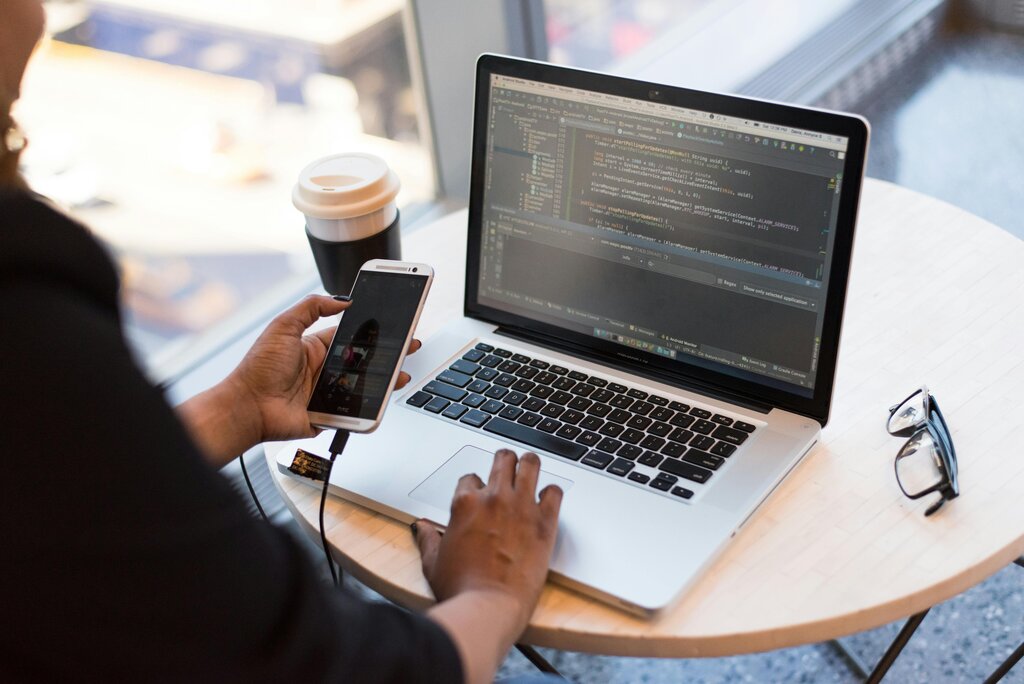
Finally, mobile devices run on applications, or apps. On laptops, you can install applications from websites or from a built-in app store, like the Microsoft Store or Mac App Store. On smartphones and tablets, you'll almost always use the official app store (like Google Play or Apple's App Store). Keeping your apps and operating system updated is crucial for getting new features and, more importantly, critical security patches.
Start by understanding (and embracing) the constraints of mobile, including smaller screen size, touch-based interactions, and varying network speeds.
Time to review what you've learned.
Let's check your understanding of these mobile device fundamentals.
What is the correct first step to release an existing SODIMM module from its slot in a laptop?
A storage drive that resembles a large stick of gum and plugs directly into a slot on the motherboard is known as a(n) ___________ drive.
With these basics, you're better prepared to handle the common hardware, display, and connectivity tasks for laptops and other mobile devices.