CompTIA A+ Core 1 Essentials
Mobile Devices
The World in Your Lap
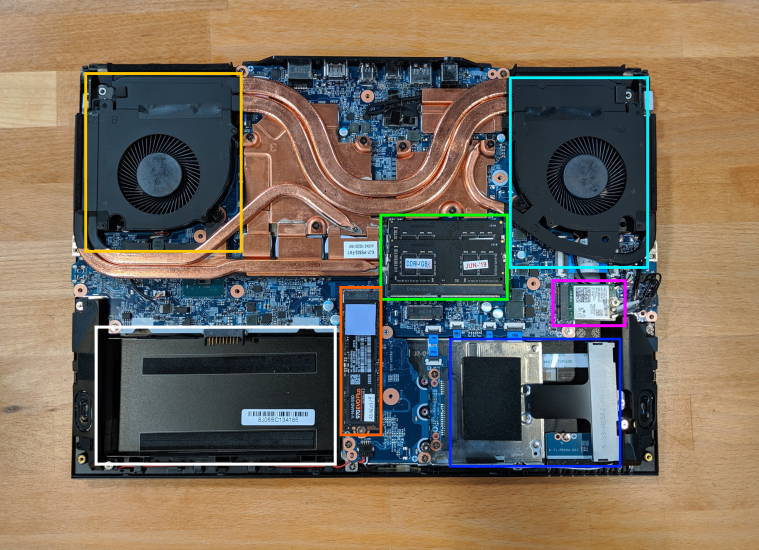
Laptops pack the power of a desktop computer into a portable package. This miniaturization requires specialized components designed to fit into a tight space, generate less heat, and consume less power.
At the heart of every laptop is a motherboard, but it's much smaller and more integrated than its desktop counterpart. The central processing unit (CPU) is often soldered directly onto the board to save space. In many modern, ultra-thin laptops and tablets, you'll find a System on a Chip (SoC), which combines the CPU, graphics, and other controllers into a single, power-efficient package.
Memory in laptops also comes in a smaller form factor. Instead of the DIMMs used in desktops, laptops use SO-DIMMs (Small Outline Dual In-line Memory Modules). They provide the same function but are about half the size.
For storage, older or budget laptops might still use 2.5-inch mechanical hard disk drives (HDDs) or solid-state drives (SSDs). However, most modern laptops have shifted to the even more compact M.2 form factor for SSDs. These look like a large stick of gum and plug directly into the motherboard, saving space and offering much faster data transfer speeds than traditional SATA connections.
Wireless connectivity is handled by small expansion cards. These cards, which provide Wi-Fi and Bluetooth, typically connect via a Mini-PCIe or an M.2 slot on the motherboard. Some business-focused laptops also have a slot for a WWAN (Wireless Wide Area Network) card, allowing for cellular data connectivity.
Features and Functions
Laptops have several unique hardware features tailored for portability. The built-in keyboard is often more compact than a standard desktop keyboard. To save space, many functions are accessed using a special Function (Fn) key. Holding down the Fn key while pressing one of the F-keys (F1-F12) or another key with a symbol can adjust screen brightness, change volume, disable the touchpad, or toggle Wi-Fi.
| Icon | Function |
|---|---|
| ☀️ | Adjust Screen Brightness |
| 🔊 | Control Audio Volume/Mute |
| ✈️ | Toggle Airplane Mode |
| 💻/📺 | Switch Display Output |
| touchpad with 🚫 | Enable/Disable Touchpad |
To bridge the gap between portability and desktop convenience, you can use docking stations or port replicators. A port replicator typically connects via a USB cable (often USB-C) and provides extra ports like USB-A, HDMI, and Ethernet. A docking station is usually more robust, often connecting through a proprietary, high-bandwidth port on the bottom or side of the laptop. Docking stations can offer more features than a simple replicator, including additional storage bays or more powerful graphics capabilities, and they provide a one-click connection to all your desktop peripherals.
A Window to Your World
Laptop displays have evolved significantly. For years, the standard was the LCD (Liquid Crystal Display). These screens work by shining a backlight through a layer of liquid crystals. There are two common types of LCD panels:
- TN (Twisted Nematic): These are inexpensive and have very fast response times, which is great for gaming. However, their color accuracy and viewing angles are poor.
- IPS (In-Plane Switching): These panels offer much better color reproduction and wide viewing angles, making the image look good even from the side. They are generally preferred for professional and general-purpose use.
The backlight for an LCD used to be a CCFL (Cold Cathode Fluorescent Lamp), but modern laptops all use LEDs (Light Emitting Diodes), which are brighter, more power-efficient, and longer-lasting.
A newer technology gaining popularity is OLED (Organic Light Emitting Diode). In an OLED display, each individual pixel generates its own light. This means they don't need a backlight. When a pixel is supposed to be black, it simply turns off completely. This results in perfect black levels, infinite contrast, and incredibly vibrant colors. The main downside is the potential for "burn-in," where a static image left on the screen for too long can leave a permanent ghost.
Many modern devices also feature touchscreens. These are typically capacitive touchscreens, which detect the conductive properties of a human finger to register a touch. They are more accurate and support multi-touch gestures compared to older resistive touchscreens that relied on physical pressure.
Accessorize and Expand
The limited number of ports on a laptop often requires the use of accessories. Besides docking stations, you can expand connectivity by plugging devices directly into available ports. Common external peripherals include mice, keyboards, and webcams.
External monitors are a popular accessory for creating a more ergonomic workspace. Laptops connect to them using ports like HDMI, DisplayPort, or increasingly, USB-C with DisplayPort Alternate Mode. You can configure the external display to either mirror your laptop's screen or extend it, giving you more screen real estate.

For physical security, most laptops include a small, reinforced slot known as a Kensington lock slot. You can attach a compatible cable lock to this slot and anchor the other end to a heavy object, like a desk, to prevent theft.
Ready to test your knowledge?
What type of memory module is specifically designed for the compact space inside a laptop?
A graphic designer needs a laptop display with excellent color accuracy and wide viewing angles. Which panel technology is the best choice?
Understanding these hardware components and features is the first step in mastering mobile devices. From the type of RAM to the display technology, each part plays a role in the performance and usability of your portable computer.