Comprehensive Microsoft Excel Mastery
Logical Formulas
Making Decisions with Data
You already know how to perform calculations like SUM and AVERAGE. The next step is to make your spreadsheets dynamic. Instead of just calculating numbers, you can teach Excel to make decisions based on your data. The core tool for this is the IF function.
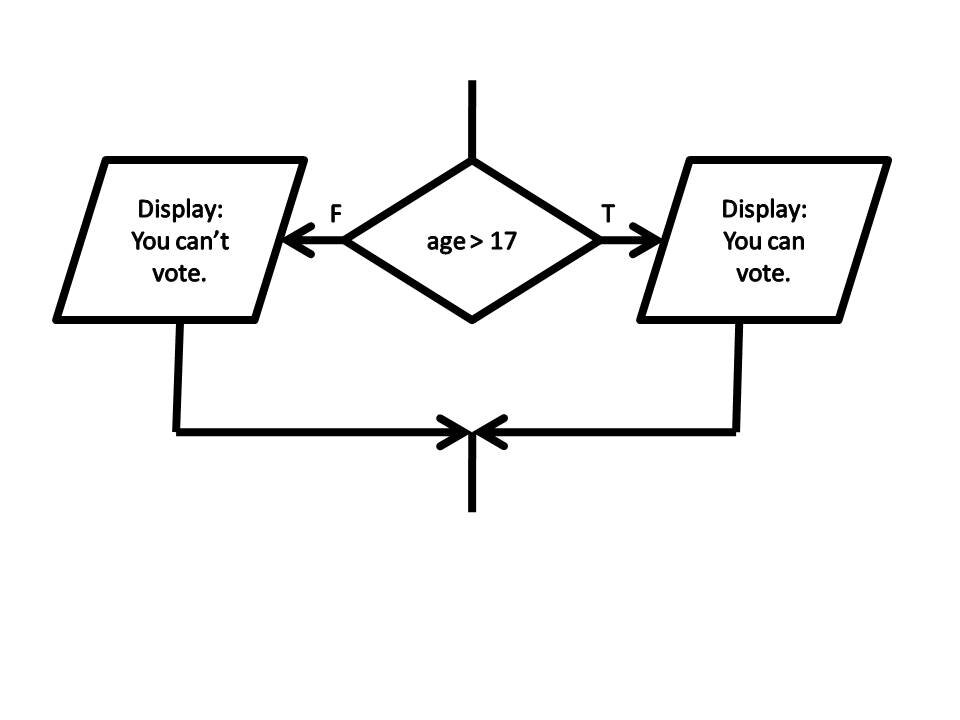
The IF function checks if a condition is true or false and then returns a value you specify for each outcome. Think of it as a simple question: If this is true, do that. Otherwise, do something else.
Its structure is:
IF(logical_test, value_if_true, value_if_false)
Imagine you have a list of sales figures. You want to quickly label anyone who met a target of £5,000 as "Met Target" and everyone else as "Review". If the sales amount is in cell B2, your formula would look like this:
=IF(B2>=5000, "Met Target", "Review")
Here's the breakdown:
- Logical Test:
B2>=5000checks if the value in cell B2 is greater than or equal to 5000. - Value If True: If the test is true, Excel returns the text "Met Target".
- Value If False: If the test is false, it returns "Review".
Handling Multiple Conditions
Sometimes, one condition isn't enough. What if you want to give a bonus only to salespeople who exceeded their target and are in the 'North' region? Or perhaps to anyone who either exceeded their target or has been with the company for more than five years. For these scenarios, you need to combine IF with the AND and OR functions.
These functions are a type of logic gate, a fundamental concept in computing. They let you build more sophisticated tests.
| Function | What it does | Example |
|---|---|---|
AND | Returns TRUE only if all conditions are true. | AND(B2>5000, C2="North") |
OR | Returns TRUE if at least one condition is true. | OR(B2>5000, D2>5) |
You embed these inside your IF statement as the logical test. To calculate a 5% bonus for the Northern region's high performers (sales in B2, region in C2), you would write:
=IF(AND(B2>5000, C2="North"), B2*0.05, 0)
There's also the NOT function. It's simpler: it just reverses the result of a logical test. NOT(TRUE) becomes FALSE, and NOT(FALSE) becomes TRUE. It's useful for situations where it's easier to define what you don't want. For example, to flag all regions that are not 'South': =IF(NOT(C2="South"), "Flag", "").
Layering Your Logic
What if you have more than two possible outcomes? For example, assigning letter grades based on a score: A for >90, B for >80, C for >70, and F for everything else. For years, the standard way to handle this was with nested IFs.
You place an IF function inside another IF function, usually in the value_if_false part. It creates a chain of decisions.
=IF(A2>90, "A", IF(A2>80, "B", IF(A2>70, "C", "F")))
As you can see, this gets complicated quickly. Keeping track of all the parentheses is a common source of errors, and modifying the logic later can be a headache.
Fortunately, newer versions of Excel offer a much cleaner solution: the IFS function.
IFS lets you list pairs of conditions and values. It checks each condition in order and stops when it finds the first true one. Here's the same grading logic using IFS:
=IFS(A2>90, "A", A2>80, "B", A2>70, "C", TRUE, "F")
It's much easier to read and maintain. The final TRUE, "F" pair acts as a default case, similar to the final value_if_false in a nested IF structure. It catches any value that didn't meet the previous criteria.
Another modern alternative is the SWITCH function. It's designed for situations where you're checking a single cell against a list of exact values. While less flexible than IFS, it's very efficient for direct-match scenarios.
Visualising Your Logic
Logical formulas aren't just for putting text or numbers in cells. You can also use them to change how cells look with a feature called Conditional Formatting. This lets you apply formatting (like a cell colour or bold text) only when a certain condition is met.
Instead of writing an IF statement in a cell, you select a range of cells and go to Conditional Formatting > New Rule > Use a formula to determine which cells to format.
Here, you write a logical formula that must resolve to either TRUE or FALSE. For any cell where the formula is TRUE, the formatting you choose will be applied.
For example, to highlight all sales in column B that are below $1,000, you would select the column and use this formula:
=B1<1000
You don't need the IF part. The formula itself is the test. You can use AND, OR, and NOT here as well. To highlight sales between $5,000 and $10,000, the formula would be =AND(B1>=5000, B1<=10000). This makes your data instantly easier to interpret at a glance.
This transforms your spreadsheet from a static table of numbers into a responsive dashboard that visually flags key information.
Now, let's test your understanding of these logical tools.
What is the primary purpose of the IF function in Excel?
You want to give a 5% bonus to employees who either sold more than £50,000 (sales in C5) OR have worked for more than 10 years (years in D5). Which formula correctly calculates this bonus on a base salary in B5?
Mastering these functions is a big step. It moves you from simply recording data to building intelligent models that automate decisions and reveal insights.