Command Line Essentials
Introduction to CLI
What is the Command Line?
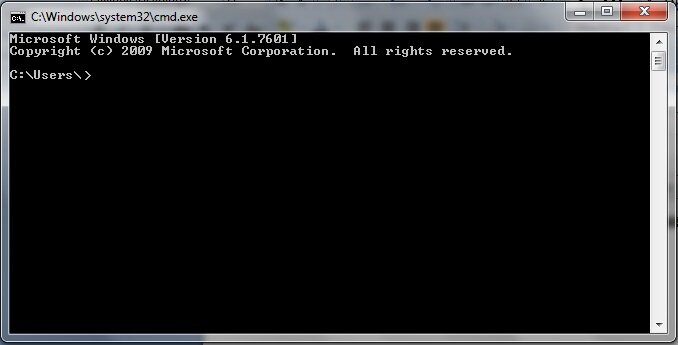
Before windows, icons, and mouse pointers, we talked to computers by typing. The Command-Line Interface, or CLI, is a text-based way to give a computer instructions. Instead of clicking on a button to open a file, you type a command and press Enter. It’s a direct conversation with the operating system.
Command-Line Interface
noun
A text-based user interface (UI) used to view and manage computer files. It's also known as a command-line user interface, console user interface, or character user interface.
This might sound old-fashioned, but it’s incredibly powerful. The program that provides this interface is called a shell. Think of it as the computer’s interpreter. You type a command, and the shell translates it into an action the system can perform.
The Anatomy of a Command
Commands follow a predictable structure, which makes them easy to learn once you understand the pattern. A typical command has three parts: the command itself, options that modify its behavior, and arguments that specify what the command should act upon.
- Command: The specific program you want to run. For example,
lsis a command to list files. - Options (or Flags): These modify the command's behavior. They usually start with a hyphen (
-) or two (--). For instance,-lmight tell thelscommand to show a detailed list. - Arguments: The target of the command. This is often a file or directory, like
Documents.
Not every command requires options or arguments. Some, like pwd (print working directory), run just fine on their own.
Why Use a CLI?
In a world of slick graphical user interfaces (GUIs), the command line can seem like a step backward. But for many tasks, it’s faster, more powerful, and more flexible. GUIs are great for exploration, but they limit you to the actions their designers predicted you would need.
The CLI gives you direct access to the system's capabilities, letting you combine simple tools to perform complex tasks.
Let's compare them directly.
| Feature | Command-Line Interface (CLI) | Graphical User Interface (GUI) |
|---|---|---|
| Interaction | Keyboard-driven (typing) | Mouse-driven (clicking, dragging) |
| Resource Use | Very low (uses minimal memory) | High (requires more memory and CPU) |
| Speed | Fast for experienced users | Slower for complex/repetitive tasks |
| Automation | Excellent, easy to script | Difficult or impossible to automate |
| Learning Curve | Steeper, requires memorization | Intuitive and easy to learn |
While you won't use the CLI for everything, learning the basics opens up a new level of control over your computer. It’s an essential tool for developers, system administrators, and anyone who wants to work more efficiently.
Ready to test your knowledge?
What is a Command-Line Interface (CLI)?
In a command-line environment, what is the program that interprets your typed commands called?
Now that you understand what a CLI is and how commands are structured, you're ready to start exploring what you can do with it.