Coding Environments and IDEs Explained
Introduction to Coding Environments
Your Coding Toolkit
Writing code is just one part of building software. The other part is the environment you work in. Think of it as a digital workshop. Just like a woodworker has a bench, saws, and measuring tools, a programmer has a set of digital tools to write, test, and run code. This collection of tools is called a development environment.
The All-in-One Workshop: IDEs
You could write code in a simple text editor, like Notepad on Windows. But that’s like trying to build a house with only a hammer. It’s possible, but not very efficient.
Most developers use an Integrated Development Environment, or IDE. An IDE pulls all the essential tools for software development into one application. It’s a complete workshop in a single window.
An IDE typically includes a code editor, a debugger to find errors, and tools to run your code.
The code editor in an IDE is smart. It uses syntax highlighting, which color-codes your text to make it easier to read. It also offers autocompletion, suggesting code as you type, which saves time and prevents typos. A debugger helps you step through your code line by line to find and fix bugs.
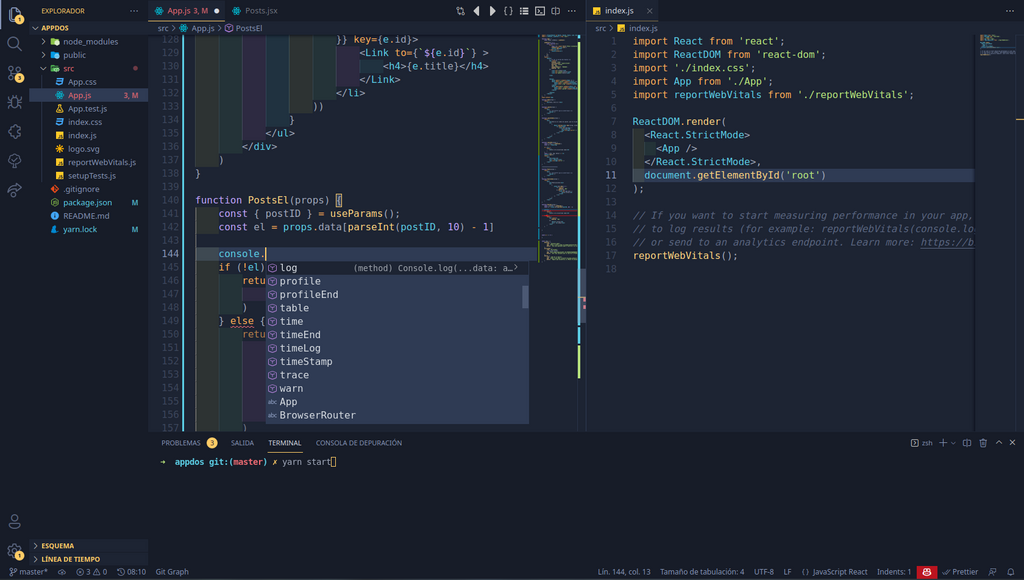
There are many IDEs, often specialized for different programming languages. Some popular choices include:
- Visual Studio Code (VS Code): A free, lightweight, and highly popular IDE from Microsoft. It's extremely versatile and works well for almost any language, especially for web development.
- IntelliJ IDEA: A powerful IDE primarily used for Java, but it supports many other languages through plugins. It's known for its intelligent code analysis and ergonomic design.
- PyCharm: From the makers of IntelliJ IDEA, this IDE is tailored specifically for Python development.
Building on the Work of Others
Modern software is rarely built from scratch. Programmers rely on code libraries and frameworks written by other people to perform common tasks. For example, instead of writing code to create a chart from scratch, a developer can use a library that handles all the complex drawing and calculations.
These external pieces of code are called dependencies. Your project depends on them to work correctly.
Managing these dependencies is crucial. You need to make sure you have the right versions and that they are all compatible with each other. Doing this by hand would be a nightmare.
This is where package managers come in. A package manager is a tool that automates the process of installing, updating, and managing a project's dependencies. It reads a list of required packages and fetches them from a central repository.
One of the most widely used package managers is npm (Node Package Manager). It's the default for the JavaScript world. A developer lists the dependencies in a file, and npm handles downloading and installing everything needed.
The Command Line
While IDEs provide a friendly graphical interface, much of a developer's work still happens in the Command-Line Interface (CLI). The CLI is a text-based way to interact with your computer. You type commands, and the computer executes them. It's the Terminal on Mac and Linux, or PowerShell/Command Prompt on Windows.
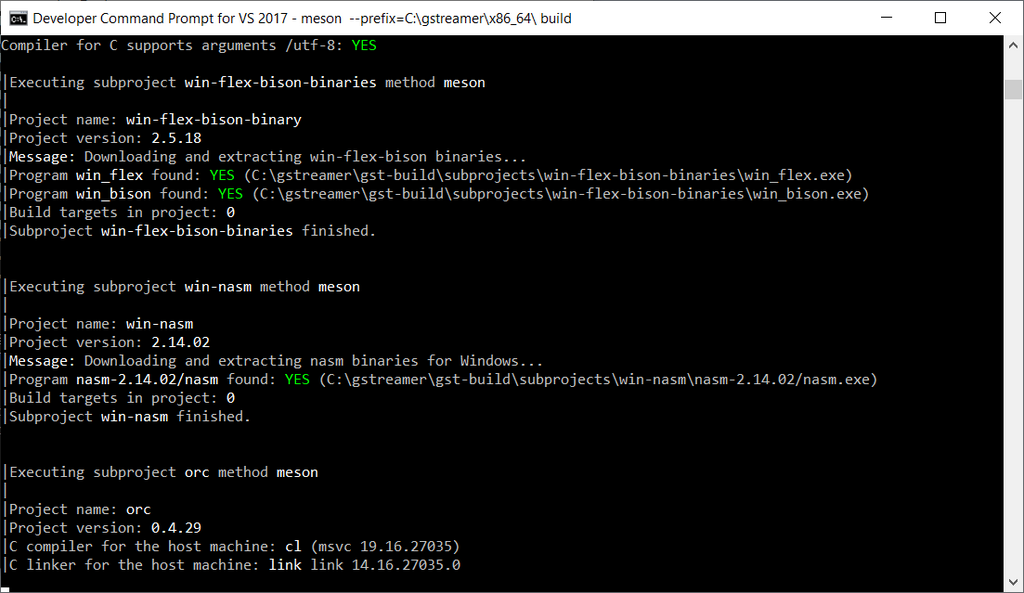
The CLI is powerful and fast for certain tasks. Developers use it to run package managers (like npm install), manage files, and execute scripts that automate parts of their workflow. While it might look intimidating at first, it's an essential tool for any programmer.
Ready to test your knowledge of these essential tools?
What is the primary purpose of an Integrated Development Environment (IDE)?
In software development, what are 'dependencies'?
Together, an IDE, a package manager, and the command line form the core of a modern development environment. Understanding how they work together is the first step toward building great software.