Claude Code for Product Managers
Terminal Foundation
Welcome to the Command Line
As a Product Manager, you're used to interacting with software through a Graphical User Interface, or GUI. You click buttons, drag windows, and navigate menus. It's intuitive and visual.
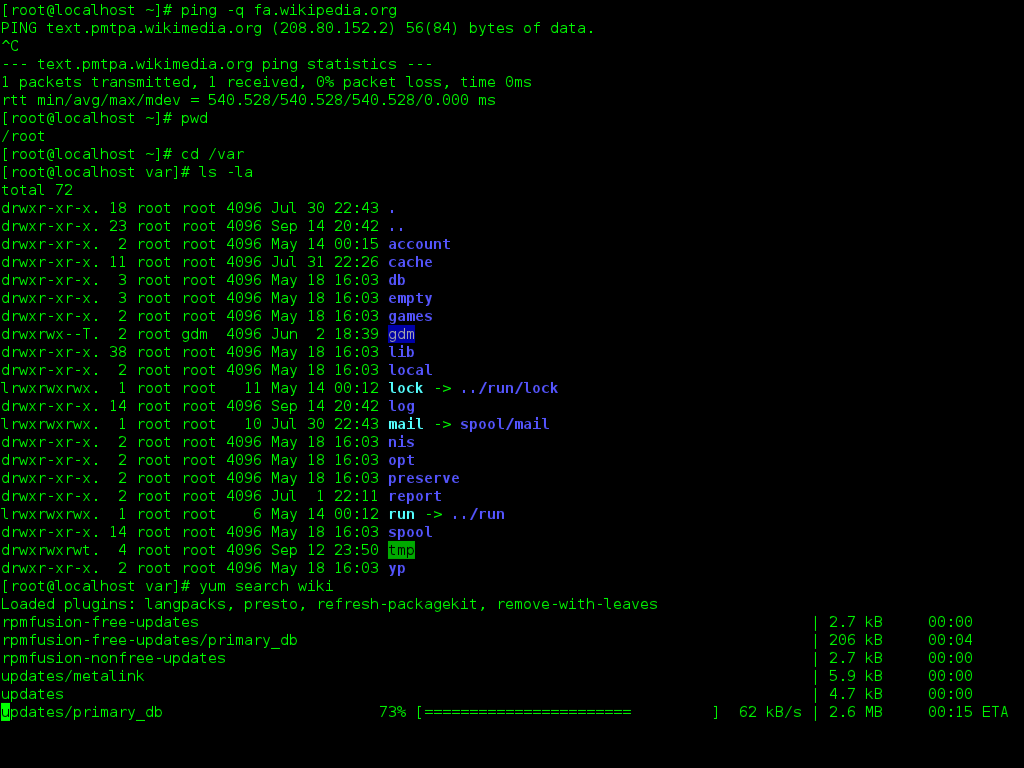
The terminal, or command-line interface (CLI), is a different way to talk to your computer. Instead of clicking, you type commands. It’s a direct, text-based conversation with the operating system. Think of it less like a mysterious black box and more like a powerful, precise file explorer and task manager. Tools like Claude Code live in this environment because it gives them direct access to files and system tools, allowing them to perform complex tasks efficiently.
Installing Claude Code
We'll install Claude Code using the official native installation scripts. This is the simplest and recommended method, ensuring you have the latest version without managing other dependencies like Node.js.
Open your terminal application (Terminal on macOS, PowerShell or Windows Terminal on Windows) and run the command appropriate for your operating system. These scripts download and set up the claude command for you.
# For macOS or Linux (using curl)
curl -fSL https://claude.ai/api/cli/install.sh | sh

# For Windows (using irm in PowerShell)
irm https://claude.ai/api/cli/install.ps1 | iex
With the installation complete, we need to ensure a key dependency is in place: s. Claude Code uses Git to understand your project's history, manage changes, and interact with code repositories just like a developer would. You can verify it's installed by checking its version.
git --version

# If successful, you'll see something like:
# git version 2.39.3 (Apple Git-145)
Authentication and First Steps
Now that Claude Code is installed, you need to connect it to your account. The first time you run any claude command, it will automatically open a web browser and ask you to log in. You'll need an active Claude Pro or Team plan for this to work.
Simply type claude and press Enter to begin.
claude
Once you're authenticated, you can start navigating your computer's file system. The two most fundamental commands you'll use are ls (list) and cd (change directory).
lsshows you the files and folders in your current location.cdlets you move into one of those folders.
For example, if ls shows a folder named Projects, you can move into it by typing cd Projects. This is how you'll position Claude Code inside the specific project you want it to work on.
You now have the foundational skills to install, authenticate, and navigate your local environment. You're ready to start directing Claude Code from the command line.