Chrome Extension Development Fundamentals
Introduction to Chrome Extensions
What Are Chrome Extensions?
Think of a web browser as a standard car. It gets you where you need to go, reliably. Chrome extensions are like custom upgrades. You can add a better sound system, GPS navigation, or even a supercharger. They are small software programs that customize your browsing experience, adding new features or changing how websites look and feel.
Extensions can block ads, manage your passwords, check your grammar, or let you save articles to read later. They integrate directly into Chrome, often appearing as small icons next to your address bar. Their main purpose is to tailor the browser to your specific needs, making it a more powerful and personal tool.
The Building Blocks
Every extension, no matter how simple or complex, is built from a few key components. Think of it like a team where each member has a specific job.
Manifest File: This is the manager. It’s a file named
manifest.jsonthat acts as the extension's blueprint. It tells Chrome essential information: its name, version, what permissions it needs (like accessing your tabs), and where to find the other files.
Background Scripts: This is the brain. A background script runs behind the scenes, independent of any web page. It listens for important events, like the browser starting up, a new tab opening, or you clicking the extension's icon. It handles the core logic that doesn't need to be tied to a specific page.
Content Scripts: These are the hands. Content scripts are JavaScript files that run in the context of web pages you visit. They can read and modify the page's content. This is how an ad-blocker removes ad elements from a page or a language tool translates text directly on your screen.
User Interface (UI) Elements: This is the face of the extension—how you interact with it. Common UI elements include:
- Pop-ups: A small window that appears when you click the extension's icon in the toolbar.
- Options Page: A dedicated settings page where you can customize how the extension works.
- Notifications: System alerts that can appear on your desktop.
The Power of APIs
So how does an extension actually do things like manage tabs or save bookmarks? It uses Chrome Extension APIs.
An API, or Application Programming Interface, is a set of tools and rules that allows different software components to communicate. In this case, Chrome provides a special set of JavaScript APIs that let your extension interact directly with the browser's features.
For example, there's a chrome.tabs API to create, query, and modify browser tabs. The chrome.storage API lets an extension save user settings. The chrome.bookmarks API allows it to create and organize bookmarks. These APIs are the source of an extension's power, giving it capabilities far beyond those of a standard website.
Tools for the Job
Getting started with extension development doesn't require a lot of fancy software. The main tools are already built into the browser you use every day.
| Tool | Purpose |
|---|---|
| Text Editor | To write your code. Any simple editor like VS Code, Sublime Text, or even Notepad will work. |
| Chrome Browser | To test your extension. You don't need a special version; the one you're using is the development environment. |
| Developer Tools | Chrome's built-in 'DevTools' are essential for debugging your code and inspecting how your extension interacts with web pages. |
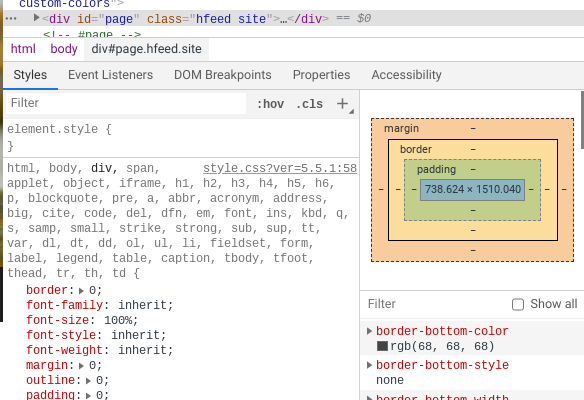
The official Chrome Extension documentation is the most important resource. It contains guides, tutorials, and a complete reference for all the available APIs. It’s the go-to place for any questions you might have as you start building.
According to the provided 'car analogy,' what do Chrome extensions represent?
Which component of a Chrome extension is considered its 'brain,' running behind the scenes to handle core logic independent of any specific web page?
Now you know what extensions are and the key components that make them work. Next, we'll set up your development environment.